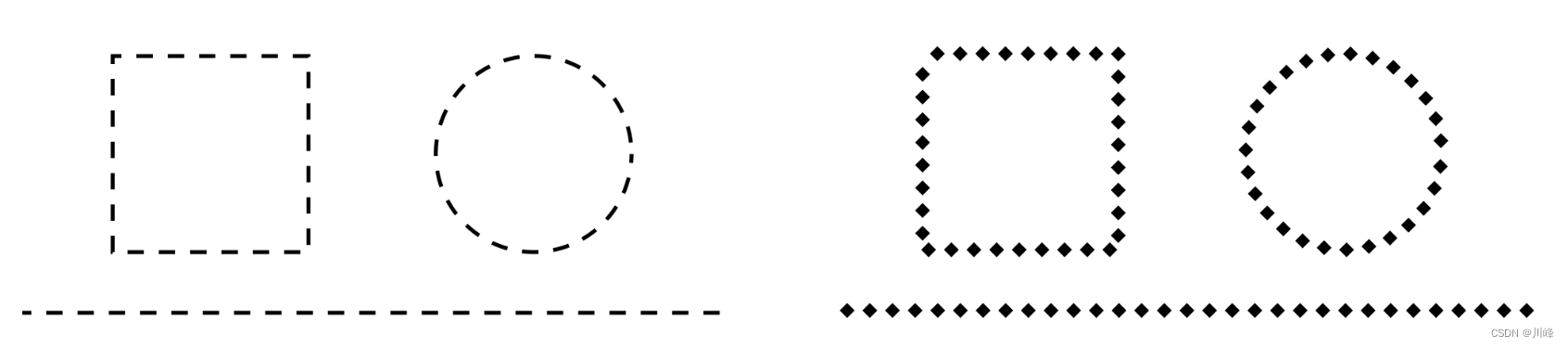
Jetpack Compose中的Canvas API 使用起来感觉比传统View中的要简单一些,因为它不需要画笔Paint和画布分开来,大多数直接就是一个函数搞定,当然也有一些限制。

Compose 直接提供了一个叫 Canvas 的 Composable 组件,可以在任何 Composable 组件中直接使用,在 Canvas 的DrawScope作用域中就可以使用其提供的各种绘制Api进行绘制了。这比传统View要方便的多,传统View中,你只能继承一个View控件,才有机会覆写其onDraw()方法。

基本图形绘制

常用的API一览表:

API 描述
drawLine 绘制一条线
drawRect 绘制一个矩形
drawImage 绘制一张图片
drawRoundRect 绘制一个圆角矩形
drawCircle 绘制一个圆
drawOval 绘制一个椭圆
drawArc 绘制一条弧线
drawPath 绘制一条路径
drawPoints 绘制一些点

这些基本图形的绘制比较简单,基本上尝试一下就知道如何使用了。Compose中的Canvas坐标体系跟传统View一样,也是也左上角为坐标原点的,因此如果是设置偏移量都是针对Canvas左上角而言的。

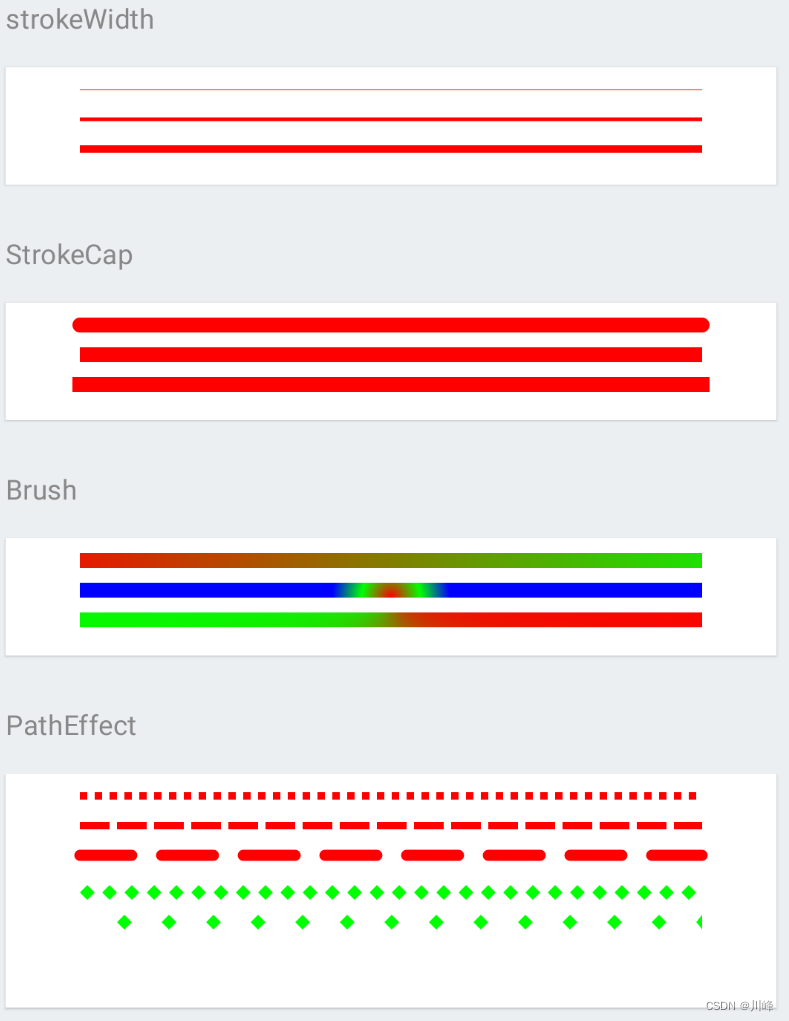
drawLine

1
2
3
4
5
6
7
8
9
10
11
12
13
14
15
16
17
18
19
20
21
22
23
24
25
26
27
28
29
30
31
32
33
34
35
36
37
38
39
40
41
42
43
44
45
46
47
48
49
50
51
52
53
54
55
56
57
58
59
60
61
62
63
64
65
66
67
68
69
70
71
72
73
74
75
76
77
78
79
80
81
82
83
84
85
86
87
88
89
90
91
92
93
94
95
96
97
98
99
100
101
102
103
104
105
106
107
108
109
110
111
112
113
114
115
116
117
118
119
120
121
122
123
124
125
126
127
128
129
130
131
132
133
134
135
136
137
138
139
140
141
142
143
144
145
146
147
148
149
150
151
152
153
154
155
156
157
158
@Composable
fun DrawLineExample() {
TutorialText2(text = "strokeWidth")
Canvas(modifier = canvasModifier) {
drawLine(
start = Offset(x = 100f, y = 30f),
end = Offset(x = size.width - 100f, y = 30f),
color = Color.Red,
)

drawLine(
start = Offset(x = 100f, y = 70f),
end = Offset(x = size.width - 100f, y = 70f),
color = Color.Red,
strokeWidth = 5f
)

drawLine(
start = Offset(x = 100f, y = 110f),
end = Offset(x = size.width - 100f, y = 110f),
color = Color.Red,
strokeWidth = 10f
)
}

Spacer(modifier = Modifier.height(10.dp))
TutorialText2(text = "StrokeCap")
Canvas(modifier = canvasModifier) {

drawLine(
cap = StrokeCap.Round,
start = Offset(x = 100f, y = 30f),
end = Offset(x = size.width - 100f, y = 30f),
color = Color.Red,
strokeWidth = 20f
)

drawLine(
cap = StrokeCap.Butt,
start = Offset(x = 100f, y = 70f),
end = Offset(x = size.width - 100f, y = 70f),
color = Color.Red,
strokeWidth = 20f
)

drawLine(
cap = StrokeCap.Square,
start = Offset(x = 100f, y = 110f),
end = Offset(x = size.width - 100f, y = 110f),
color = Color.Red,
strokeWidth = 20f
)
}

Spacer(modifier = Modifier.height(10.dp))
TutorialText2(text = "Brush")
Canvas(modifier = canvasModifier) {

drawLine(
brush = Brush.linearGradient(
colors = listOf(Color.Red, Color.Green)
),
start = Offset(x = 100f, y = 30f),
end = Offset(x = size.width - 100f, y = 30f),
strokeWidth = 20f,
)

drawLine(
brush = Brush.radialGradient(
colors = listOf(Color.Red, Color.Green, Color.Blue)
),
start = Offset(x = 100f, y = 70f),
end = Offset(x = size.width - 100f, y = 70f),
strokeWidth = 20f,
)

drawLine(
brush = Brush.sweepGradient(
colors = listOf(Color.Red, Color.Green, Color.Blue)
),
start = Offset(x = 100f, y = 110f),
end = Offset(x = size.width - 100f, y = 110f),
strokeWidth = 20f,
)
}

Spacer(modifier = Modifier.height(10.dp))
TutorialText2(text = "PathEffect")
Canvas(
modifier = Modifier
.padding(8.dp)
.shadow(1.dp)
.background(Color.White)
.fillMaxWidth()
.height(120.dp)
) {

drawLine(
pathEffect = PathEffect.dashPathEffect(floatArrayOf(10f, 10f)),
start = Offset(x = 100f, y = 30f),
end = Offset(x = size.width - 100f, y = 30f),
color = Color.Red,
strokeWidth = 10f
)


drawLine(
pathEffect = PathEffect.dashPathEffect(floatArrayOf(40f, 10f)),
start = Offset(x = 100f, y = 70f),
end = Offset(x = size.width - 100f, y = 70f),
color = Color.Red,
strokeWidth = 10f
)


drawLine(
pathEffect = PathEffect.dashPathEffect(floatArrayOf(70f, 40f)),
start = Offset(x = 100f, y = 110f),
end = Offset(x = size.width - 100f, y = 110f),
cap = StrokeCap.Round,
color = Color.Red,
strokeWidth = 15f
)

val path = Path().apply {
moveTo(10f, 0f)
lineTo(20f, 10f)
lineTo(10f, 20f)
lineTo(0f, 10f)
}

drawLine(
pathEffect = PathEffect.stampedPathEffect(
shape = path,
advance = 30f,
phase = 30f,
style = StampedPathEffectStyle.Rotate
),
start = Offset(x = 100f, y = 150f),
end = Offset(x = size.width - 100f, y = 150f),
color = Color.Green,
strokeWidth = 10f
)

drawLine(
pathEffect = PathEffect.stampedPathEffect(
shape = path,
advance = 30f,
phase = 10f,
style = StampedPathEffectStyle.Morph
),
start = Offset(x = 100f, y = 190f),
end = Offset(x = size.width - 100f, y = 190f),
color = Color.Green,
strokeWidth = 10f
)
}
}

在这里插入图片描述

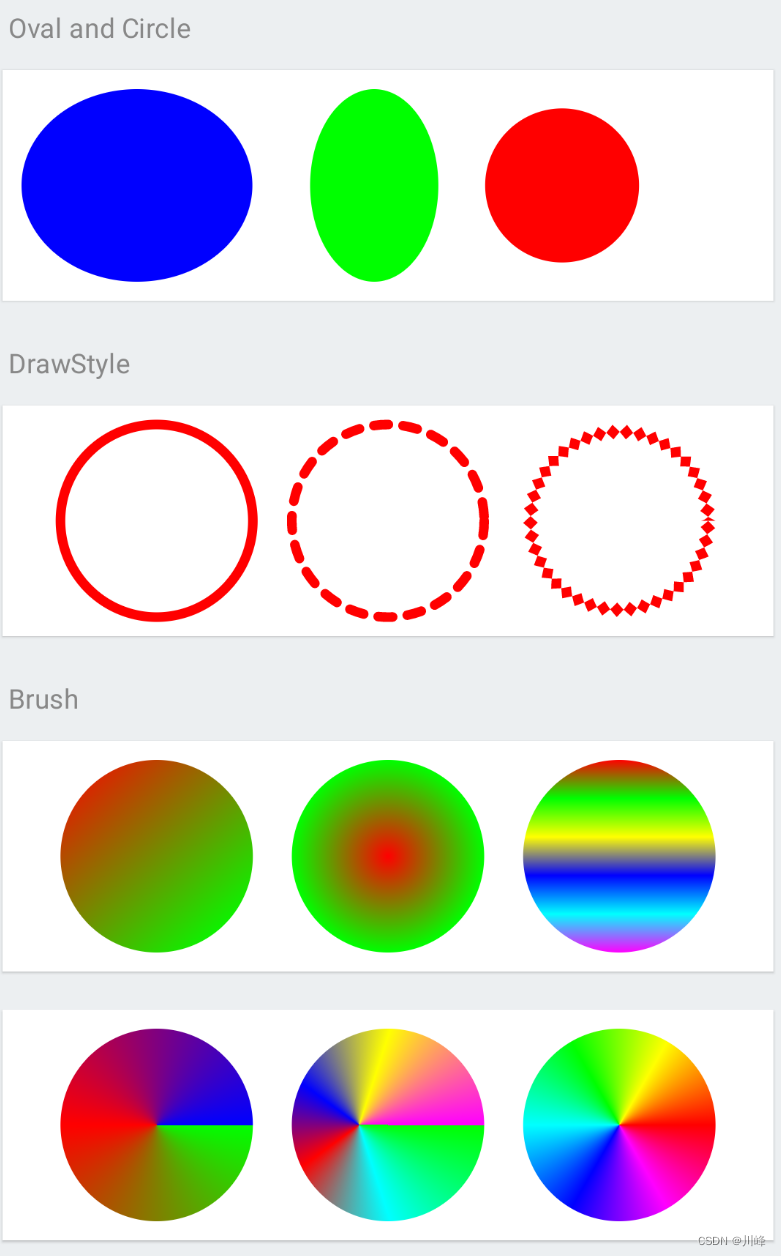
drawCircle & drawOval

1
2
3
4
5
6
7
8
9
10
11
12
13
14
15
16
17
18
19
20
21
22
23
24
25
26
27
28
29
30
31
32
33
34
35
36
37
38
39
40
41
42
43
44
45
46
47
48
49
50
51
52
53
54
55
56
57
58
59
60
61
62
63
64
65
66
67
68
69
70
71
72
73
74
75
76
77
78
79
80
81
82
83
84
85
86
87
88
89
90
91
92
93
94
95
96
97
98
99
100
101
102
103
104
105
106
107
108
109
110
111
112
113
114
115
116
117
118
119
120
121
122
123
124
125
126
127
128
129
130
131
132
133
134
135
136
137
138
139
140
141
142
143
144
145
146
147
148
149
150
151
152
153
154
155
156
157
158
159
160
161
162
163
164
165
166
167
168
169
170
@Composable
fun DrawCircleExample() {
TutorialText2(text = "Oval and Circle")
Canvas(modifier = canvasModifier2) {

val canvasWidth = size.width
val canvasHeight = size.height
val radius = canvasHeight / 2

drawOval(
color = Color.Blue,
topLeft = Offset.Zero,
size = Size(1.2f * canvasHeight, canvasHeight)
)
drawOval(
color = Color.Green,
topLeft = Offset(1.5f * canvasHeight, 0f),
size = Size(canvasHeight / 1.5f, canvasHeight)
)
drawCircle(
Color.Red,
center = Offset(canvasWidth - 2 * radius, canvasHeight / 2),
radius = radius * 0.8f,
)
}

Spacer(modifier = Modifier.height(10.dp))
TutorialText2(text = "DrawStyle")

Canvas(modifier = canvasModifier2) {
val canvasWidth = size.width
val canvasHeight = size.height
val radius = canvasHeight / 2
val space = (canvasWidth - 6 * radius) / 4

drawCircle(
color = Color.Red,
radius = radius,
center = Offset(space + radius, canvasHeight / 2),
style = Stroke(width = 5.dp.toPx())
)

drawCircle(
color = Color.Red,
radius = radius,
center = Offset(2 * space + 3 * radius, canvasHeight / 2),
style = Stroke(
width = 5.dp.toPx(),
join = StrokeJoin.Round,
cap = StrokeCap.Round,
pathEffect = PathEffect.dashPathEffect(floatArrayOf(20f, 20f))
)
)

val path = Path().apply {
moveTo(10f, 0f)
lineTo(20f, 10f)
lineTo(10f, 20f)
lineTo(0f, 10f)
}

val pathEffect = PathEffect.stampedPathEffect(
shape = path,
advance = 20f,
phase = 20f,
style = StampedPathEffectStyle.Morph
)

drawCircle(
color = Color.Red,
radius = radius,
center = Offset(canvasWidth - space - radius, canvasHeight / 2),
style = Stroke(
width = 5.dp.toPx(),
join = StrokeJoin.Round,
cap = StrokeCap.Round,
pathEffect = pathEffect
)
)
}

Spacer(modifier = Modifier.height(10.dp))
TutorialText2(text = "Brush")
Canvas(modifier = canvasModifier2) {
val canvasWidth = size.width
val canvasHeight = size.height
val radius = canvasHeight / 2
val space = (canvasWidth - 6 * radius) / 4

drawCircle(
brush = Brush.linearGradient(
colors = listOf(Color.Red, Color.Green),
start = Offset(radius * .3f, radius * .1f),
end = Offset(radius * 2f, radius * 2f)
),
radius = radius,
center = Offset(space + radius, canvasHeight / 2),
)

drawCircle(
brush = Brush.radialGradient(
colors = listOf(Color.Red, Color.Green)
),
radius = radius,
center = Offset(2 * space + 3 * radius, canvasHeight / 2),
)

drawCircle(
brush = Brush.verticalGradient(
colors = listOf(
Color.Red,
Color.Green,
Color.Yellow,
Color.Blue,
Color.Cyan,
Color.Magenta
),
),
radius = radius,
center = Offset(canvasWidth - space - radius, canvasHeight / 2)
)
}
Spacer(modifier = Modifier.height(10.dp))
Canvas(modifier = canvasModifier2) {
val canvasWidth = size.width
val canvasHeight = size.height
val radius = canvasHeight / 2
val space = (canvasWidth - 6 * radius) / 4

drawCircle(
brush = Brush.sweepGradient(
colors = listOf(
Color.Green,
Color.Red,
Color.Blue
),
center = Offset(space + radius, canvasHeight / 2),
),
radius = radius,
center = Offset(space + radius, canvasHeight / 2),
)

drawCircle(
brush = Brush.sweepGradient(
colors = listOf(
Color.Green,
Color.Cyan,
Color.Red,
Color.Blue,
Color.Yellow,
Color.Magenta,
),
// Offset for this gradient is not at center, a little bit left of center
center = Offset(2 * space + 2.7f * radius, canvasHeight / 2),
),
radius = radius,
center = Offset(2 * space + 3 * radius, canvasHeight / 2),
)


drawCircle(
brush = Brush.sweepGradient(
colors = gradientColors,
center = Offset(canvasWidth - space - radius, canvasHeight / 2),
),
radius = radius,
center = Offset(canvasWidth - space - radius, canvasHeight / 2)
)
}
}

在这里插入图片描述

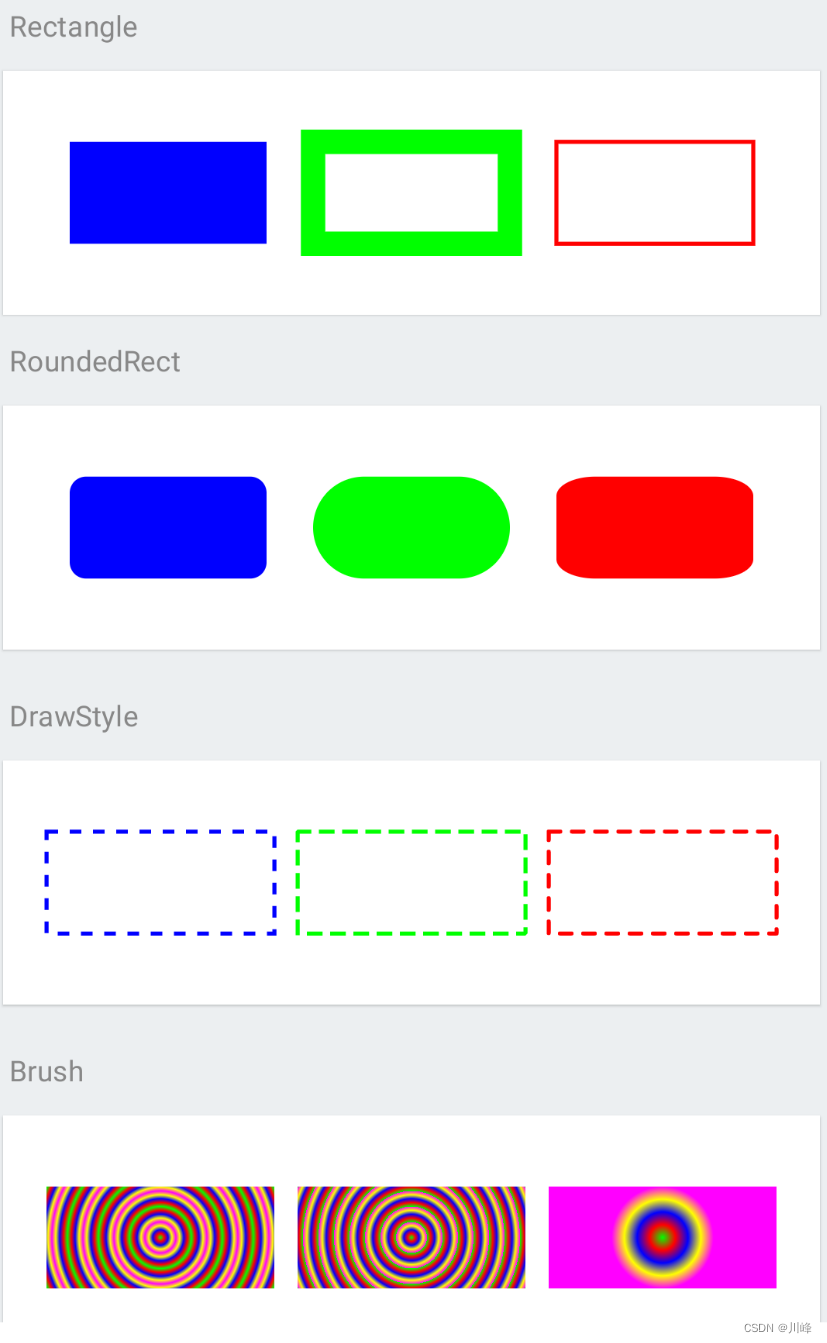
drawRect

1
2
3
4
5
6
7
8
9
10
11
12
13
14
15
16
17
18
19
20
21
22
23
24
25
26
27
28
29
30
31
32
33
34
35
36
37
38
39
40
41
42
43
44
45
46
47
48
49
50
51
52
53
54
55
56
57
58
59
60
61
62
63
64
65
66
67
68
69
70
71
72
73
74
75
76
77
78
79
80
81
82
83
84
85
86
87
88
89
90
91
92
93
94
95
96
97
98
99
100
101
102
103
104
105
106
107
108
109
110
111
112
113
114
115
116
117
118
119
120
121
122
123
124
125
126
127
128
129
130
131
132
133
134
135
136
137
138
139
140
141
142
143
144
145
146
147
148
149
150
151
152
153
154
155
156
157
158
159
160
161
162
163
164
165
166
167
168
169
170
@Composable
private fun DrawRectangleExample() {
Spacer(modifier = Modifier.height(10.dp))
TutorialText2(text = "Rectangle")
Canvas(modifier = canvasModifier2) {
val canvasWidth = size.width
val canvasHeight = size.height
val space = 60f
val rectHeight = canvasHeight / 2
val rectWidth = (canvasWidth - 4 * space) / 3

drawRect(
color = Color.Blue,
topLeft = Offset(space, rectHeight / 2),
size = Size(rectWidth, rectHeight)
)

drawRect(
color = Color.Green,
topLeft = Offset(2 * space + rectWidth, rectHeight / 2),
size = Size(rectWidth, rectHeight),
style = Stroke(width = 12.dp.toPx())
)

drawRect(
color = Color.Red,
topLeft = Offset(3 * space + 2 * rectWidth, rectHeight / 2),
size = Size(rectWidth, rectHeight),
style = Stroke(width = 2.dp.toPx())
)
}

TutorialText2(text = "RoundedRect")
Canvas(modifier = canvasModifier2) {
val canvasWidth = size.width
val canvasHeight = size.height
val space = 60f
val rectHeight = canvasHeight / 2
val rectWidth = (canvasWidth - 4 * space) / 3

drawRoundRect(
color = Color.Blue,
topLeft = Offset(space, rectHeight / 2),
size = Size(rectWidth, rectHeight),
cornerRadius = CornerRadius(8.dp.toPx(), 8.dp.toPx())
)

drawRoundRect(
color = Color.Green,
topLeft = Offset(2 * space + rectWidth, rectHeight / 2),
size = Size(rectWidth, rectHeight),
cornerRadius = CornerRadius(70f, 70f)

)

drawRoundRect(
color = Color.Red,
topLeft = Offset(3 * space + 2 * rectWidth, rectHeight / 2),
size = Size(rectWidth, rectHeight),
cornerRadius = CornerRadius(50f, 25f)
)
}

Spacer(modifier = Modifier.height(10.dp))
TutorialText2(text = "DrawStyle")
Canvas(modifier = canvasModifier2) {
val canvasWidth = size.width
val canvasHeight = size.height
val space = 30f
val rectHeight = canvasHeight / 2
val rectWidth = (canvasWidth - 4 * space) / 3

drawRect(
color = Color.Blue,
topLeft = Offset(space, rectHeight / 2),
size = Size(rectWidth, rectHeight),
style = Stroke(
width = 2.dp.toPx(),
join = StrokeJoin.Miter,
cap = StrokeCap.Butt,
pathEffect = PathEffect.dashPathEffect(floatArrayOf(15f, 15f))
)
)

drawRect(
color = Color.Green,
topLeft = Offset(2 * space + rectWidth, rectHeight / 2),
size = Size(rectWidth, rectHeight),
style = Stroke(
width = 2.dp.toPx(),
join = StrokeJoin.Bevel,
cap = StrokeCap.Square,
pathEffect = PathEffect.dashPathEffect(floatArrayOf(15f, 15f))
)
)

drawRect(
color = Color.Red,
topLeft = Offset(3 * space + 2 * rectWidth, rectHeight / 2),
size = Size(rectWidth, rectHeight),
style = Stroke(
width = 2.dp.toPx(),
join = StrokeJoin.Round,
cap = StrokeCap.Round,
pathEffect = PathEffect.dashPathEffect(floatArrayOf(15f, 15f))
)
)
}

Spacer(modifier = Modifier.height(10.dp))
TutorialText2(text = "Brush")
Canvas(modifier = canvasModifier2) {
val canvasWidth = size.width
val canvasHeight = size.height
val space = 30f
val rectHeight = canvasHeight / 2
val rectWidth = (canvasWidth - 4 * space) / 3

drawRect(
brush = Brush.radialGradient(
colors = listOf(
Color.Green,
Color.Red,
Color.Blue,
Color.Yellow,
Color.Magenta
),
center = Offset(space + .5f * rectWidth, rectHeight),
tileMode = TileMode.Mirror,
radius = 20f
),
topLeft = Offset(space, rectHeight / 2),
size = Size(rectWidth, rectHeight)
)

drawRect(
brush = Brush.radialGradient(
colors = listOf(
Color.Green,
Color.Red,
Color.Blue,
Color.Yellow,
Color.Magenta
),
center = Offset(2 * space + 1.5f * rectWidth, rectHeight),
tileMode = TileMode.Repeated,
radius = 20f
),
topLeft = Offset(2 * space + rectWidth, rectHeight / 2),
size = Size(rectWidth, rectHeight)
)

drawRect(
brush = Brush.radialGradient(
colors = listOf(
Color.Green,
Color.Red,
Color.Blue,
Color.Yellow,
Color.Magenta
),
center = Offset(3 * space + 2.5f * rectWidth, rectHeight),
tileMode = TileMode.Decal,
radius = rectHeight / 2
),
topLeft = Offset(3 * space + 2 * rectWidth, rectHeight / 2),
size = Size(rectWidth, rectHeight)
)
}
}

在这里插入图片描述

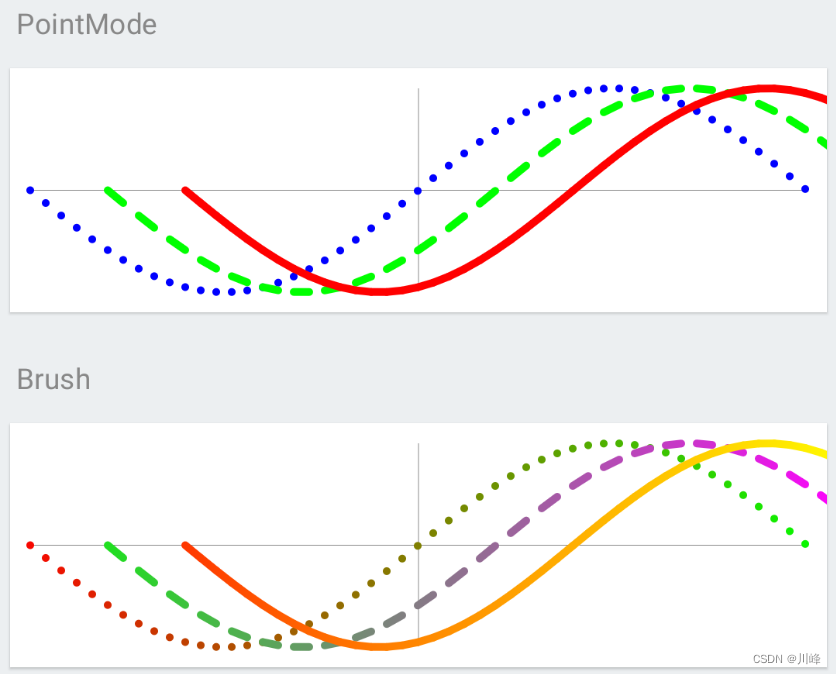
drawPoints

1
2
3
4
5
6
7
8
9
10
11
12
13
14
15
16
17
18
19
20
21
22
23
24
25
26
27
28
29
30
31
32
33
34
35
36
37
38
39
40
41
42
43
44
45
46
47
48
49
50
51
52
53
54
55
56
57
58
59
60
61
62
63
64
65
66
67
68
69
70
71
72
73
74
75
76
77
78
79
80
81
82
83
84
85
86
87
88
89
90
91
92
93
94
95
96
@Composable
fun DrawPointsExample() {
Spacer(modifier = Modifier.height(10.dp))
TutorialText2(text = "PointMode")
Canvas(modifier = canvasModifier2) {

val middleW = size.width / 2
val middleH = size.height / 2
drawLine(Color.Gray, Offset(0f, middleH), Offset(size.width - 1, middleH))
drawLine(Color.Gray, Offset(middleW, 0f), Offset(middleW, size.height - 1))

val points1 = getSinusoidalPoints(size)

drawPoints(
color = Color.Blue,
points = points1,
cap = StrokeCap.Round,
pointMode = PointMode.Points,
strokeWidth = 10f
)

val points2 = getSinusoidalPoints(size, 100f)
drawPoints(
color = Color.Green,
points = points2,
cap = StrokeCap.Round,
pointMode = PointMode.Lines,
strokeWidth = 10f
)

val points3 = getSinusoidalPoints(size, 200f)
drawPoints(
color = Color.Red,
points = points3,
cap = StrokeCap.Round,
pointMode = PointMode.Polygon,
strokeWidth = 10f
)
}

Spacer(modifier = Modifier.height(10.dp))
TutorialText2(text = "Brush")
Canvas(modifier = canvasModifier2) {

val middleW = size.width / 2
val middleH = size.height / 2
drawLine(Color.Gray, Offset(0f, middleH), Offset(size.width - 1, middleH))
drawLine(Color.Gray, Offset(middleW, 0f), Offset(middleW, size.height - 1))


val points1 = getSinusoidalPoints(size)

drawPoints(
brush = Brush.linearGradient(
colors = listOf(Color.Red, Color.Green)
),
points = points1,
cap = StrokeCap.Round,
pointMode = PointMode.Points,
strokeWidth = 10f
)

val points2 = getSinusoidalPoints(size, 100f)
drawPoints(
brush = Brush.linearGradient(
colors = listOf(Color.Green, Color.Magenta)
),
points = points2,
cap = StrokeCap.Round,
pointMode = PointMode.Lines,
strokeWidth = 10f
)

val points3 = getSinusoidalPoints(size, 200f)
drawPoints(
brush = Brush.linearGradient(
colors = listOf(Color.Red, Color.Yellow)
),
points = points3,
cap = StrokeCap.Round,
pointMode = PointMode.Polygon,
strokeWidth = 10f
)
}
}

fun getSinusoidalPoints(size: Size, horizontalOffset: Float = 0f): MutableList<Offset> {
val points = mutableListOf<Offset>()
val verticalCenter = size.height / 2

for (x in 0 until size.width.toInt() step 20) {
val y = (sin(x * (2f * PI / size.width)) * verticalCenter + verticalCenter).toFloat()
points.add(Offset(x.toFloat() + horizontalOffset, y))
}
return points
}

在这里插入图片描述

drawArc

1
2
3
4
5
6
7
8
9
10
11
12
13
14
15
16
17
18
19
20
21
22
23
24
25
26
27
28
29
30
31
32
33
34
35
36
37
38
39
40
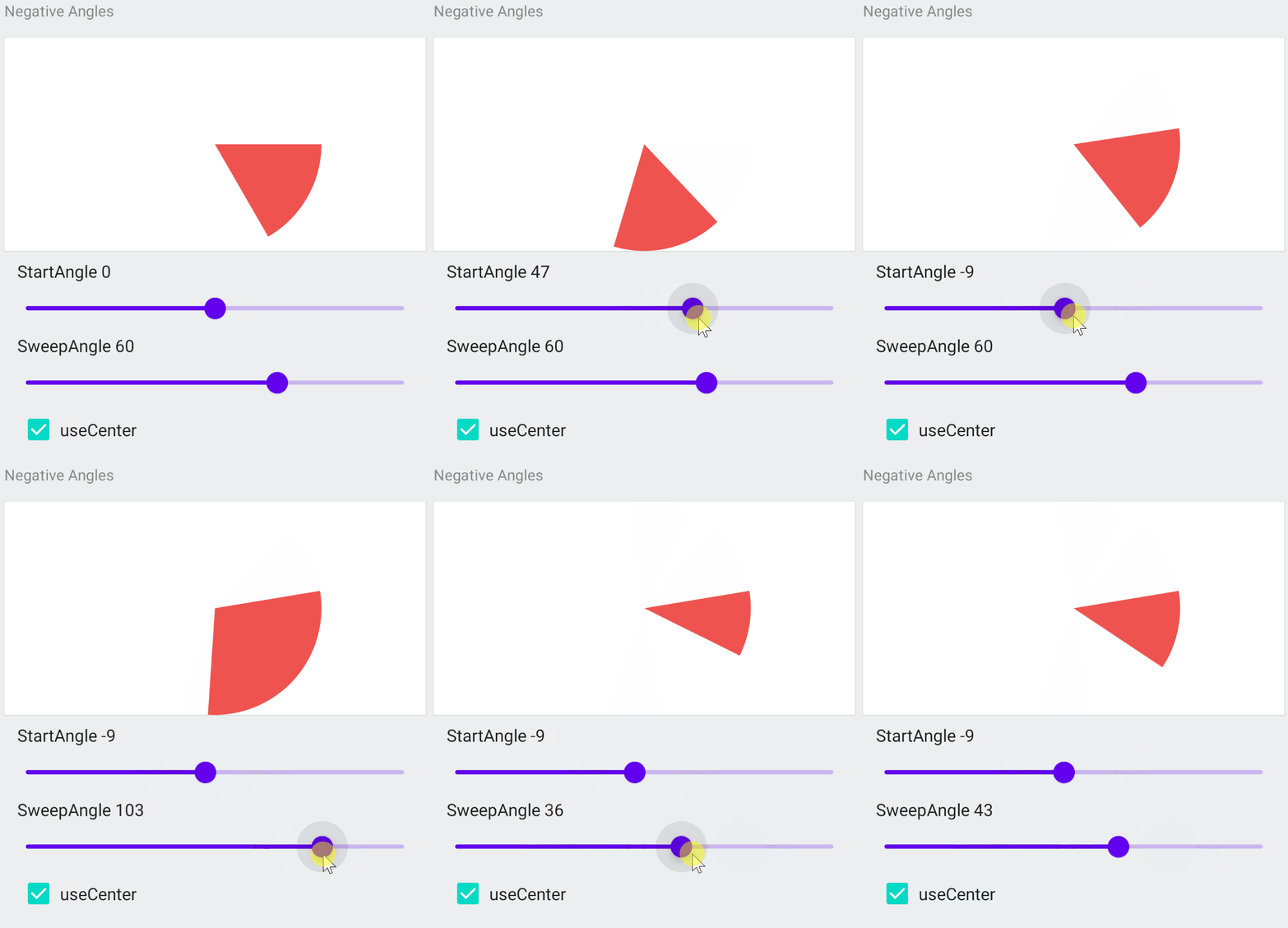
@Composable
fun DrawNegativeArc() {
var startAngle by remember { mutableStateOf(0f) }
var sweepAngle by remember { mutableStateOf(60f) }
var useCenter by remember { mutableStateOf(true) }

Canvas(modifier = canvasModifier) {
val canvasWidth = size.width
val canvasHeight = size.height

drawArc(
color = Red400,
startAngle,
sweepAngle,
useCenter,
topLeft = Offset((canvasWidth - canvasHeight) / 2, 0f),
size = Size(canvasHeight, canvasHeight)
)
}

Column(modifier = Modifier.padding(horizontal = 20.dp)) {
Text(text = "StartAngle ${startAngle.roundToInt()}")
Slider(
value = startAngle,
onValueChange = { startAngle = it },
valueRange = -180f..180f,
)

Text(text = "SweepAngle ${sweepAngle.roundToInt()}")
Slider(
value = sweepAngle,
onValueChange = { sweepAngle = it },
valueRange = -180f..180f,
)

CheckBoxWithTextRippleFullRow(label = "useCenter", useCenter) {
useCenter = it
}
}
}

在这里插入图片描述

在上面的代码中,需要留意的一点是drawArc函数中的startAnglesweepAngle参数,它们的值正值代表的是顺时针方向,而负值代表的是逆时针方向的。

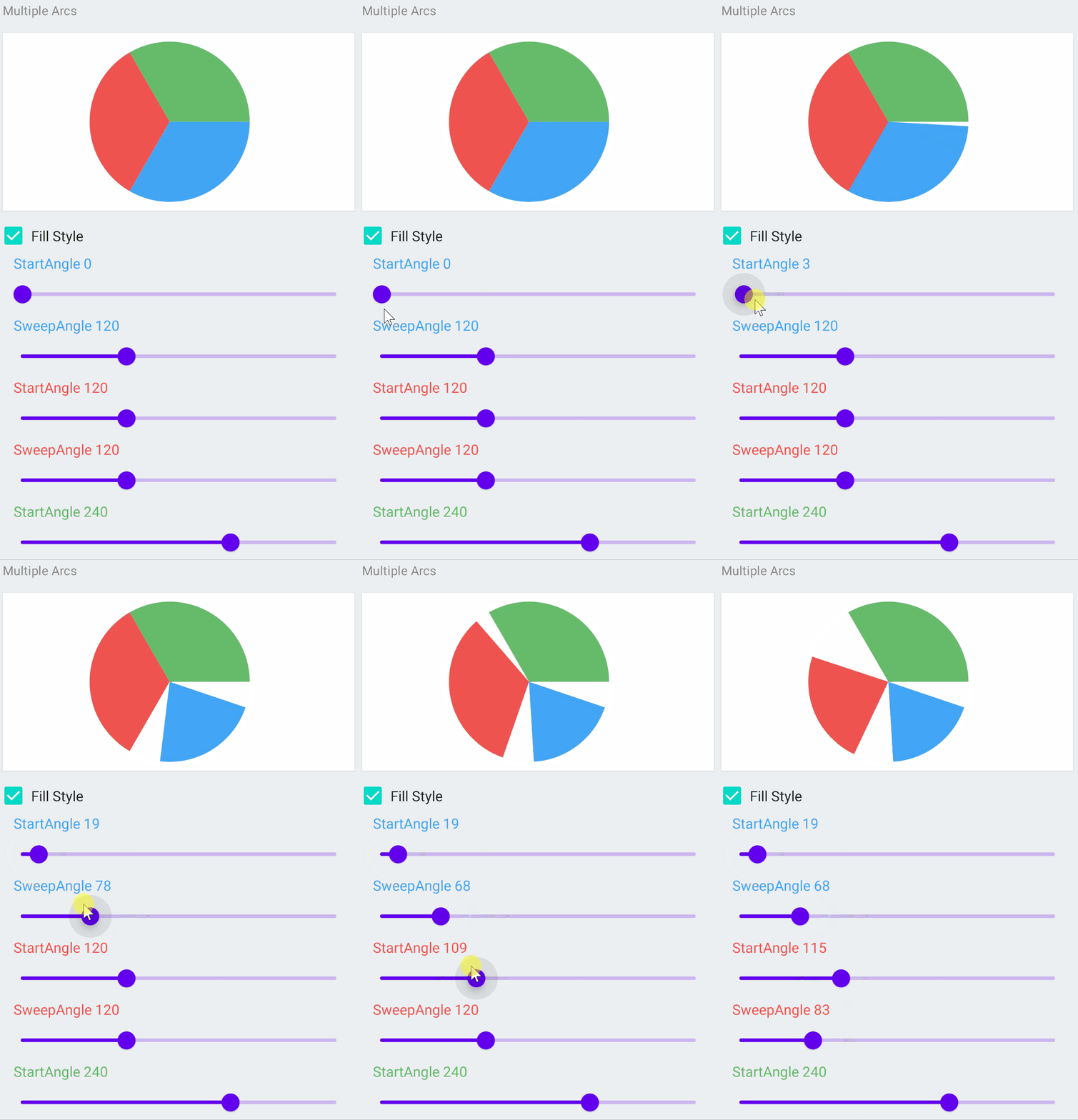
通过多个drawArc绘制饼图

1
2
3
4
5
6
7
8
9
10
11
12
13
14
15
16
17
18
19
20
21
22
23
24
25
26
27
28
29
30
31
32
33
34
35
36
37
38
39
40
41
42
43
44
45
46
47
48
49
50
51
52
53
54
55
56
57
58
59
60
61
62
63
64
65
66
67
68
69
70
71
72
73
74
75
76
77
78
79
80
81
82
83
84
85
86
87
88
89
90
91
92
93
94
95
96
97
98
99
100
101
102
103
104
105
106
107
108
109
110
111
112
113
114
@Composable
private fun DrawMultipleArcs() {
var startAngleBlue by remember { mutableStateOf(0f) }
var sweepAngleBlue by remember { mutableStateOf(120f) }

var startAngleRed by remember { mutableStateOf(120f) }
var sweepAngleRed by remember { mutableStateOf(120f) }

var startAngleGreen by remember { mutableStateOf(240f) }
var sweepAngleGreen by remember { mutableStateOf(120f) }

var isFill by remember { mutableStateOf(true) }

Canvas(modifier = canvasModifier) {
val canvasWidth = size.width
val canvasHeight = size.height
val arcHeight = canvasHeight - 20.dp.toPx()
val arcStrokeWidth = 10.dp.toPx()
val style = if (isFill) Fill else Stroke(arcStrokeWidth)

drawArc(
color = Blue400,
startAngleBlue,
sweepAngleBlue,
true,
topLeft = Offset(
(canvasWidth - canvasHeight) / 2,
(canvasHeight - arcHeight) / 2
),
size = Size(arcHeight, arcHeight),
style = style
)

drawArc(
color = Red400,
startAngleRed,
sweepAngleRed,
true,
topLeft = Offset(
(canvasWidth - canvasHeight) / 2,
(canvasHeight - arcHeight) / 2
),
size = Size(arcHeight, arcHeight),
style = style
)

drawArc(
color = Green400,
startAngleGreen,
sweepAngleGreen,
true,
topLeft = Offset(
(canvasWidth - canvasHeight) / 2,
(canvasHeight - arcHeight) / 2
),
size = Size(arcHeight, arcHeight),
style = style
)
}

CheckBoxWithTextRippleFullRow(label = "Fill Style", isFill) {
isFill = it
}

Column(modifier = Modifier.padding(horizontal = 20.dp)) {
Text(text = "StartAngle ${startAngleBlue.roundToInt()}", color = Blue400)
Slider(
value = startAngleBlue,
onValueChange = { startAngleBlue = it },
valueRange = 0f..360f,
)

Text(text = "SweepAngle ${sweepAngleBlue.roundToInt()}", color = Blue400)
Slider(
value = sweepAngleBlue,
onValueChange = { sweepAngleBlue = it },
valueRange = 0f..360f,
)
}


Column(modifier = Modifier.padding(horizontal = 20.dp)) {
Text(text = "StartAngle ${startAngleRed.roundToInt()}", color = Red400)
Slider(
value = startAngleRed,
onValueChange = { startAngleRed = it },
valueRange = 0f..360f,
)

Text(text = "SweepAngle ${sweepAngleRed.roundToInt()}", color = Red400)
Slider(
value = sweepAngleRed,
onValueChange = { sweepAngleRed = it },
valueRange = 0f..360f,
)
}


Column(modifier = Modifier.padding(horizontal = 20.dp)) {
Text(text = "StartAngle ${startAngleGreen.roundToInt()}", color = Green400)
Slider(
value = startAngleGreen,
onValueChange = { startAngleGreen = it },
valueRange = 0f..360f,
)

Text(text = "SweepAngle ${sweepAngleGreen.roundToInt()}", color = Green400)
Slider(
value = sweepAngleGreen,
onValueChange = { sweepAngleGreen = it },
valueRange = 0f..360f,
)
}
}

在这里插入图片描述

drawPath

1
2
3
4
5
6
7
8
9
10
11
12
13
14
15
16
17
18
19
20
21
22
23
24
25
26
27
28
29
30
31
32
33
34
35
36
37
38
39
40
41
42
43
44
45
46
47
48
49
50
51
52
53
54
55
56
57
58
59
60
61
62
63
64
65
66
67
68
69
70
71
72
73
74
75
76
77
78
79
80
81
82
83
84
85
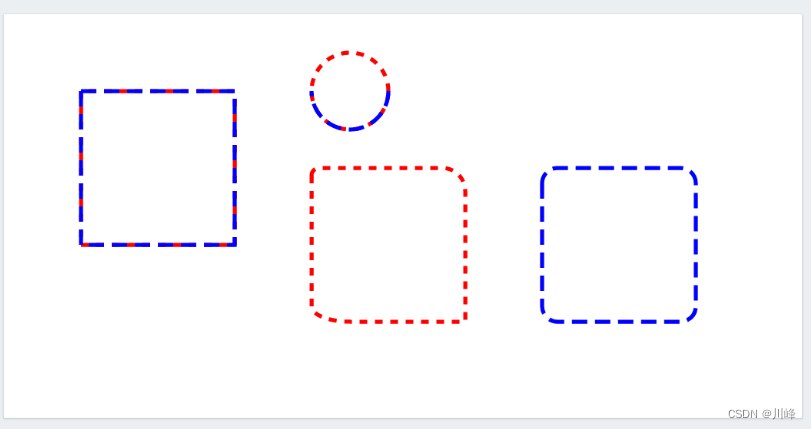
@Composable
fun DrawPath() {
val path1 = remember { Path() }
val path2 = remember { Path() }

Canvas(modifier = canvasModifier) {
// Since we remember paths from each recomposition we reset them to have fresh ones
// You can create paths here if you want to have new path instances
path1.reset()
path2.reset()

path1.moveTo(100f, 100f)
// Draw a line from top right corner (100, 100) to (100,300)
path1.lineTo(100f, 300f)
// Draw a line from (100, 300) to (300,300)
path1.lineTo(300f, 300f)
// Draw a line from (300, 300) to (300,100)
path1.lineTo(300f, 100f)
// Draw a line from (300, 100) to (100,100)
path1.lineTo(100f, 100f)


// Using relatives to draw blue path, relative is based on previous position of path
path2.relativeMoveTo(100f, 100f)
// Draw a line from (100,100) from (100, 300)
path2.relativeLineTo(0f, 200f)
// Draw a line from (100, 300) to (300,300)
path2.relativeLineTo(200f, 0f)
// Draw a line from (300, 300) to (300,100)
path2.relativeLineTo(0f, -200f)
// Draw a line from (300, 100) to (100,100)
path2.relativeLineTo(-200f, 0f)

// Add rounded rectangle to path1
path1.addRoundRect(
RoundRect(
left = 400f,
top = 200f,
right = 600f,
bottom = 400f,
topLeftCornerRadius = CornerRadius(10f, 10f),
topRightCornerRadius = CornerRadius(30f, 30f),
bottomLeftCornerRadius = CornerRadius(50f, 20f),
bottomRightCornerRadius = CornerRadius(0f, 0f)
)
)

// Add rounded rectangle to path2
path2.addRoundRect(
RoundRect(
left = 700f,
top = 200f,
right = 900f,
bottom = 400f,
radiusX = 20f,
radiusY = 20f
)
)

path1.addOval(Rect(left = 400f, top = 50f, right = 500f, bottom = 150f))
path2.addArc(
Rect(400f, top = 50f, right = 500f, bottom = 150f),
startAngleDegrees = 0f,
sweepAngleDegrees = 180f
)

drawPath(
color = Color.Red,
path = path1,
style = Stroke(
width = 2.dp.toPx(),
pathEffect = PathEffect.dashPathEffect(floatArrayOf(10f, 10f))
)
)

drawPath(
color = Color.Blue,
path = path2,
style = Stroke(
width = 2.dp.toPx(),
pathEffect = PathEffect.dashPathEffect(floatArrayOf(20f, 10f))
)
)
}
}

在这里插入图片描述

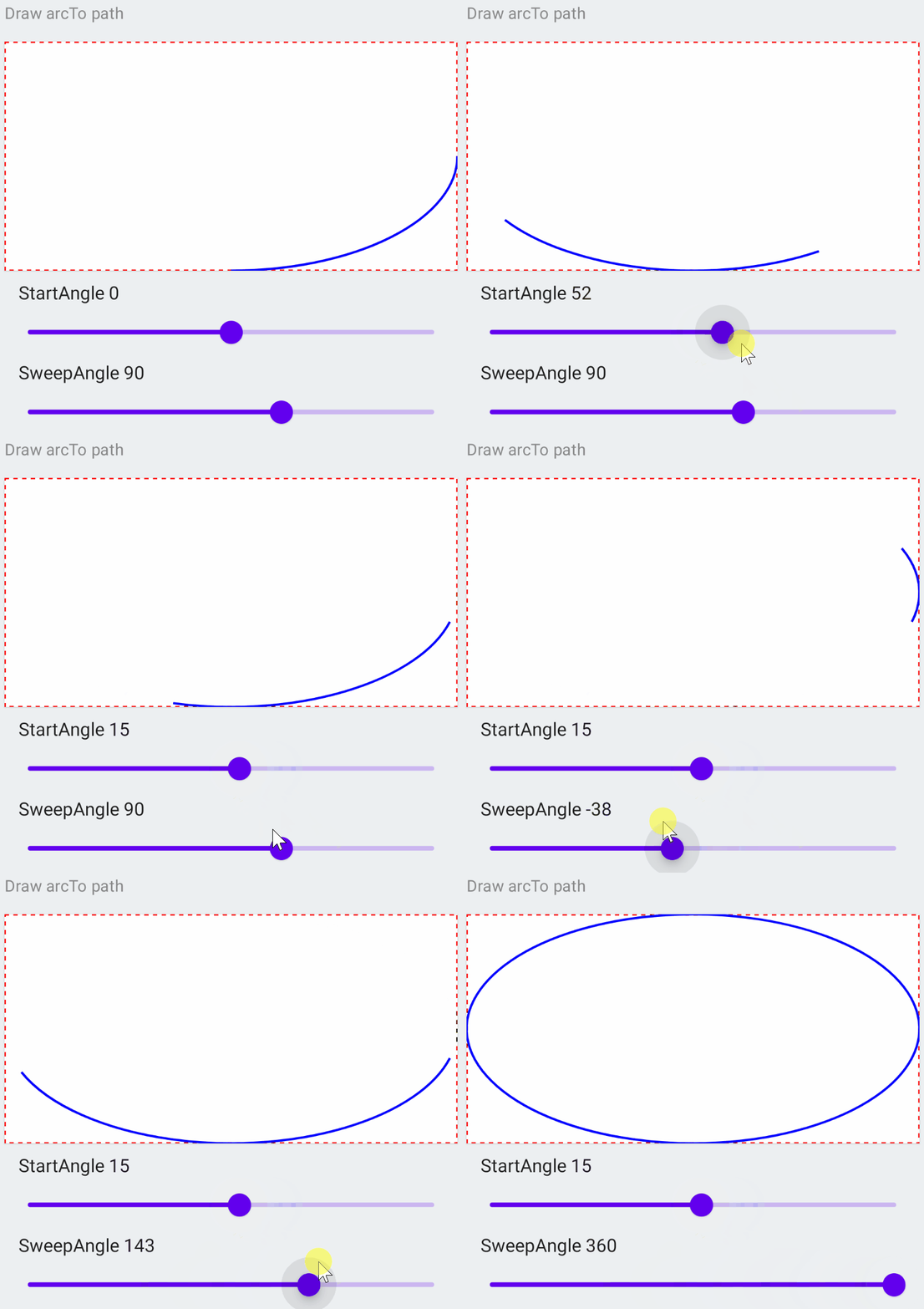
path.arcTo
1
2
3
4
5
6
7
8
9
10
11
12
13
14
15
16
17
18
19
20
21
22
23
24
25
26
27
28
29
30
31
32
33
34
35
36
37
38
39
40
41
42
43
44
45
46
47
48
49
50
51
52
53
54
55
@Composable
fun DrawArcToPath() {
val path1 = remember { Path() }
val path2 = remember { Path() }

var startAngle by remember { mutableStateOf(0f) }
var sweepAngle by remember { mutableStateOf(90f) }

Canvas(modifier = canvasModifier) {
// Since we remember paths from each recomposition we reset them to have fresh ones
// You can create paths here if you want to have new path instances
path1.reset()
path2.reset()

val rect = Rect(0f, 0f, size.width, size.height)
path1.addRect(rect)
path2.arcTo(
rect,
startAngleDegrees = startAngle,
sweepAngleDegrees = sweepAngle,
forceMoveTo = false
)

drawPath(
color = Color.Red,
path = path1,
style = Stroke(
width = 2.dp.toPx(),
pathEffect = PathEffect.dashPathEffect(floatArrayOf(10f, 10f))
)
)

drawPath(
color = Color.Blue,
path = path2,
style = Stroke(width = 2.dp.toPx())
)
}

Column(modifier = Modifier.padding(horizontal = 20.dp)) {
Text(text = "StartAngle ${startAngle.roundToInt()}")
Slider(
value = startAngle,
onValueChange = { startAngle = it },
valueRange = -360f..360f,
)

Text(text = "SweepAngle ${sweepAngle.roundToInt()}")
Slider(
value = sweepAngle,
onValueChange = { sweepAngle = it },
valueRange = -360f..360f,
)
}
}

在这里插入图片描述

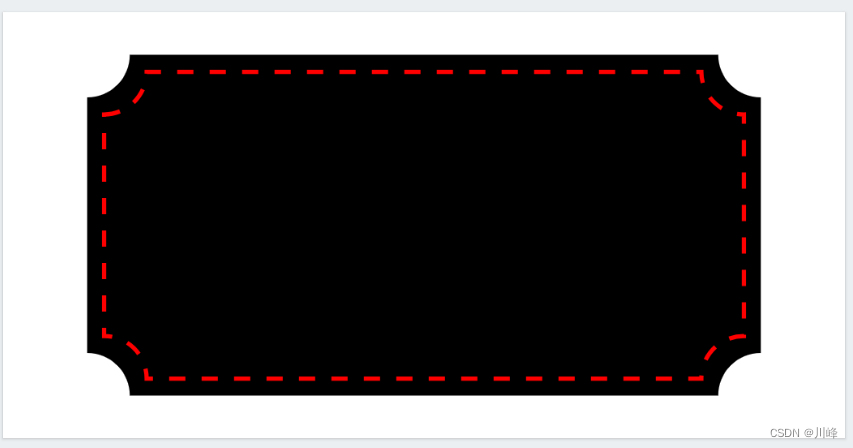
DrawTicketPath
1
2
3
4
5
6
7
8
9
10
11
12
13
14
15
16
17
18
19
20
21
22
23
24
25
26
27
28
29
30
31
32
33
34
35
36
37
38
39
40
41
42
43
44
45
46
47
48
49
50
51
52
53
54
55
56
57
58
59
60
61
62
63
64
65
66
67
68
69
70
71
72
73
74
75
76
77
78
79
80
81
82
83
84
85
86
87
88
89
90
91
92
93
94
95
96
97
98
99
100
101
102
103
104
105
106
107
108
109
110
111
@Composable
private fun DrawTicketPathWithArc() {
Canvas(modifier = canvasModifier) {

val canvasWidth = size.width
val canvasHeight = size.height

// Black background
val ticketBackgroundWidth = canvasWidth * .8f
val horizontalSpace = (canvasWidth - ticketBackgroundWidth) / 2

val ticketBackgroundHeight = canvasHeight * .8f
val verticalSpace = (canvasHeight - ticketBackgroundHeight) / 2

// Get ticket path for background
val path1 = ticketPath(
topLeft = Offset(horizontalSpace, verticalSpace),
size = Size(ticketBackgroundWidth, ticketBackgroundHeight),
cornerRadius = 20.dp.toPx()
)
drawPath(path1, color = Color.Black)

// Dashed path in foreground
val ticketForegroundWidth = ticketBackgroundWidth * .95f
val horizontalSpace2 = (canvasWidth - ticketForegroundWidth) / 2

val ticketForegroundHeight = ticketBackgroundHeight * .9f
val verticalSpace2 = (canvasHeight - ticketForegroundHeight) / 2

// Get ticket path for background
val path2 = ticketPath(
topLeft = Offset(horizontalSpace2, verticalSpace2),
size = Size(ticketForegroundWidth, ticketForegroundHeight),
cornerRadius = 20.dp.toPx()
)
drawPath(
path2,
color = Color.Red,
style = Stroke(
width = 2.dp.toPx(),
pathEffect = PathEffect.dashPathEffect(
floatArrayOf(20f, 20f)
)
)
)
}
}
/**
* Create a ticket path with given size and corner radius in px with offset [topLeft].
*
* Refer [this link](https://juliensalvi.medium.com/custom-shape-with-jetpack-compose-1cb48a991d42)
* for implementation details.
*/
fun ticketPath(topLeft: Offset = Offset.Zero, size: Size, cornerRadius: Float): Path {
return Path().apply {
reset()
// Top left arc
arcTo(
rect = Rect(
left = topLeft.x + -cornerRadius,
top = topLeft.y + -cornerRadius,
right = topLeft.x + cornerRadius,
bottom = topLeft.y + cornerRadius
),
startAngleDegrees = 90.0f,
sweepAngleDegrees = -90.0f,
forceMoveTo = false
)
lineTo(x = topLeft.x + size.width - cornerRadius, y = topLeft.y)
// Top right arc
arcTo(
rect = Rect(
left = topLeft.x + size.width - cornerRadius,
top = topLeft.y + -cornerRadius,
right = topLeft.x + size.width + cornerRadius,
bottom = topLeft.y + cornerRadius
),
startAngleDegrees = 180.0f,
sweepAngleDegrees = -90.0f,
forceMoveTo = false
)
lineTo(x = topLeft.x + size.width, y = topLeft.y + size.height - cornerRadius)
// Bottom right arc
arcTo(
rect = Rect(
left = topLeft.x + size.width - cornerRadius,
top = topLeft.y + size.height - cornerRadius,
right = topLeft.x + size.width + cornerRadius,
bottom = topLeft.y + size.height + cornerRadius
),
startAngleDegrees = 270.0f,
sweepAngleDegrees = -90.0f,
forceMoveTo = false
)
lineTo(x = topLeft.x + cornerRadius, y = topLeft.y + size.height)
// Bottom left arc
arcTo(
rect = Rect(
left = topLeft.x + -cornerRadius,
top = topLeft.y + size.height - cornerRadius,
right = topLeft.x + cornerRadius,
bottom = topLeft.y + size.height + cornerRadius
),
startAngleDegrees = 0.0f,
sweepAngleDegrees = -90.0f,
forceMoveTo = false
)
lineTo(x = topLeft.x, y = topLeft.y + cornerRadius)
close()
}
}

在这里插入图片描述

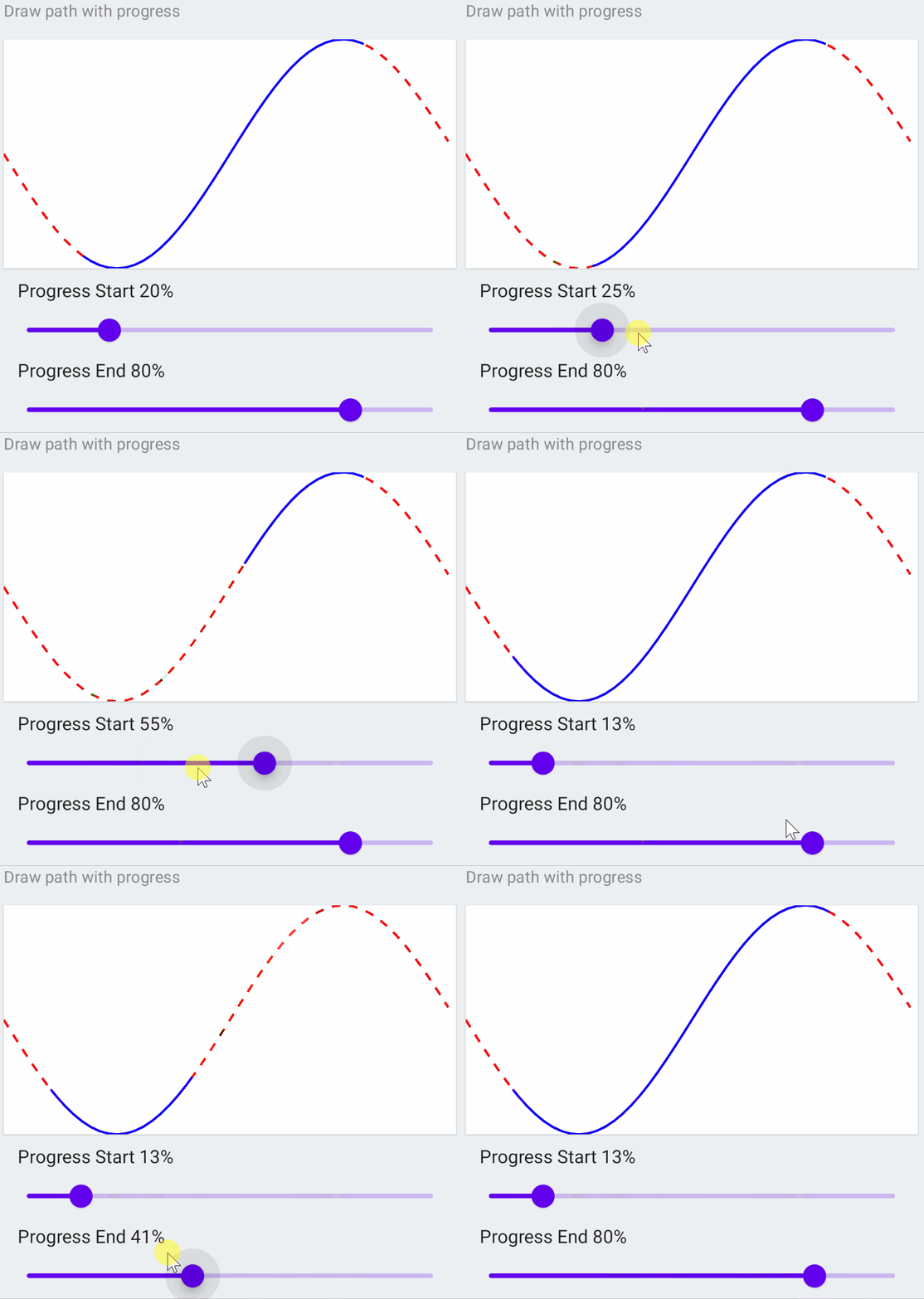
drawPath With Progress
1
2
3
4
5
6
7
8
9
10
11
12
13
14
15
16
17
18
19
20
21
22
23
24
25
26
27
28
29
30
31
32
33
34
35
36
37
38
39
40
41
42
43
44
45
46
47
48
49
50
51
52
53
54
55
56
57
58
59
60
61
62
63
64
65
66
67
68
69
70
71
72
@Composable
fun DrawPathProgress() {
var progressStart by remember { mutableStateOf(20f) }
var progressEnd by remember { mutableStateOf(80f) }

// This is the progress path which wis changed using path measure
val pathWithProgress by remember { mutableStateOf(Path()) }

// using path
val pathMeasure by remember { mutableStateOf(PathMeasure()) }

Canvas(modifier = canvasModifier) {
/*
Draw function with progress like sinus wave
*/
val canvasHeight = size.height

val points = getSinusoidalPoints(size)

val fullPath = Path()

fullPath.moveTo(0f, canvasHeight / 2f)
points.forEach { offset: Offset ->
fullPath.lineTo(offset.x, offset.y)
}

pathWithProgress.reset()

pathMeasure.setPath(fullPath, forceClosed = false)
pathMeasure.getSegment(
startDistance = pathMeasure.length * progressStart / 100f,
stopDistance = pathMeasure.length * progressEnd / 100f,
pathWithProgress,
startWithMoveTo = true
)

drawPath(
color = Color.Red,
path = fullPath,
style = Stroke(
width = 2.dp.toPx(),
pathEffect = PathEffect.dashPathEffect(floatArrayOf(20f, 20f))
)
)

drawPath(
color = Color.Blue,
path = pathWithProgress,
style = Stroke(
width = 2.dp.toPx(),
)
)
}

Column(modifier = Modifier.padding(horizontal = 20.dp)) {

Text(text = "Progress Start ${progressStart.roundToInt()}%")
Slider(
value = progressStart,
onValueChange = { progressStart = it },
valueRange = 0f..100f,
)

Text(text = "Progress End ${progressEnd.roundToInt()}%")
Slider(
value = progressEnd,
onValueChange = { progressEnd = it },
valueRange = 0f..100f,
)
}
}

在这里插入图片描述

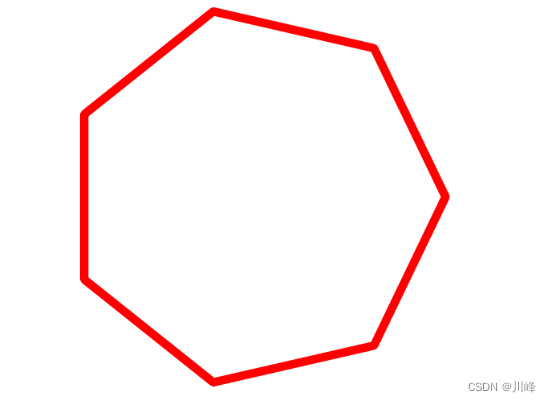
draw Polygon Path
1
2
3
4
5
6
7
8
9
10
11
12
13
14
15
16
17
18
19
20
21
22
23
24
25
26
27
28
29
30
31
32
33
34
35
36
37
38
39
40
41
42
43
44
45
46
47
48
49
50
51
52
53
54
55
56
57
58
@Composable
fun DrawPolygonPath() {
var sides by remember { mutableStateOf(3f) }
var cornerRadius by remember { mutableStateOf(1f) }

Canvas(modifier = canvasModifier) {
val canvasWidth = size.width
val canvasHeight = size.height
val cx = canvasWidth / 2
val cy = canvasHeight / 2
val radius = (canvasHeight - 20.dp.toPx()) / 2
val path = createPolygonPath(cx, cy, sides.roundToInt(), radius)

drawPath(
color = Color.Red,
path = path,
style = Stroke(
width = 4.dp.toPx(),
pathEffect = PathEffect.cornerPathEffect(cornerRadius)
)
)
}

Column(modifier = Modifier.padding(horizontal = 20.dp)) {
Text(text = "Sides ${sides.roundToInt()}")
Slider(
value = sides,
onValueChange = { sides = it },
valueRange = 3f..12f,
steps = 10
)

Text(text = "CornerRadius ${cornerRadius.roundToInt()}")

Slider(
value = cornerRadius,
onValueChange = { cornerRadius = it },
valueRange = 0f..50f,
)
}
}
fun createPolygonPath(cx: Float, cy: Float, sides: Int, radius: Float): Path {
val angle = 2.0 * Math.PI / sides

return Path().apply {
moveTo(
cx + (radius * cos(0.0)).toFloat(),
cy + (radius * sin(0.0)).toFloat()
)
for (i in 1 until sides) {
lineTo(
cx + (radius * cos(angle * i)).toFloat(),
cy + (radius * sin(angle * i)).toFloat()
)
}
close()
}
}

在这里插入图片描述

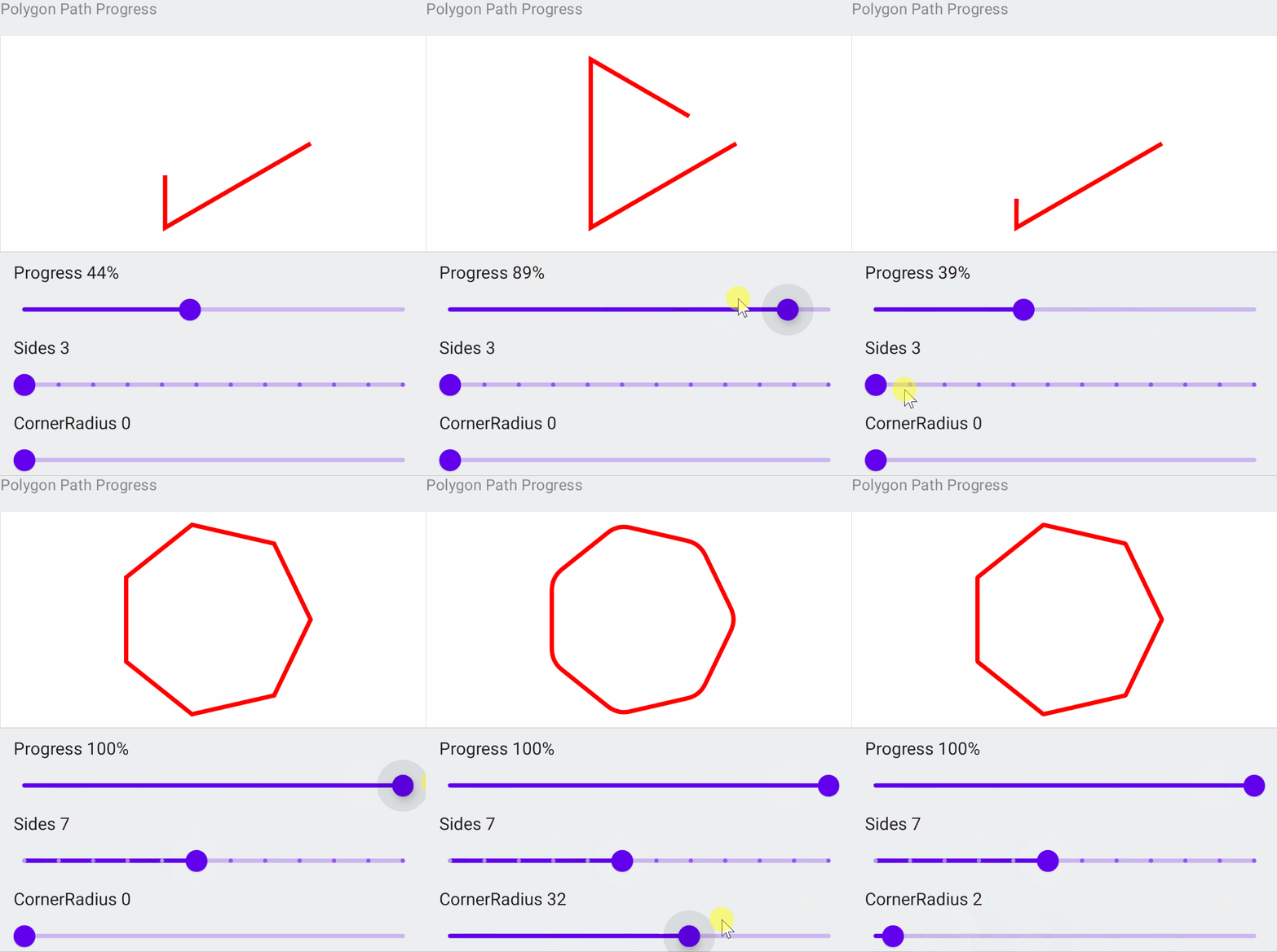
draw Polygon Path With Progress
1
2
3
4
5
6
7
8
9
10
11
12
13
14
15
16
17
18
19
20
21
22
23
24
25
26
27
28
29
30
31
32
33
34
35
36
37
38
39
40
41
42
43
44
45
46
47
48
49
50
51
52
53
54
55
56
57
58
59
60
61
62
63
64
65
66
67
private fun DrawPolygonPathWithProgress() {

var sides by remember { mutableStateOf(3f) }
var cornerRadius by remember { mutableStateOf(1f) }
val pathMeasure by remember { mutableStateOf(PathMeasure()) }
var progress by remember { mutableStateOf(50f) }

val pathWithProgress by remember {
mutableStateOf(Path())
}

Canvas(modifier = canvasModifier) {
val canvasWidth = size.width
val canvasHeight = size.height
val cx = canvasWidth / 2
val cy = canvasHeight / 2
val radius = (canvasHeight - 20.dp.toPx()) / 2

val fullPath = createPolygonPath(cx, cy, sides.roundToInt(), radius)
pathWithProgress.reset()
if (progress >= 100f) {
pathWithProgress.addPath(fullPath)
} else {
pathMeasure.setPath(fullPath, forceClosed = false)
pathMeasure.getSegment(
startDistance = 0f,
stopDistance = pathMeasure.length * progress / 100f,
pathWithProgress,
startWithMoveTo = true
)
}

drawPath(
color = Color.Red,
path = pathWithProgress,
style = Stroke(
width = 4.dp.toPx(),
pathEffect = PathEffect.cornerPathEffect(cornerRadius)
)
)
}

Column(modifier = Modifier.padding(horizontal = 20.dp)) {

Text(text = "Progress ${progress.roundToInt()}%")
Slider(
value = progress,
onValueChange = { progress = it },
valueRange = 0f..100f,
)

Text(text = "Sides ${sides.roundToInt()}")
Slider(
value = sides,
onValueChange = { sides = it },
valueRange = 3f..12f,
steps = 10
)

Text(text = "CornerRadius ${cornerRadius.roundToInt()}")
Slider(
value = cornerRadius,
onValueChange = { cornerRadius = it },
valueRange = 0f..50f,
)
}
}

在这里插入图片描述

path.quadraticBezierTo
1
2
3
4
5
6
7
8
9
10
11
12
13
14
15
16
17
18
19
20
21
22
23
24
25
26
27
28
29
30
31
32
33
34
35
36
37
38
39
40
41
42
43
44
45
46
47
48
49
50
51
52
53
54
55
56
57
58
59
60
61
62
63
64
65
66
67
68
69
70
71
72
73
74
75
76
77
78
79
80
81
82
83
84
85
86
87
88
89
90
91
92
93
94
95
96
97
98
99
100
101
102
103
104
105
106
107
108
109
110
111
112
113
114
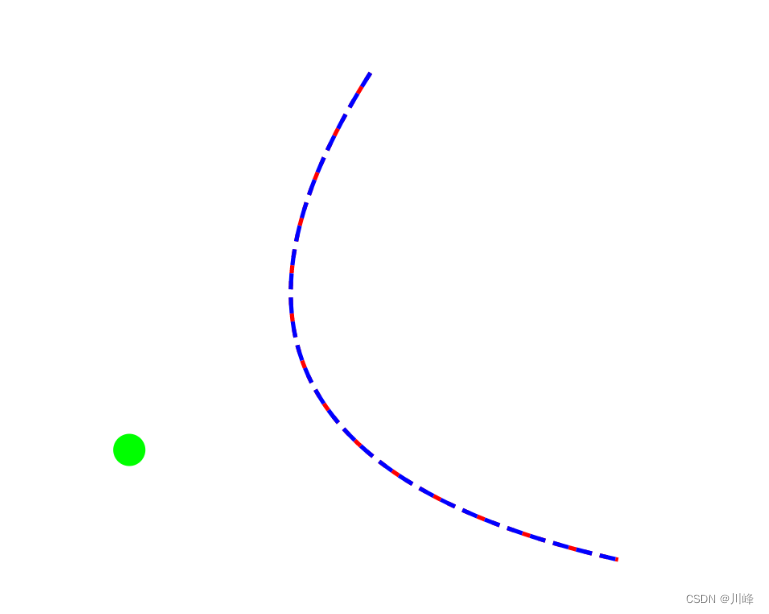
@Composable
fun DrawQuad() {
val density = LocalDensity.current.density

val configuration = LocalConfiguration.current
val screenWidth = configuration.screenWidthDp.dp

val screenWidthInPx = screenWidth.value * density

// (x0, y0) is initial coordinate where path is moved with path.moveTo(x0,y0)
var x0 by remember { mutableStateOf(0f) }
var y0 by remember { mutableStateOf(0f) }

/*
Adds a quadratic bezier segment that curves from the current point(x0,y0) to the
given point (x2, y2), using the control point (x1, y1).
*/
var x1 by remember { mutableStateOf(0f) }
var y1 by remember { mutableStateOf(screenWidthInPx) }
var x2 by remember { mutableStateOf(screenWidthInPx) }
var y2 by remember { mutableStateOf(screenWidthInPx) }

val path1 = remember { Path() }
val path2 = remember { Path() }
Canvas(
modifier = Modifier
.padding(8.dp)
.shadow(1.dp)
.background(Color.White)
.size(screenWidth, screenWidth)
) {
path1.reset()
path1.moveTo(x0, y0)
path1.quadraticBezierTo(x1 = x1, y1 = y1, x2 = x2, y2 = y2)

// relativeQuadraticBezierTo draws quadraticBezierTo by adding offset
// instead of setting absolute position
path2.reset()
path2.moveTo(x0, y0)
path2.relativeQuadraticBezierTo(dx1 = x1 - x0, dy1 = y1 - y0, dx2 = x2 - x0, dy2 = y2 - y0)

drawPath(
color = Color.Red,
path = path1,
style = Stroke(
width = 2.dp.toPx(),
pathEffect = PathEffect.dashPathEffect(floatArrayOf(10f, 10f))
)
)

drawPath(
color = Color.Blue,
path = path2,
style = Stroke(
width = 2.dp.toPx(),
pathEffect = PathEffect.dashPathEffect(floatArrayOf(20f, 10f))
)
)

// Draw Control Point on screen
drawPoints(
listOf(Offset(x1, y1)),
color = Color.Green,
pointMode = PointMode.Points,
cap = StrokeCap.Round,
strokeWidth = 40f
)
}

Column(modifier = Modifier.padding(horizontal = 20.dp)) {

Text(text = "X0: ${x0.roundToInt()}")
Slider(
value = x0,
onValueChange = { x0 = it },
valueRange = 0f..screenWidthInPx,
)

Text(text = "Y0: ${y0.roundToInt()}")
Slider(
value = y0,
onValueChange = { y0 = it },
valueRange = 0f..screenWidthInPx,
)

Text(text = "X1: ${x1.roundToInt()}")
Slider(
value = x1,
onValueChange = { x1 = it },
valueRange = 0f..screenWidthInPx,
)

Text(text = "Y1: ${y1.roundToInt()}")
Slider(
value = y1,
onValueChange = { y1 = it },
valueRange = 0f..screenWidthInPx,
)

Text(text = "X2: ${x2.roundToInt()}")
Slider(
value = x2,
onValueChange = { x2 = it },
valueRange = 0f..screenWidthInPx,
)

Text(text = "Y2: ${y2.roundToInt()}")
Slider(
value = y2,
onValueChange = { y2 = it },
valueRange = 0f..screenWidthInPx,
)
}
}

在这里插入图片描述

draw Cubic
1
2
3
4
5
6
7
8
9
10
11
12
13
14
15
16
17
18
19
20
21
22
23
24
25
26
27
28
29
30
31
32
33
34
35
36
37
38
39
40
41
42
43
44
45
46
47
48
49
50
51
52
53
54
55
56
57
58
59
60
61
62
63
64
65
66
67
68
69
70
71
72
73
74
75
76
77
78
79
80
81
82
83
84
85
86
87
88
89
90
91
92
93
94
95
96
97
98
99
100
101
102
103
104
105
106
107
108
109
110
111
112
113
114
115
116
117
118
119
120
121
122
123
124
125
126
127
128
129
130
131
132
133
134
135
136
137
138
139
140
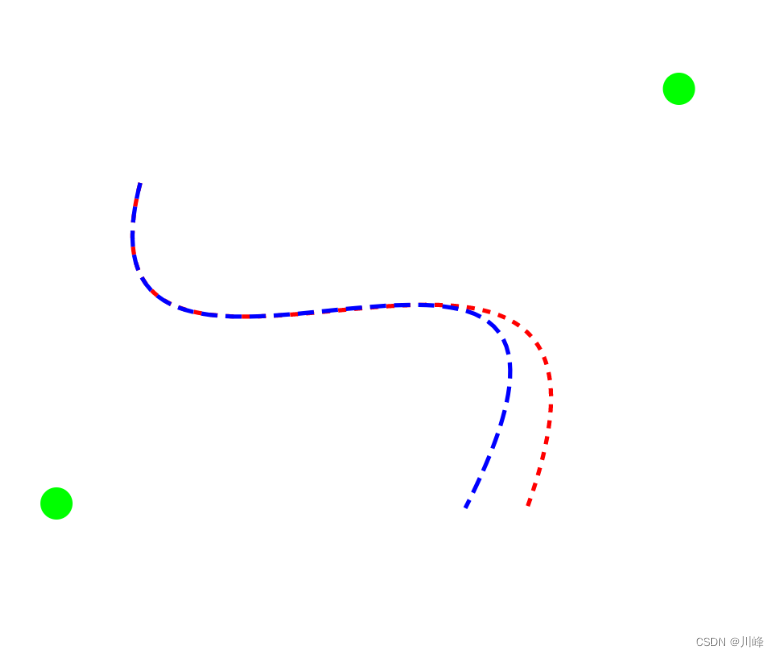
@Composable
fun DrawCubic() {
val density = LocalDensity.current.density

val configuration = LocalConfiguration.current
val screenWidth = configuration.screenWidthDp.dp

val screenWidthInPx = screenWidth.value * density

// (x0, y0) is initial coordinate where path is moved with path.moveTo(x0,y0)
var x0 by remember { mutableStateOf(0f) }
var y0 by remember { mutableStateOf(0f) }

/*
Adds a cubic bezier segment that curves from the current point(x0,y0) to the
given point (x3, y3), using the control points (x1, y1) and (x2, y2).
*/
var x1 by remember { mutableStateOf(0f) }
var y1 by remember { mutableStateOf(screenWidthInPx) }
var x2 by remember { mutableStateOf(screenWidthInPx) }
var y2 by remember { mutableStateOf(0f) }

var x3 by remember { mutableStateOf(screenWidthInPx) }
var y3 by remember { mutableStateOf(screenWidthInPx) }

val path1 = remember { Path() }
val path2 = remember { Path() }
Canvas(
modifier = Modifier
.padding(8.dp)
.shadow(1.dp)
.background(Color.White)
.size(screenWidth, screenWidth)
) {
path1.reset()
path1.moveTo(x0, y0)
path1.cubicTo(x1 = x1, y1 = y1, x2 = x2, y2 = y2, x3 = x3, y3 = y3)

// relativeQuadraticBezierTo draws quadraticBezierTo by adding offset
// instead of setting absolute position
path2.reset()
path2.moveTo(x0, y0)

// TODO offsets are not correct
path2.relativeCubicTo(
dx1 = x1 - x0,
dy1 = y1 - y0,
dx2 = x2 - x0,
dy2 = y2 - y0,
dx3 = y3 - y0,
dy3 = y3 - y0
)

drawPath(
color = Color.Red,
path = path1,
style = Stroke(
width = 2.dp.toPx(),
pathEffect = PathEffect.dashPathEffect(floatArrayOf(10f, 10f))
)
)

drawPath(
color = Color.Blue,
path = path2,
style = Stroke(
width = 2.dp.toPx(),
pathEffect = PathEffect.dashPathEffect(floatArrayOf(20f, 10f))
)
)

// Draw Control Points on screen
drawPoints(
listOf(Offset(x1, y1), Offset(x2, y2)),
color = Color.Green,
pointMode = PointMode.Points,
cap = StrokeCap.Round,
strokeWidth = 40f
)
}

Column(modifier = Modifier.padding(horizontal = 20.dp)) {

Text(text = "X0: ${x0.roundToInt()}")
Slider(
value = x0,
onValueChange = { x0 = it },
valueRange = 0f..screenWidthInPx,
)

Text(text = "Y0: ${y0.roundToInt()}")
Slider(
value = y0,
onValueChange = { y0 = it },
valueRange = 0f..screenWidthInPx,
)

Text(text = "X1: ${x1.roundToInt()}")
Slider(
value = x1,
onValueChange = { x1 = it },
valueRange = 0f..screenWidthInPx,
)

Text(text = "Y1: ${y1.roundToInt()}")
Slider(
value = y1,
onValueChange = { y1 = it },
valueRange = 0f..screenWidthInPx,
)

Text(text = "X2: ${x2.roundToInt()}")
Slider(
value = x2,
onValueChange = { x2 = it },
valueRange = 0f..screenWidthInPx,
)

Text(text = "Y2: ${y2.roundToInt()}")
Slider(
value = y2,
onValueChange = { y2 = it },
valueRange = 0f..screenWidthInPx,
)

Text(text = "X3: ${x3.roundToInt()}")
Slider(
value = x3,
onValueChange = { x3 = it },
valueRange = 0f..screenWidthInPx,
)

Text(text = "Y3: ${y3.roundToInt()}")
Slider(
value = y3,
onValueChange = { y3 = it },
valueRange = 0f..screenWidthInPx,
)
}
}

在这里插入图片描述

path.op()
1
2
3
4
5
6
7
8
9
10
11
12
13
14
15
16
17
18
19
20
21
22
23
24
25
26
27
28
29
30
31
32
33
34
35
36
37
38
39
40
41
42
43
44
45
46
47
48
49
50
51
52
53
54
55
56
57
58
59
60
61
62
63
64
65
66
67
68
69
70
71
72
73
74
75
76
77
78
79
80
81
82
83
84
85
86
87
88
89
90
91
92
93
94
95
96
97
98
99
100
101
102
103
104
105
106
107
108
109
110
111
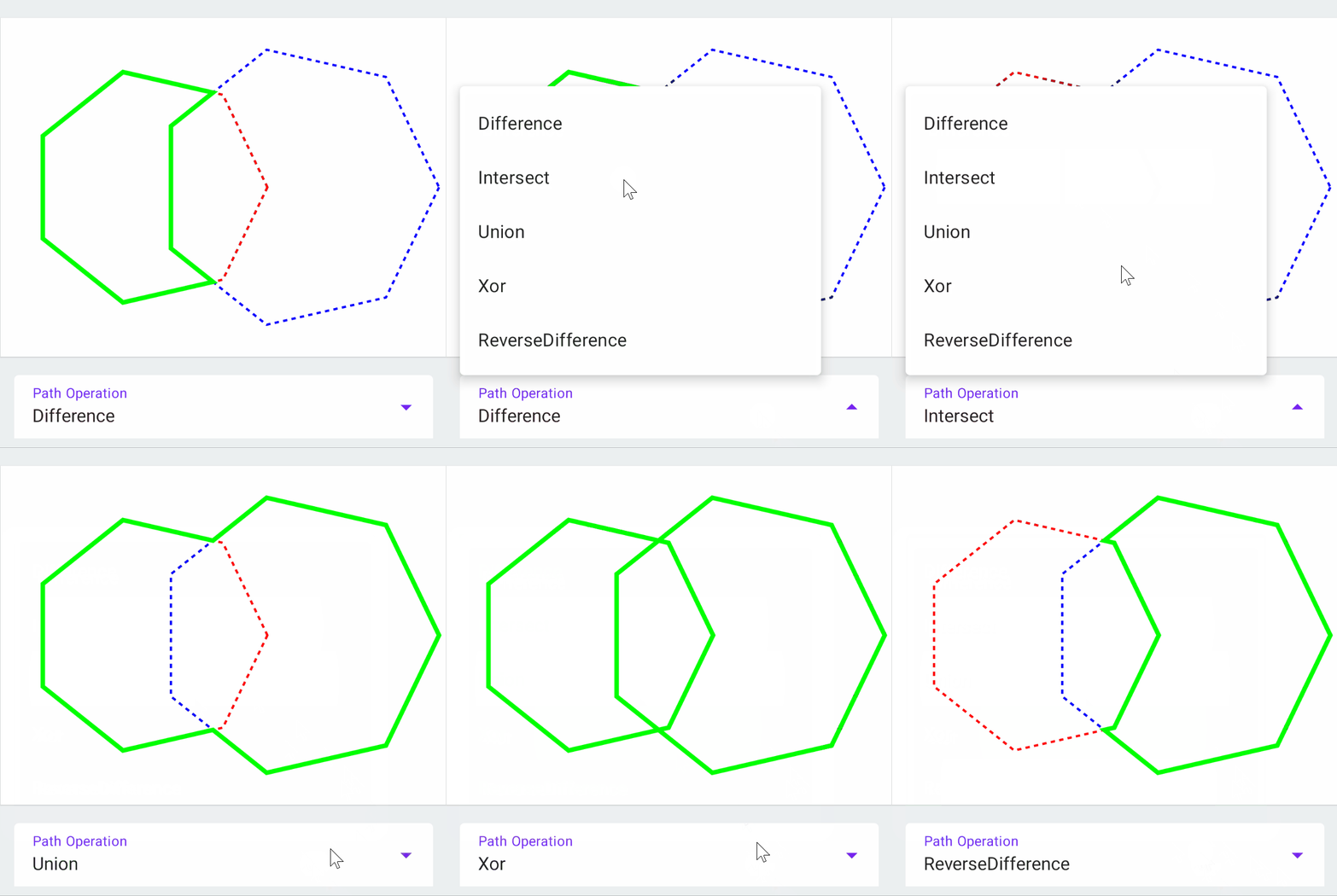
@Composable
fun PathOpStroke() {
var sides1 by remember { mutableStateOf(5f) }
var radius1 by remember { mutableStateOf(300f) }

var sides2 by remember { mutableStateOf(7f) }
var radius2 by remember { mutableStateOf(300f) }

var operation by remember { mutableStateOf(PathOperation.Difference) }

val newPath = remember { Path() }

Canvas(modifier = canvasModifier) {
val canvasWidth = size.width
val canvasHeight = size.height

val cx1 = canvasWidth / 3
val cx2 = canvasWidth * 2 / 3
val cy = canvasHeight / 2


val path1 = createPolygonPath(cx1, cy, sides1.roundToInt(), radius1)
val path2 = createPolygonPath(cx2, cy, sides2.roundToInt(), radius2)

drawPath(
color = Color.Red,
path = path1,
style = Stroke(
width = 2.dp.toPx(),
pathEffect = PathEffect.dashPathEffect(floatArrayOf(10f, 10f))
)
)

drawPath(
color = Color.Blue,
path = path2,
style = Stroke(
width = 2.dp.toPx(),
pathEffect = PathEffect.dashPathEffect(floatArrayOf(10f, 10f))
)
)

// We apply operation to path1 and path2 and setting this new path to our newPath
/*
Set this path to the result of applying the Op to the two specified paths.
The resulting path will be constructed from non-overlapping contours.
The curve order is reduced where possible so that cubics may be turned into quadratics,
and quadratics maybe turned into lines.
*/
newPath.op(path1, path2, operation = operation)

drawPath(
color = Color.Green,
path = newPath,
style = Stroke(
width = 4.dp.toPx(),
)
)
}

Column(modifier = Modifier.padding(horizontal = 20.dp, vertical = 4.dp)) {

ExposedSelectionMenu(title = "Path Operation",
index = when (operation) {
PathOperation.Difference -> 0
PathOperation.Intersect -> 1
PathOperation.Union -> 2
PathOperation.Xor -> 3
else -> 4
},
options = listOf("Difference", "Intersect", "Union", "Xor", "ReverseDifference"),
onSelected = {
operation = when (it) {
0 -> PathOperation.Difference
1 -> PathOperation.Intersect
2 -> PathOperation.Union
3 -> PathOperation.Xor
else -> PathOperation.ReverseDifference
}
}
)

Text(text = "Sides left: ${sides1.roundToInt()}")
Slider(
value = sides1,
onValueChange = { sides1 = it },
valueRange = 3f..12f,
steps = 10
)
Text(text = "radius left: ${radius1.roundToInt()}")
Slider(
value = radius1,
onValueChange = { radius1 = it },
valueRange = 100f..500f
)

Text(text = "Sides right: ${sides2.roundToInt()}")
Slider(
value = sides2,
onValueChange = { sides2 = it },
valueRange = 3f..12f,
steps = 10
)
Text(text = "radius right: ${radius2.roundToInt()}")
Slider(
value = radius2,
onValueChange = { radius2 = it },
valueRange = 100f..500f
)
}
}

在这里插入图片描述

1
2
3
4
5
6
7
8
9
10
11
12
13
14
15
16
17
18
19
20
21
22
23
24
25
26
27
28
29
30
31
32
33
34
35
36
37
38
39
40
41
42
43
44
45
46
47
48
49
50
51
52
53
54
55
56
57
58
59
60
61
62
63
64
65
66
67
68
69
70
71
72
73
74
75
76
77
78
79
80
81
82
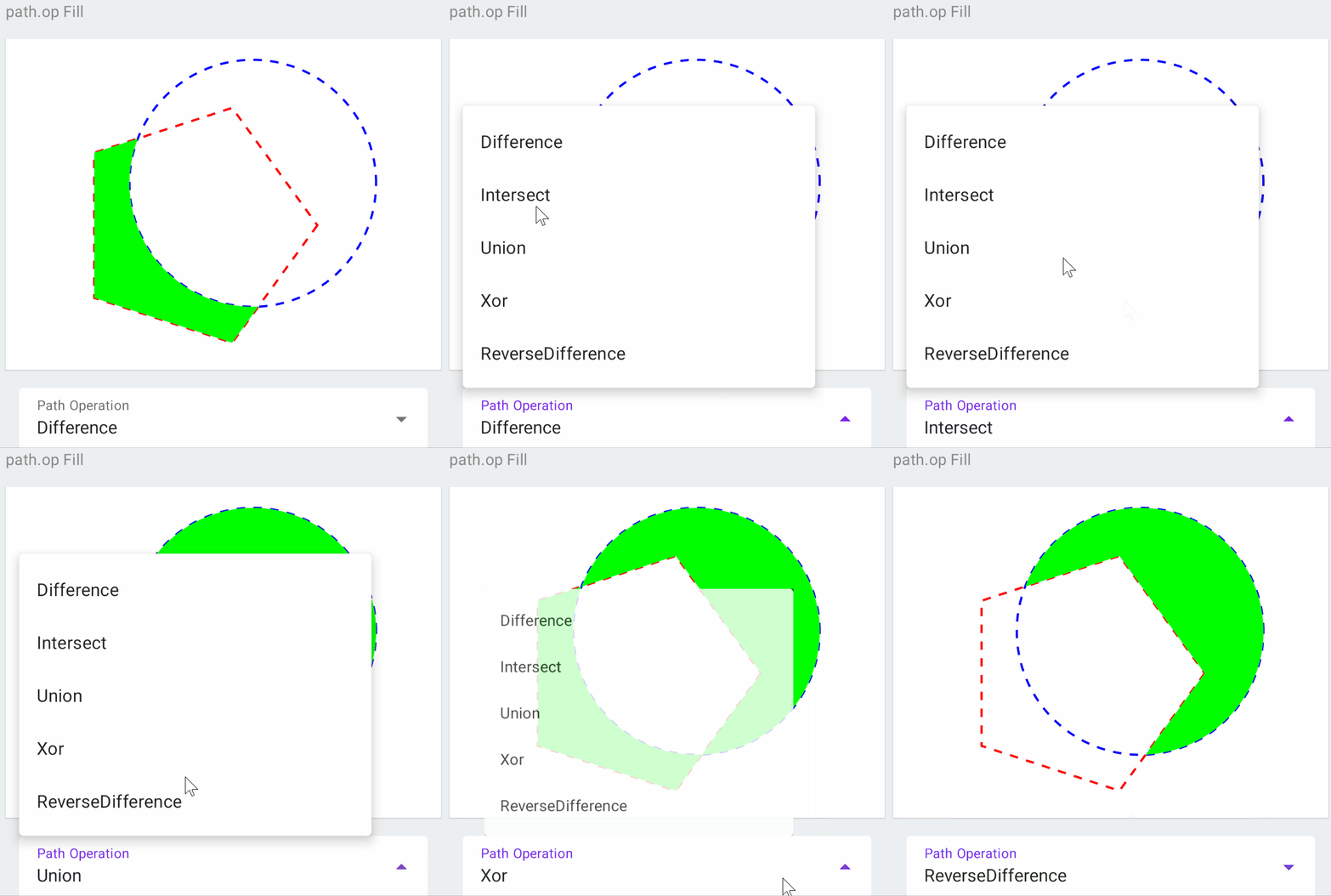
@Composable
fun PathOpStrokeFill() {
var operation by remember { mutableStateOf(PathOperation.Difference) }
val newPath = remember { Path() }

Canvas(modifier = canvasModifier) {
val canvasWidth = size.width
val canvasHeight = size.height

val path1 = Path()
val path2 = Path()


val radius = canvasHeight / 2 - 100

val horizontalOffset = 70f
val verticalOffset = 50f

val cx = canvasWidth / 2 - horizontalOffset
val cy = canvasHeight / 2 + verticalOffset
val srcPath = createPolygonPath(cx, cy, 5, radius)
path1.addPath(srcPath)

path2.addOval(
Rect(
center = Offset(
canvasWidth / 2 + horizontalOffset,
canvasHeight / 2 - verticalOffset
),
radius = radius
)
)

newPath.op(path1, path2, operation = operation)

drawPath(
color = Color.Red,
path = path1,
style = Stroke(
width = 2.dp.toPx(),
pathEffect = PathEffect.dashPathEffect(floatArrayOf(20f, 20f))
)
)

drawPath(
color = Color.Blue,
path = path2,
style = Stroke(
width = 2.dp.toPx(),
pathEffect = PathEffect.dashPathEffect(floatArrayOf(20f, 20f))
)
)

drawPath(
color = Color.Green,
path = newPath,
)
}

Column(modifier = Modifier.padding(horizontal = 20.dp, vertical = 4.dp)) {

ExposedSelectionMenu(title = "Path Operation",
index = when (operation) {
PathOperation.Difference -> 0
PathOperation.Intersect -> 1
PathOperation.Union -> 2
PathOperation.Xor -> 3
else -> 4
},
options = listOf("Difference", "Intersect", "Union", "Xor", "ReverseDifference"),
onSelected = {
operation = when (it) {
0 -> PathOperation.Difference
1 -> PathOperation.Intersect
2 -> PathOperation.Union
3 -> PathOperation.Xor
else -> PathOperation.ReverseDifference
}
}
)
}
}

在这里插入图片描述

ClipPath
1
2
3
4
5
6
7
8
9
10
11
12
13
14
15
16
17
18
19
20
21
22
23
24
25
26
27
28
29
30
31
32
33
34
35
36
37
38
39
40
41
42
43
44
45
46
47
48
49
50
51
52
53
54
55
56
57
58
59
60
61
62
63
64
65
66
67
68
69
70
71
72
73
74
75
76
77
78
79
80
81
82
83
84
85
86
87
88
89
90
91
92
93
94
95
96
97
98
99
100
101
102
103
104
105
106
107
108
109
110
111
112
113
114
115
116
117
118
119
120
121
122
123
124
125
126
@Composable
fun ClipPath() {

var sides1 by remember { mutableStateOf(5f) }
var radius1 by remember { mutableStateOf(400f) }

var sides2 by remember { mutableStateOf(7f) }
var radius2 by remember { mutableStateOf(300f) }

var clipOp by remember { mutableStateOf(ClipOp.Difference) }

Canvas(modifier = canvasModifier) {
val canvasWidth = size.width
val canvasHeight = size.height

val cx1 = canvasWidth / 3
val cx2 = canvasWidth * 2 / 3
val cy = canvasHeight / 2

val path1 = createPolygonPath(cx1, cy, sides1.roundToInt(), radius1)
val path2 = createPolygonPath(cx2, cy, sides2.roundToInt(), radius2)


// Draw path1 to display it as reference, it's for demonstration
drawPath(
color = Color.Red,
path = path1,
style = Stroke(
width = 2.dp.toPx(),
pathEffect = PathEffect.dashPathEffect(floatArrayOf(40f, 20f))
)
)

// We apply clipPath operation to pah1 and draw after this operation
/*
Reduces the clip region to the intersection of the current clip and the given path.
This method provides a callback to issue drawing commands within the region defined
by the clipped path. After this method is invoked, this clip is no longer applied
*/
clipPath(path = path1, clipOp = clipOp) {

// Draw path1 to display it as reference, it's for demonstration
drawPath(
color = Color.Green,
path = path1,
style = Stroke(
width = 2.dp.toPx(),
pathEffect = PathEffect.dashPathEffect(floatArrayOf(20f, 40f))
)
)


// Anything inside this scope will be clipped according to path1 shape
drawRect(
color = Color.Yellow,
topLeft = Offset(100f, 100f),
size = Size(canvasWidth - 300f, canvasHeight - 300f)
)

drawPath(
color = Color.Blue,
path = path2
)

drawCircle(
brush = Brush.sweepGradient(
colors = listOf(Color.Red, Color.Green, Color.Magenta, Color.Cyan, Color.Yellow)
),
radius = 200f
)

drawLine(
color = Color.Black,
start = Offset(0f, 0f),
end = Offset(canvasWidth, canvasHeight),
strokeWidth = 10f
)
}
}

Column(modifier = Modifier.padding(horizontal = 20.dp, vertical = 4.dp)) {

ExposedSelectionMenu(title = "Clip Operation",
index = when (clipOp) {
ClipOp.Difference -> 0

else -> 1
},
options = listOf("Difference", "Intersect"),
onSelected = {
clipOp = when (it) {
0 -> ClipOp.Difference
else -> ClipOp.Intersect
}
}
)

Text(text = "Sides left: ${sides1.roundToInt()}")
Slider(
value = sides1,
onValueChange = { sides1 = it },
valueRange = 3f..12f,
steps = 10
)
Text(text = "radius left: ${radius1.roundToInt()}")
Slider(
value = radius1,
onValueChange = { radius1 = it },
valueRange = 100f..500f
)

Text(text = "Sides right: ${sides2.roundToInt()}")
Slider(
value = sides2,
onValueChange = { sides2 = it },
valueRange = 3f..12f,
steps = 10
)
Text(text = "radius right: ${radius2.roundToInt()}")
Slider(
value = radius2,
onValueChange = { radius2 = it },
valueRange = 100f..500f
)
}
}

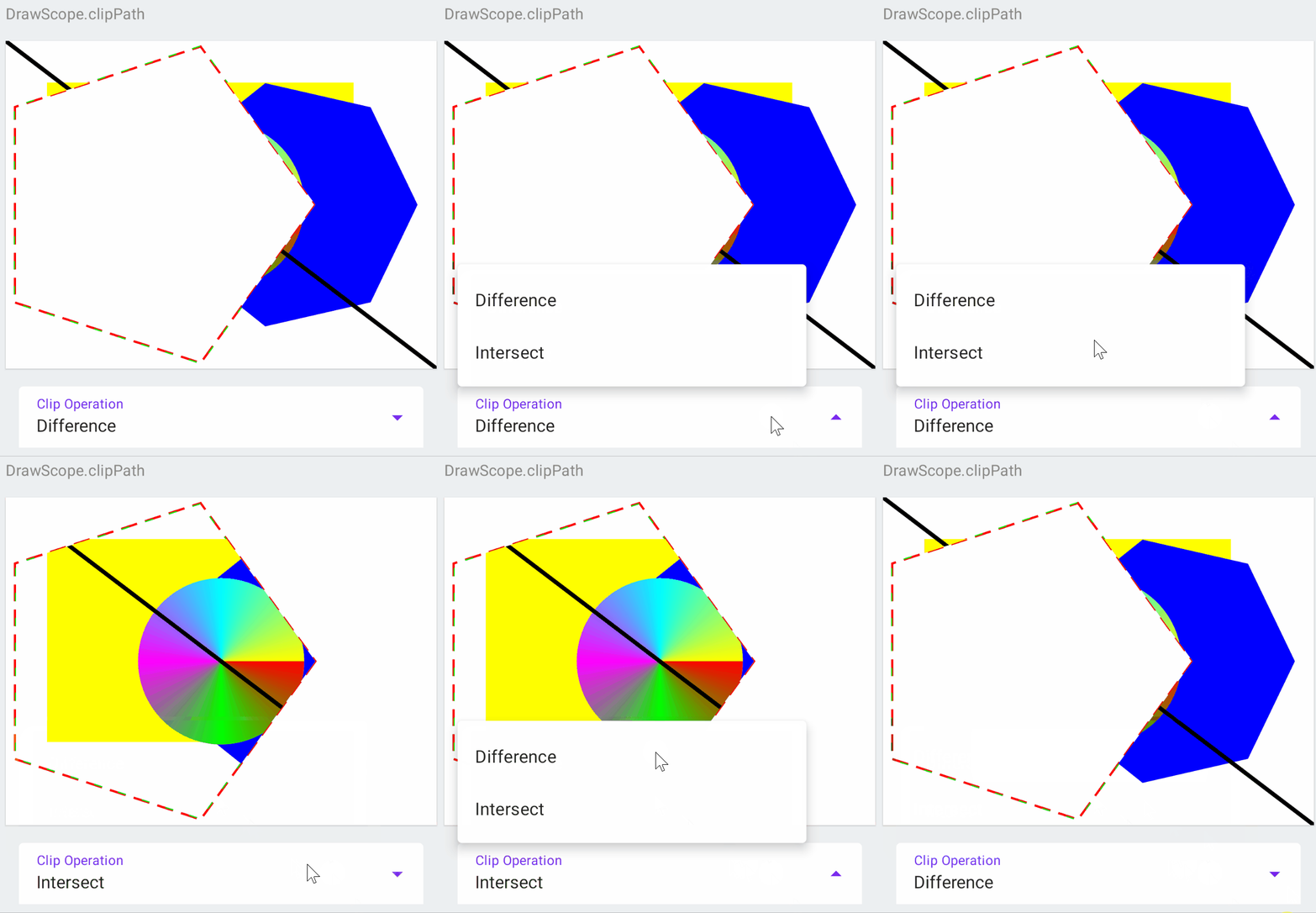
在这里插入图片描述

ClipRect
1
2
3
4
5
6
7
8
9
10
11
12
13
14
15
16
17
18
19
20
21
22
23
24
25
26
27
28
29
30
31
32
33
34
35
36
37
38
39
40
41
42
43
44
45
46
47
48
49
50
51
52
53
54
55
56
57
58
59
60
61
62
63
@Composable
fun ClipRect() {
var clipOp by remember { mutableStateOf(ClipOp.Difference) }

Canvas(modifier = canvasModifier) {
val canvasWidth = size.width
val canvasHeight = size.height


drawRect(
color = Color.Red,
topLeft = Offset(100f, 80f),
size = Size(600f, 320f),
style = Stroke(
width = 2.dp.toPx(),
pathEffect = PathEffect.dashPathEffect(floatArrayOf(10f, 10f))
)
)

/*
Reduces the clip region to the intersection of the current clip and the
given rectangle indicated by the given left, top, right and bottom bounds.
This provides a callback to issue drawing commands within the clipped region.
After this method is invoked, this clip is no longer applied.
*/
clipRect(left = 100f, top = 80f, right = 700f, bottom = 400f, clipOp = clipOp) {

drawCircle(
center = Offset(canvasWidth / 2 + 100, +canvasHeight / 2 + 50),
brush = Brush.sweepGradient(
center = Offset(canvasWidth / 2 + 100, +canvasHeight / 2 + 50),
colors = listOf(Color.Red, Color.Green, Color.Magenta, Color.Cyan, Color.Yellow)
),
radius = 300f
)

drawLine(
color = Color.Black,
start = Offset(0f, 0f),
end = Offset(canvasWidth, canvasHeight),
strokeWidth = 10f
)
}
}

Column(modifier = Modifier.padding(horizontal = 20.dp, vertical = 4.dp)) {

ExposedSelectionMenu(title = "Clip Operation",
index = when (clipOp) {
ClipOp.Difference -> 0

else -> 1
},
options = listOf("Difference", "Intersect"),
onSelected = {
clipOp = when (it) {
0 -> ClipOp.Difference
else -> ClipOp.Intersect
}
}
)
}
}

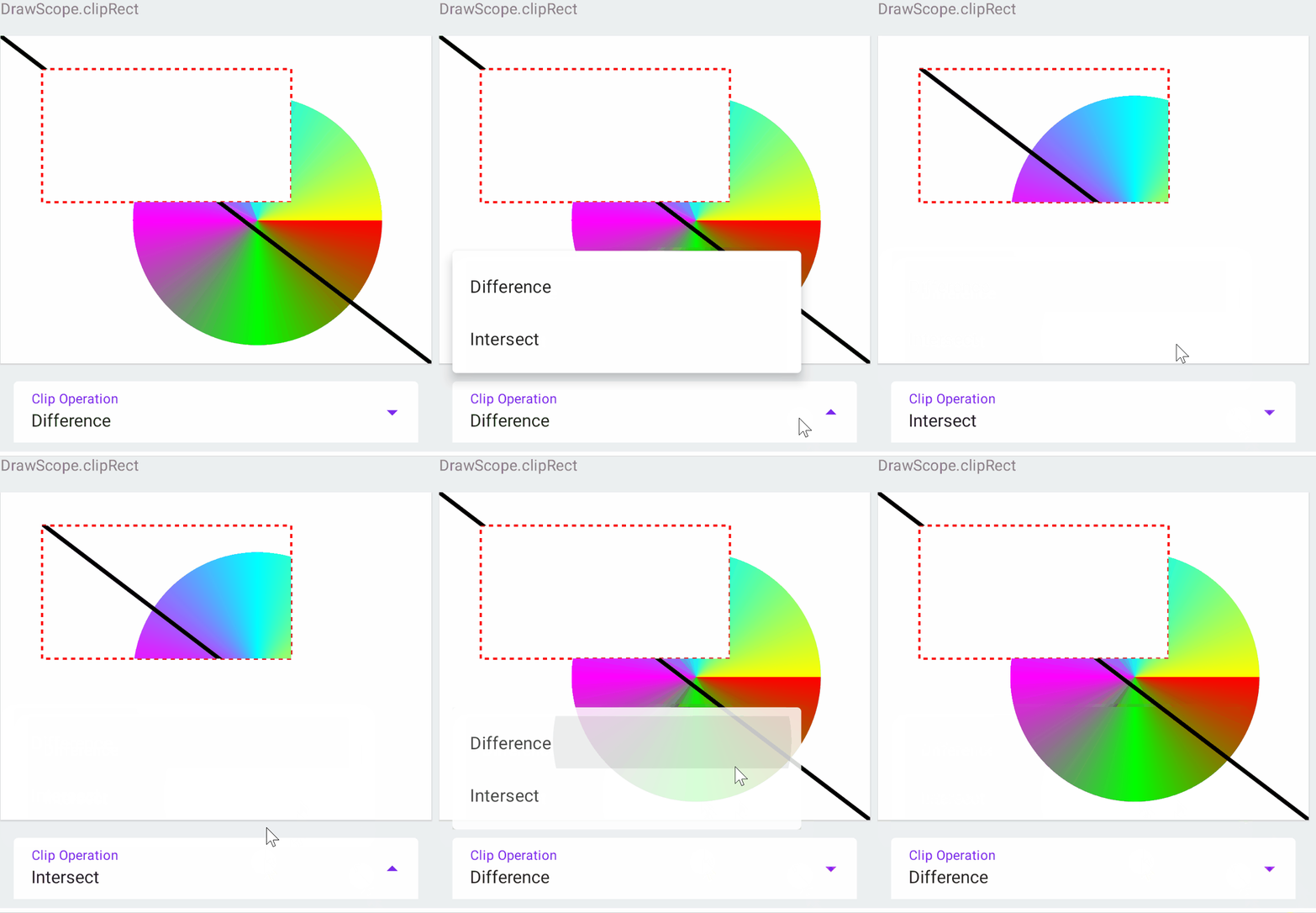
在这里插入图片描述

PathSegments
1
2
3
4
5
6
7
8
9
10
11
12
13
14
15
16
17
18
19
20
21
22
23
24
25
26
27
28
29
30
31
32
33
34
35
36
37
38
39
40
41
42
43
44
45
46
47
48
49
50
51
52
53
54
55
56
57
58
59
60
61
62
63
64
65
66
67
68
69
70
71
72
73
74
75
76
77
78
79
80
81
82
83
84
85
86
87
88
89
90
91
92
93
94
95
96
97
98
99
100
101
102
@Composable
fun DrawPath() {
val path = remember { Path() }

var displaySegmentStart by remember { mutableStateOf(true) }
var displaySegmentEnd by remember { mutableStateOf(true) }

Canvas(modifier = canvasModifier) {
// Since we remember paths from each recomposition we reset them to have fresh ones
// You can create paths here if you want to have new path instances
path.reset()

// Draw line
path.moveTo(50f, 50f)
path.lineTo(50f, 80f)
path.lineTo(50f, 110f)
path.lineTo(50f, 130f)
path.lineTo(50f, 150f)
path.lineTo(50f, 250f)
path.lineTo(50f, 400f)
path.lineTo(50f, size.height - 30)

// Draw Rectangle
path.moveTo(100f, 100f)
// Draw a line from top right corner (100, 100) to (100,300)
path.lineTo(100f, 300f)
// Draw a line from (100, 300) to (300,300)
path.lineTo(300f, 300f)
// Draw a line from (300, 300) to (300,100)
path.lineTo(300f, 100f)
// Draw a line from (300, 100) to (100,100)
path.lineTo(100f, 100f)


// Add rounded rectangle to path
path.addRoundRect(
RoundRect(
left = 400f,
top = 200f,
right = 600f,
bottom = 400f,
topLeftCornerRadius = CornerRadius(10f, 10f),
topRightCornerRadius = CornerRadius(30f, 30f),
bottomLeftCornerRadius = CornerRadius(50f, 20f),
bottomRightCornerRadius = CornerRadius(0f, 0f)
)
)

// Add rounded rectangle to path
path.addRoundRect(
RoundRect(
left = 700f,
top = 200f,
right = 900f,
bottom = 400f,
radiusX = 20f,
radiusY = 20f
)
)

path.addOval(Rect(left = 400f, top = 50f, right = 500f, bottom = 150f))

drawPath(
color = Color.Blue,
path = path,
style = Stroke(width = 1.dp.toPx())
)

if (displaySegmentStart || displaySegmentEnd) {
val segments: Iterable<PathSegment> = path.asAndroidPath().flatten()

segments.forEach { pathSegment: PathSegment ->

if (displaySegmentStart) {
drawCircle(
color = Color.Cyan,
center = Offset(pathSegment.start.x, pathSegment.start.y),
radius = 8f
)
}

if (displaySegmentEnd) {
drawCircle(
color = Red400,
center = Offset(pathSegment.end.x, pathSegment.end.y),
radius = 8f,
style = Stroke(2f)
)
}
}
}
}

Column(modifier = Modifier.padding(horizontal = 20.dp)) {
CheckBoxWithTextRippleFullRow("Display Segment Start", displaySegmentStart) {
displaySegmentStart = it
}
CheckBoxWithTextRippleFullRow("Display Segment End", displaySegmentEnd) {
displaySegmentEnd = it
}
}
}

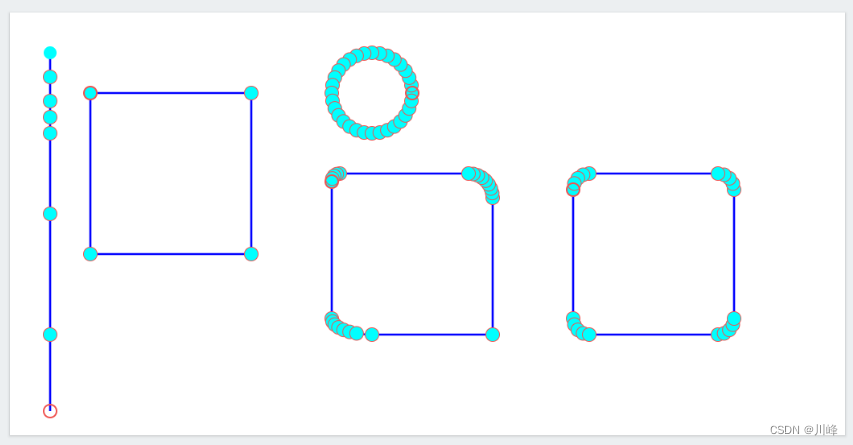
在这里插入图片描述

1
2
3
4
5
6
7
8
9
10
11
12
13
14
15
16
17
18
19
20
21
22
23
24
25
26
27
28
29
30
31
32
33
34
35
36
37
38
39
40
41
42
43
44
45
46
47
48
49
50
51
52
53
54
55
56
57
58
59
60
61
62
63
64
65
66
67
68
69
70
71
72
73
74
75
76
77
78
79
80
81
82
83
84
85
86
87
88
89
90
91
92
93
94
95
96
97
98
99
100
@Composable
fun DrawPathProgress() {

var progressStart by remember { mutableStateOf(0f) }
var progressEnd by remember { mutableStateOf(100f) }

var displaySegmentStart by remember { mutableStateOf(true) }
var displaySegmentEnd by remember { mutableStateOf(true) }

// This is the progress path which wis changed using path measure
val pathWithProgress by remember {
mutableStateOf(Path())
}

// using path
val pathMeasure by remember { mutableStateOf(PathMeasure()) }


Canvas(modifier = canvasModifier) {

/*
Draw function with progress like sinus wave
*/
val canvasHeight = size.height

val points = getSinusoidalPoints(size)

val fullPath = Path()
fullPath.moveTo(0f, canvasHeight / 2f)
points.forEach { offset: Offset ->
fullPath.lineTo(offset.x, offset.y)
}

pathWithProgress.reset()

pathMeasure.setPath(fullPath, forceClosed = false)
pathMeasure.getSegment(
startDistance = pathMeasure.length * progressStart / 100f,
stopDistance = pathMeasure.length * progressEnd / 100f,
pathWithProgress,
startWithMoveTo = true
)

drawPath(
color = Color.Blue,
path = pathWithProgress,
style = Stroke(
width = 1.dp.toPx(),
)
)

if (displaySegmentStart || displaySegmentEnd) {
val segments: Iterable<PathSegment> = pathWithProgress.asAndroidPath().flatten()

segments.forEach { pathSegment: PathSegment ->

if (displaySegmentStart) {
drawCircle(
color = Color.Cyan,
center = Offset(pathSegment.start.x, pathSegment.start.y),
radius = 8f
)
}

if (displaySegmentEnd) {
drawCircle(
color = Red400,
center = Offset(pathSegment.end.x, pathSegment.end.y),
radius = 8f,
style = Stroke(2f)
)
}
}
}
}

Column(modifier = Modifier.padding(horizontal = 20.dp)) {

CheckBoxWithTextRippleFullRow("Display Segment Start", displaySegmentStart) {
displaySegmentStart = it
}
CheckBoxWithTextRippleFullRow("Display Segment End", displaySegmentEnd) {
displaySegmentEnd = it
}

Text(text = "Progress Start ${progressStart.roundToInt()}%")
Slider(
value = progressStart,
onValueChange = { progressStart = it },
valueRange = 0f..100f,
)

Text(text = "Progress End ${progressEnd.roundToInt()}%")
Slider(
value = progressEnd,
onValueChange = { progressEnd = it },
valueRange = 0f..100f,
)
}
}

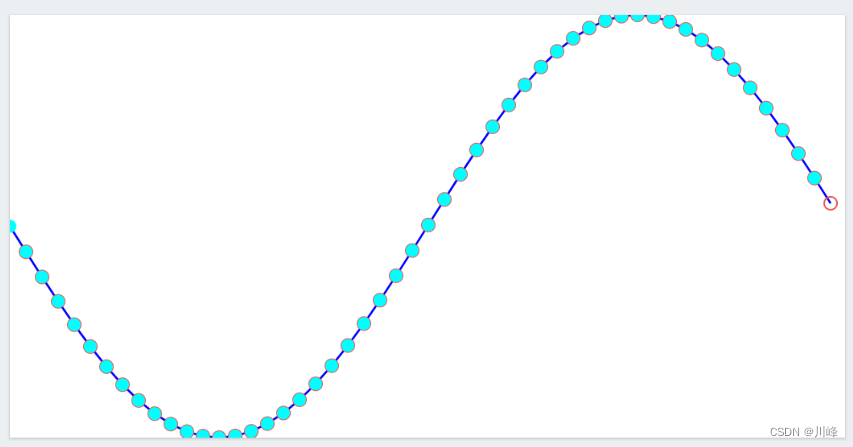
在这里插入图片描述

PathEffect
1
2
3
4
5
6
7
8
9
10
11
12
13
14
15
16
17
18
19
20
21
22
23
24
25
26
27
28
29
30
31
32
33
34
35
36
37
38
39
40
41
42
43
44
45
46
47
48
49
50
51
52
53
54
55
56
57
58
59
60
61
62
63
64
65
66
67
68
69
70
71
72
73
74
75
76
77
78
79
80
81
82
83
84
85
86
87
88
89
90
91
92
93
94
95
96
97
98
99
100
101
102
103
104
105
106
107
108
109
110
111
112
113
114
115
116
117
118
119
120
121
122
123
124
125
126
127
128
129
130
131
132
133
134
135
136
137
138
139
140
141
142
143
144
145
146
147
148
149
150
151
152
153
154
155
156
157
158
159
160
161
162
163
164
165
166
167
168
169
170
171
172
173
174
175
176
177
178
179
180
181
182
183
184
185
186
187
188
189
190
191
192
193
194
195
196
197
198
199
200
201
202
203
204
205
206
207
208
209
210
211
212
213
214
215
216
217
218
219
220
221
222
223
224
225
226
227
228
229
230
231
232
233
234
235
236
237
238
239
240
241
242
243
244
245
246
247
248
249
250
251
252
253
@Composable
private fun DashedEffectExample() {

var onInterval by remember { mutableStateOf(20f) }
var offInterval by remember { mutableStateOf(20f) }
var phase by remember { mutableStateOf(10f) }

val pathEffect = PathEffect.dashPathEffect(
intervals = floatArrayOf(onInterval, offInterval),
phase = phase
)

DrawPathEffect(pathEffect = pathEffect)

Text(text = "onInterval ${onInterval.roundToInt()}")
Slider(
value = onInterval,
onValueChange = { onInterval = it },
valueRange = 0f..100f,
)


Text(text = "offInterval ${offInterval.roundToInt()}")
Slider(
value = offInterval,
onValueChange = { offInterval = it },
valueRange = 0f..100f,
)

Text(text = "phase ${phase.roundToInt()}")
Slider(
value = phase,
onValueChange = { phase = it },
valueRange = 0f..100f,
)
}

@Composable
private fun DashPathEffectAnimatedExample() {

val transition = rememberInfiniteTransition()
val phase by transition.animateFloat(
initialValue = 0f,
targetValue = 40f,
animationSpec = infiniteRepeatable(
animation = tween(
durationMillis = 500,
easing = LinearEasing
),
repeatMode = RepeatMode.Restart
)
)

val pathEffect = PathEffect.dashPathEffect(
intervals = floatArrayOf(20f, 20f),
phase = phase
)

DrawPathEffect(pathEffect = pathEffect)
}

@Composable
private fun CornerPathEffectExample() {

var cornerRadius by remember { mutableStateOf(20f) }

val pathEffect = PathEffect.cornerPathEffect(cornerRadius)
DrawRect(pathEffect)

Text(text = "cornerRadius ${cornerRadius.roundToInt()}")
Slider(
value = cornerRadius,
onValueChange = { cornerRadius = it },
valueRange = 0f..100f,
)
}

@Composable
private fun ChainPathEffectExample() {

var onInterval1 by remember { mutableStateOf(20f) }
var offInterval1 by remember { mutableStateOf(20f) }
var phase1 by remember { mutableStateOf(10f) }

var cornerRadius by remember { mutableStateOf(20f) }

val pathEffect1 = PathEffect.dashPathEffect(
intervals = floatArrayOf(onInterval1, offInterval1),
phase = phase1
)

val pathEffect2 = PathEffect.cornerPathEffect(cornerRadius)
val pathEffect = PathEffect.chainPathEffect(outer = pathEffect1, inner = pathEffect2)

DrawRect(pathEffect)

Text(text = "onInterval1 ${onInterval1.roundToInt()}")
Slider(
value = onInterval1,
onValueChange = { onInterval1 = it },
valueRange = 0f..100f,
)


Text(text = "offInterval1 ${offInterval1.roundToInt()}")
Slider(
value = offInterval1,
onValueChange = { offInterval1 = it },
valueRange = 0f..100f,
)

Text(text = "phase1 ${phase1.roundToInt()}")
Slider(
value = phase1,
onValueChange = { phase1 = it },
valueRange = 0f..100f,
)

Text(text = "cornerRadius ${cornerRadius.roundToInt()}")
Slider(
value = cornerRadius,
onValueChange = { cornerRadius = it },
valueRange = 0f..100f,
)
}

@Composable
private fun StompedPathEffectExample() {

var stompedPathEffectStyle by remember {
mutableStateOf(StampedPathEffectStyle.Translate)
}

var advance by remember { mutableStateOf(20f) }
var phase by remember { mutableStateOf(20f) }

val path = remember {
Path().apply {
moveTo(10f, 0f)
lineTo(20f, 10f)
lineTo(10f, 20f)
lineTo(0f, 10f)
}
}

val pathEffect = PathEffect.stampedPathEffect(
shape = path,
advance = advance,
phase = phase,
style = stompedPathEffectStyle
)

DrawPathEffect(pathEffect = pathEffect)

Text(text = "advance ${advance.roundToInt()}")
Slider(
value = advance,
onValueChange = { advance = it },
valueRange = 0f..100f,
)


Text(text = "phase ${phase.roundToInt()}")
Slider(
value = phase,
onValueChange = { phase = it },
valueRange = 0f..100f,
)

ExposedSelectionMenu(title = "StompedEffect Style",
index = when (stompedPathEffectStyle) {
StampedPathEffectStyle.Translate -> 0
StampedPathEffectStyle.Rotate -> 1
else -> 2
},
options = listOf("Translate", "Rotate", "Morph"),
onSelected = {
println("STOKE CAP $it")
stompedPathEffectStyle = when (it) {
0 -> StampedPathEffectStyle.Translate
1 -> StampedPathEffectStyle.Rotate
else -> StampedPathEffectStyle.Morph
}
}
)

}


@Composable
private fun DrawRect(pathEffect: PathEffect) {
Canvas(modifier = canvasModifier) {
val horizontalCenter = size.width / 2
val verticalCenter = size.height / 2
val radius = size.height / 3
drawRect(
Color.Black,
topLeft = Offset(horizontalCenter - radius, verticalCenter - radius),
size = Size(radius * 2, radius * 2),
style = Stroke(
width = 2.dp.toPx(),
pathEffect = pathEffect

)
)
}
}

@Composable
private fun DrawPathEffect(pathEffect: PathEffect) {
Canvas(modifier = canvasModifier) {

val canvasWidth = size.width
val canvasHeight = size.height

val radius = (canvasHeight / 4).coerceAtMost(canvasWidth / 6)
val space = (canvasWidth - 4 * radius) / 3

drawRect(
topLeft = Offset(space, (canvasHeight - 2 * radius) / 2),
size = Size(radius * 2, radius * 2),
color = Color.Black,
style = Stroke(
width = 2.dp.toPx(),
pathEffect = pathEffect

)
)

drawCircle(
Color.Black,
center = Offset(space * 2 + radius * 3, canvasHeight / 2),
radius = radius,
style = Stroke(width = 2.dp.toPx(), pathEffect = pathEffect)
)

drawLine(
color = Color.Black,
start = Offset(50f, canvasHeight - 50f),
end = Offset(canvasWidth - 50f, canvasHeight - 50f),
strokeWidth = 2.dp.toPx(),
pathEffect = pathEffect
)

}
}

private val canvasModifier = Modifier
.padding(8.dp)
.shadow(1.dp)
.background(Color.White)
.fillMaxSize()
.height(200.dp)

在这里插入图片描述

绘制图片

图片通过drawImage函数进行绘制,注意它需要接受的是一个专门的Compose中的ImageBitmap类,而不是传统的Bitmap对象。

1
2
3
4
5
6
7
8
9
10
11
12
13
14
@Composable
fun CanvasExample2() {
val imageBitmap = ImageBitmap.imageResource(id = R.drawable.ic_head3)
Canvas(
modifier = Modifier
.size(200.dp)
.background(Color.LightGray)
) {
drawImage(
imageBitmap,
topLeft = Offset(x = 10f, y = 10f)
)
}
}

drawImage函数通过srcOffset 、srcSize 和 dstSizedstOffset这四个参数可以分别指定绘制图片原始区域和目标区域的大小和偏移量。

1
2
3
4
5
6
7
8
9
10
11
12
13
14
15
16
17
18
19
20
21
22
23
24
25
26
27
28
29
30
31
32
33
34
35
36
37
38
39
40
41
42
43
44
45
46
47
48
49
50
51
52
53
54
55
56
57
58
59
60
61
62
63
64
65
66
67
68
69
70
71
72
73
74
75
76
77
78
79
80
81
82
83
84
@Composable
fun DrawImageExample() {
val bitmap = ImageBitmap.imageResource(id = R.drawable.landscape1)

var srcOffsetX by remember { mutableStateOf(0) }
var srcOffsetY by remember { mutableStateOf(0) }
var srcWidth by remember { mutableStateOf(1080) }
var srcHeight by remember { mutableStateOf(1080) }

var dstOffsetX by remember { mutableStateOf(0) }
var dstOffsetY by remember { mutableStateOf(0) }
var dstWidth by remember { mutableStateOf(1080) }
var dstHeight by remember { mutableStateOf(1080) }

Spacer(modifier = Modifier.height(10.dp))
TutorialText2(text = "Src, Dst Offset and Size")
Canvas(modifier = canvasModifier) {
drawImage(
image = bitmap,
srcOffset = IntOffset(srcOffsetX, srcOffsetY),
srcSize = IntSize(srcWidth, srcHeight),
dstOffset = IntOffset(dstOffsetX, dstOffsetY),
dstSize = IntSize(dstWidth, dstHeight),
filterQuality = FilterQuality.High
)
}

Column(modifier = Modifier.padding(horizontal = 20.dp)) {
Text(text = "srcOffsetX $srcOffsetX")
Slider(
value = srcOffsetX.toFloat(),
onValueChange = { srcOffsetX = it.toInt() },
valueRange = -540f..540f,
)

Text(text = "srcOffsetY $srcOffsetY")
Slider(
value = srcOffsetY.toFloat(),
onValueChange = { srcOffsetY = it.toInt() },
valueRange = -540f..540f,
)
Text(text = "srcWidth $srcWidth")
Slider(
value = srcWidth.toFloat(),
onValueChange = { srcWidth = it.toInt() },
valueRange = 0f..1080f,
)

Text(text = "srcHeight $srcHeight")
Slider(
value = srcHeight.toFloat(),
onValueChange = { srcHeight = it.toInt() },
valueRange = 0f..1080f,
)


Text(text = "dstOffsetX $dstOffsetX")
Slider(
value = dstOffsetX.toFloat(),
onValueChange = { dstOffsetX = it.toInt() },
valueRange = -540f..540f,
)

Text(text = "dstOffsetY $dstOffsetY")
Slider(
value = dstOffsetY.toFloat(),
onValueChange = { dstOffsetY = it.toInt() },
valueRange = -540f..540f,
)
Text(text = "dstWidth $dstWidth")
Slider(
value = dstWidth.toFloat(),
onValueChange = { dstWidth = it.toInt() },
valueRange = 0f..1080f,
)

Text(text = "dstHeight $dstHeight")
Slider(
value = dstHeight.toFloat(),
onValueChange = { dstHeight = it.toInt() },
valueRange = 0f..1080f,
)
}
}

在这里插入图片描述
在这里插入图片描述

BlendMode

每个以drawxxx开头的API都有一个blendMode参数,该参数通过BlendMode伴生对象提供了很多模式,它对应了传统View中的Canvas绘制中的PorterDuff.Mode模式

1
2
3
4
5
6
7
8
9
10
11
12
13
14
15
16
17
18
19
20
21
22
23
24
25
26
27
28
29
30
31
32
33
34
35
36
37
38
39
40
41
42
43
44
45
46
47
48
49
50
51
52
53
54
55
56
57
58
@Composable
private fun DrawShapeBlendMode() {
var selectedIndex by remember { mutableStateOf(3) }
var blendMode: BlendMode by remember { mutableStateOf(BlendMode.SrcOver) }

var showDstColorDialog by remember { mutableStateOf(false) }
var showSrcColorDialog by remember { mutableStateOf(false) }

Canvas(modifier = canvasModifier) {
val canvasWidth = size.width
val canvasHeight = size.height
val radius = canvasHeight / 2 - 100

val horizontalOffset = 70f
val verticalOffset = 50f

val cx = canvasWidth / 2 - horizontalOffset
val cy = canvasHeight / 2 + verticalOffset
val srcPath = createPolygonPath(cx, cy, 5, radius)

with(drawContext.canvas.nativeCanvas) {
val checkPoint = saveLayer(null, null)

// Destination
drawCircle(
color = Color(0xffEC407A),
radius = radius,
center = Offset(
canvasWidth / 2 + horizontalOffset,
canvasHeight / 2 - verticalOffset
),
)

// Source
drawPath(path = srcPath, color = Color(0xff29B6F6), blendMode = blendMode)

restoreToCount(checkPoint)
}
}

Text(
text = "Src BlendMode: $blendMode",
fontSize = 16.sp,
fontWeight = FontWeight.Bold,
modifier = Modifier.padding(8.dp)
)

BlendModeSelection(
modifier = Modifier
.height(200.dp)
.verticalScroll(rememberScrollState()),
selectedIndex = selectedIndex,
onBlendModeSelected = { index, mode ->
blendMode = mode
selectedIndex = index
}
)
}

上面代码中,圆形作为destination path先被绘制,多边形作为source path后被绘制,然后对source path应用不同的BlendMode

在这里插入图片描述

下面的例子是对包含透明区域的两张图片进行绘制,对 source 应用不同的BlendMode

1
2
3
4
5
6
7
8
9
10
11
12
13
14
15
16
17
18
19
20
21
22
23
24
25
26
27
28
29
30
31
32
33
34
35
36
37
38
39
40
41
42
43
44
45
46
47
48
49
50
51
52
53
@Composable
fun DrawImageBlendMode() {

var selectedIndex by remember { mutableStateOf(3) }
var blendMode: BlendMode by remember { mutableStateOf(BlendMode.SrcOver) }

val dstImage = ImageBitmap.imageResource(id = R.drawable.composite_dst)
val srcImage = ImageBitmap.imageResource(id = R.drawable.composite_src)

Canvas(modifier = canvasModifier) {

val canvasWidth = size.width.roundToInt()
val canvasHeight = size.height.roundToInt()

with(drawContext.canvas.nativeCanvas) {
val checkPoint = saveLayer(null, null)

// Destination
drawImage(
image = dstImage,
srcSize = IntSize(canvasWidth / 2, canvasHeight / 2),
dstSize = IntSize(canvasWidth, canvasHeight),
)

// Source
drawImage(
image = srcImage,
srcSize = IntSize(canvasWidth / 2, canvasHeight / 2),
dstSize = IntSize(canvasWidth, canvasHeight),
blendMode = blendMode
)
restoreToCount(checkPoint)
}
}

Text(
text = "Src BlendMode: $blendMode",
fontSize = 16.sp,
fontWeight = FontWeight.Bold,
modifier = Modifier.padding(8.dp)
)

BlendModeSelection(
modifier = Modifier
.height(200.dp)
.verticalScroll(rememberScrollState()),
selectedIndex = selectedIndex,
onBlendModeSelected = { index, mode ->
blendMode = mode
selectedIndex = index
}
)
}

使用的两张图片比较特殊,带了一部分透明背景:

在这里插入图片描述
下面几种跟前面的例子有所不同,其余的模式跟前面差不多
在这里插入图片描述

下面例子以六边形path作为 Destination,图片作为Source,对图片应用BlendMode.SrcIn实现对图片进行形状剪裁效果:

1
2
3
4
5
6
7
8
9
10
11
12
13
14
15
16
17
18
19
20
21
22
23
24
25
26
27
28
29
30
31
32
33
34
35
36
37
@Composable
private fun ClipImageWithBlendModeViaPath() {
var sides by remember { mutableStateOf(6f) }
val srcBitmap = ImageBitmap.imageResource(id = R.drawable.landscape1)

var selectedIndex by remember { mutableStateOf(5) }
var blendMode: BlendMode by remember { mutableStateOf(BlendMode.SrcIn) }

Canvas(modifier = canvasModifier) {
val canvasWidth = size.width.roundToInt()
val canvasHeight = size.height.roundToInt()
val cx = canvasWidth / 2
val cy = canvasHeight / 2
val radius = (canvasHeight - 20.dp.toPx()) / 2
val path = createPolygonPath(cx.toFloat(), cy.toFloat(), sides.roundToInt(), radius)


with(drawContext.canvas.nativeCanvas) {
val checkPoint = saveLayer(null, null)

// Destination
drawPath(
color = Color.Blue,
path = path
)
// Source
drawImage(
blendMode = BlendMode.SrcIn, // BlendMode.SrcAtop
image = srcBitmap,
srcSize = IntSize(srcBitmap.width, srcBitmap.height),
dstSize = IntSize(canvasWidth, canvasHeight)
)

restoreToCount(checkPoint)
}
}
}

在这里插入图片描述

绘制文本

Compose中绘制文本跟传统的方式有点不太一样,需要传递一个textMeasurer参数 或者 textLayoutResult 参数,而 textLayoutResult 也需要先对文本使用textMeasurer进行测量获得。

1
2
3
4
5
6
7
8
9
10
11
12
13
14
15
16
17
18
19
20
21
22
23
24
25
26
27
28
29
30
31
32
33
34
35
36
37
@OptIn(ExperimentalTextApi::class)
@Composable
fun CanvasDrawText() {
val textMeasurer = rememberTextMeasurer()
Canvas(Modifier.width(300.dp).height(100.dp)) {

drawText(
textMeasurer = textMeasurer,
text = "Compose绘制的文本\uD83D\uDE03",
style = TextStyle(fontSize = 20.sp, color = Color.Red)
)

val textLayoutResult = textMeasurer.measure(
text = AnnotatedString("Compose绘制的文本\uD83D\uDE43"),
style = TextStyle(fontSize = 20.sp)
)
drawText(
textLayoutResult,
color = Color.Red,
topLeft = Offset(10.dp.toPx(), 30.dp.toPx())
)

// 拿到对应Android原生的Canvas进行绘制
val nativeCanvas = drawContext.canvas.nativeCanvas
val paint = android.graphics.Paint().apply {
color = android.graphics.Color.RED
style = android.graphics.Paint.Style.FILL
textSize = 20.sp.toPx()
}
nativeCanvas.drawText(
"原生Canvas绘制的文本\uD83D\uDE05",
20.dp.toPx(),
80.dp.toPx(),
paint
)
}
}

在这里插入图片描述

当然这里还使用了另外一种方法就是通过drawContext.canvas.nativeCanvas拿到Android原生的Canvas对象进行绘制,由于是原生的对象,所以需要使用Paint画笔。这也告诉我们一种方法,凡是在Compose中不支持的或者你暂时还找不到的方法,都可以通过这种方式转到以前传统的方式去绘制,也就是说以前能什么现在就能画什么。

虽然Jetpack Compose是Android平台的库,但是JetBrains公司的Compose-jb库是面向跨平台的,因此在其他平台上nativeCanvas返回的就不是Android的Canvas了。

DrawModifier

Compose提供了三个很方便的 Modifier 修饰符: drawWithContent 、drawBehind 、drawWithCache

drawWithContent

通过drawWithContent修饰符,使得我们有机会在原本组件内容绘制的之前和之后的时机做一些自己的绘制操作

1
2
3
4
5
6
7
8
9
10
11
12
13
14
15
16
17
18
19
20
21
22
23
24
25
26
27
28
29
30
31
32
33
34
35
36
@Preview(showBackground = true)
@Composable
fun DrawBefore() {
Box(
modifier = Modifier.size(120.dp),
contentAlignment = Alignment.Center
) {
Card(
shape = RoundedCornerShape(8.dp),
modifier = Modifier
.size(100.dp)
.drawWithContent {
// 显示在drawContent()的下层,即背景
drawRect(
Color.Green,
size = Size(110.dp.toPx(), 110.dp.toPx()),
topLeft = Offset(x = -5.dp.toPx(), y = -5.dp.toPx()),
//style = Stroke(width = 5f)
)
// 在 drawContent() 的前后自定义绘制一些内容,可以控制绘制的层级
drawContent()
drawCircle( // 显示在drawContent()的上层层,即前景
Color(0xffe7614e),
radius = 18.dp.toPx() / 2,
center = Offset(drawContext.size.width, 0f)
)
}
) {
Image(
painter = painterResource(id = R.drawable.ic_head3),
contentDescription = "head",
contentScale = ContentScale.Crop
)
}
}
}

上面代码中,drawWithContent修饰符的lambda中,drawContent()这一句是必须调用的,它是组件原本的绘制内容,而在它的前后可以分别Canvas的Api进行自定义绘制,最终会分别显示为原本内容的背景和前景。
在这里插入图片描述

这类似于传统View的onDraw方法,如果我们想在 TextView 绘制文本的基础上绘制我们想要的效果时,我们可以通过控制 super.onDraw() 与我们自己增加绘制逻辑的调用先后关系从而确定绘制的层级。

drawContent 可以理解等价于 super.onDraw 的概念。越早进行绘制Z轴越小,后面的绘制会覆盖前面的绘制,从而产生了绘制的层级关系。

drawBehind

drawBehind修饰符更直接了,含义就跟它的名字一样,其中绘制的内容会直接显示在原本内容的背后,也就是在原来内容的下一层,原本的内容覆盖在上层。

1
2
3
4
5
6
7
8
9
10
11
12
13
14
15
16
17
18
19
20
21
22
23
24
25
26
27
@Preview(showBackground = true)
@Composable
fun DrawBehind() {
Box(
modifier = Modifier.size(120.dp),
contentAlignment = Alignment.Center
) {
Card(
shape = RoundedCornerShape(8.dp),
modifier = Modifier
.size(100.dp)
.drawBehind {
drawCircle(
Color(0xffe7614e),
radius = 18.dp.toPx() / 2,
center = Offset(drawContext.size.width - 2.dp.toPx(), 0f)
)
}
) {
Image(
painter = painterResource(id = R.drawable.ic_head3),
contentDescription = "head",
contentScale = ContentScale.Crop
)
}
}
}

在这里插入图片描述

通过查看源码,可以发现原来Canvas 组件背后就是通过modifier.drawBehind()实现的:

1
2
3
4
5
6
7
8
9
10
11
12
13
14
15
16
17
18
19
20
21
22
23
24
25
26
27
28
29
30
31
32
33
34
35
36
37
38
39
40
@Composable
fun Canvas(modifier: Modifier, onDraw: DrawScope.() -> Unit) =
Spacer(modifier.drawBehind(onDraw))

/**
* Draw into a [Canvas] behind the modified content.
*/
fun Modifier.drawBehind(
onDraw: DrawScope.() -> Unit
) = this.then(
DrawBackgroundModifier(
onDraw = onDraw,
inspectorInfo = debugInspectorInfo {
name = "drawBehind"
properties["onDraw"] = onDraw
}
)
)

private class DrawBackgroundModifier(
val onDraw: DrawScope.() -> Unit,
inspectorInfo: InspectorInfo.() -> Unit
) : DrawModifier, InspectorValueInfo(inspectorInfo) {

override fun ContentDrawScope.draw() {
onDraw()
drawContent()
}

override fun equals(other: Any?): Boolean {
if (this === other) return true
if (other !is DrawBackgroundModifier) return false

return onDraw == other.onDraw
}

override fun hashCode(): Int {
return onDraw.hashCode()
}
}

Canvas组件原来就是在一个空白的Spacer组件上应用了drawBehind()修饰符。而drawBehind()最终是通过DrawBackgroundModifier实现的,在其draw()方法中,先调用了我们传入的onDraw()内容,然后调用了 drawContent()绘制原本的内容。

通过drawBehind()可以很容易绘制如下效果:

在这里插入图片描述

实现源码:

1
2
3
4
5
6
7
8
9
10
11
12
13
14
15
16
17
18
19
20
21
22
23
24
25
26
27
28
29
30
31
32
33
34
35
36
37
38
39
40
41
42
43
44
45
46
47
48
49
50
51
52
53
54
55
56
57
58
59
60
61
62
63
64
65
66
67
68
69
70
71
72
73
74
75
76
77
78
79
80
81
82
83
84
85
86
87
88
89
90
91
92
93
94
95
96
97
98
99
100
101
102
103
104
105
106
107
108
109
110
111
112
113
114
115
116
117
118
119
120
121
122
123
124
125
126
127
128
129
130
131
132
133
134
135
136
137
138
139
140
141
142
143
144
145
146
147
148
149
150
151
152
153
154
155
156
157
158
159
160
161
162
163
164
165
166
167
@Preview(showBackground = true)
@Composable
fun ArcProgressBarPreview() {
Column(
horizontalAlignment = Alignment.CenterHorizontally,
verticalArrangement = Arrangement.Center
) {
var progress by remember { mutableStateOf(50f) }
ArcProgressBar(indicatorValue = progress.toInt())
Spacer(modifier = Modifier.height(20.dp))
Slider(
value = progress,
onValueChange = { progress = it },
valueRange = 0f..100f,
modifier = Modifier.padding(horizontal = 32.dp)
)
}
}

@Composable
fun ArcProgressBar(
canvasSize: Dp = 300.dp,
indicatorValue: Int = 0,
maxIndicatorValue: Int = 100,
backgroundIndicatorColor: Color = MaterialTheme.colors.onSurface.copy(alpha = 0.1f),
backgroundIndicatorStrokeWidth: Float = 100f,
foregroundIndicatorColor: Color = MaterialTheme.colors.primary,
foregroundIndicatorStrokeWidth: Float = 100f,
indicatorStrokeCap: StrokeCap = StrokeCap.Round,
bigTextFontSize: TextUnit = MaterialTheme.typography.h3.fontSize,
bigTextColor: Color = MaterialTheme.colors.onSurface,
bigTextSuffix: String = "GB",
smallText: String = "Remaining",
smallTextFontSize: TextUnit = MaterialTheme.typography.h6.fontSize,
smallTextColor: Color = MaterialTheme.colors.onSurface.copy(alpha = 0.3f)
) {
var allowedIndicatorValue by remember { mutableStateOf(maxIndicatorValue) }
allowedIndicatorValue = indicatorValue.coerceAtMost(maxIndicatorValue)

var percentage by remember { mutableStateOf(0f) }
LaunchedEffect(allowedIndicatorValue) {
percentage = (allowedIndicatorValue.toFloat() / maxIndicatorValue) * 100f
}

val sweepAngle by animateFloatAsState(
targetValue = (2.4f * percentage),
animationSpec = tween(500)
)

val receivedValue by animateIntAsState(
targetValue = allowedIndicatorValue,
animationSpec = tween(500)
)

val animatedBigTextColor by animateColorAsState(
targetValue = if (allowedIndicatorValue == 0)
MaterialTheme.colors.onSurface.copy(alpha = 0.3f)
else
bigTextColor,
animationSpec = tween(500)
)

Column(
modifier = Modifier
.size(canvasSize)
.drawBehind {
val componentSize = size / 1.25f
backgroundIndicator(
componentSize = componentSize,
indicatorColor = backgroundIndicatorColor,
indicatorStrokeWidth = backgroundIndicatorStrokeWidth,
indicatorStokeCap = indicatorStrokeCap
)
foregroundIndicator(
sweepAngle = sweepAngle,
componentSize = componentSize,
indicatorColor = foregroundIndicatorColor,
indicatorStrokeWidth = foregroundIndicatorStrokeWidth,
indicatorStokeCap = indicatorStrokeCap
)
},
verticalArrangement = Arrangement.Center,
horizontalAlignment = Alignment.CenterHorizontally
) {
EmbeddedElements(
bigText = receivedValue,
bigTextFontSize = bigTextFontSize,
bigTextColor = animatedBigTextColor,
bigTextSuffix = bigTextSuffix,
smallText = smallText,
smallTextColor = smallTextColor,
smallTextFontSize = smallTextFontSize
)
}
}

fun DrawScope.backgroundIndicator(
componentSize: Size,
indicatorColor: Color,
indicatorStrokeWidth: Float,
indicatorStokeCap: StrokeCap
) {
drawArc(
size = componentSize,
color = indicatorColor,
startAngle = 150f,
sweepAngle = 240f,
useCenter = false,
style = Stroke(
width = indicatorStrokeWidth,
cap = indicatorStokeCap
),
topLeft = Offset(
x = (size.width - componentSize.width) / 2f,
y = (size.height - componentSize.height) / 2f
)
)
}

fun DrawScope.foregroundIndicator(
sweepAngle: Float,
componentSize: Size,
indicatorColor: Color,
indicatorStrokeWidth: Float,
indicatorStokeCap: StrokeCap
) {
drawArc(
size = componentSize,
color = indicatorColor,
startAngle = 150f,
sweepAngle = sweepAngle,
useCenter = false,
style = Stroke(
width = indicatorStrokeWidth,
cap = indicatorStokeCap
),
topLeft = Offset(
x = (size.width - componentSize.width) / 2f,
y = (size.height - componentSize.height) / 2f
)
)
}

@Composable
fun EmbeddedElements(
bigText: Int,
bigTextFontSize: TextUnit,
bigTextColor: Color,
bigTextSuffix: String,
smallText: String,
smallTextColor: Color,
smallTextFontSize: TextUnit
) {
Text(
text = smallText,
color = smallTextColor,
fontSize = smallTextFontSize,
textAlign = TextAlign.Center
)
Text(
text = "$bigText ${bigTextSuffix.take(2)}",
color = bigTextColor,
fontSize = bigTextFontSize,
textAlign = TextAlign.Center,
fontWeight = FontWeight.Bold
)
}

其实现方式很简单,就是在文字背后叠加绘制了两次drawArc方法,分别用作当前进度和背景进度,然后结合动画APIanimatexxxAsState便很容易实现动画效果。

当然如果想要背景是一个圆环,而不是圆弧,即如下效果,也很容易,只需将第一个drawArc换成drawCircle即可:

在这里插入图片描述

1
2
3
4
5
6
7
8
9
10
11
12
13
14
15
16
17
18
19
20
21
22
23
24
25
26
27
28
29
30
31
32
33
34
35
36
37
38
39
40
@Preview(showBackground = true)
@Composable
fun LoadingProgressBar() {
val sweepAngle by remember { mutableStateOf(162F) }
Box(modifier = Modifier
.requiredSize(200.dp)
.padding(30.dp)
.drawBehind {
drawCircle(
color = Color(0xFF1E7171), // 背景用圆环来画
//center = Offset(drawContext.size.width / 2f, drawContext.size.height / 2f),
style = Stroke(width = 20.dp.toPx())
)
drawArc(
color = Color(0xFF3BDCCE), // 进度用圆弧来画
startAngle = 180f,
sweepAngle = sweepAngle,
useCenter = false,
style = Stroke(width = 20.dp.toPx(), cap = StrokeCap.Round) // cap设置成Round端点是圆角形状
)
},
contentAlignment = Alignment.Center
) {
Column(horizontalAlignment = Alignment.CenterHorizontally) {
Text(
text = "Loading",
fontSize = 20.sp,
fontWeight = FontWeight.Bold,
color = Color.Black
)
Text(
text = "45%",
fontSize = 20.sp,
fontWeight = FontWeight.Bold,
color = Color.Black
)
}
}
}

drawWithCache

由于Composable函数在重组时,重绘会反复发生,所以每次都会创建Paint、Path、ImageBitmap等绘制相关的对象(可能会产生内存抖动),由于所绘制的作用域是 DrawScope 并不是 Composable,所以也无法使用 remember函数,而使用drawWithCache可以避免这一点,只创建一次相关的对象。

drawWithCache的作用域CacheDrawScope中提供了两个方法 onDrawBehind 和 onDrawWithContent,分别对应了前面提到的 drawWithContent 和 drawBehind ,使用方式也几乎一样。

1
2
3
4
5
6
7
8
9
10
11
12
13
14
15
16
17
18
19
20
21
22
23
24
25
26
27
28
29
30
31
32
33
34
35
36
37
38
39
40
41
42
43
44
45
46
47
48
@Preview(showBackground = true)
@Composable
fun DrawWithCache() {
Box(
modifier = Modifier.size(200.dp),
contentAlignment = Alignment.Center
) {
Column(horizontalAlignment = Alignment.CenterHorizontally) {
var borderColor by remember { mutableStateOf(Color.Red) }
Card(
shape = RoundedCornerShape(0.dp),
modifier = Modifier
.size(100.dp)
.drawWithCache {
println("此处不会发生 Recompose")
val path = Path().apply {
moveTo(0f, 0f)
relativeLineTo(100.dp.toPx(), 0f)
relativeLineTo(0f, 100.dp.toPx())
relativeLineTo(-100.dp.toPx(), 0f)
relativeLineTo(0f, -100.dp.toPx())
}
onDrawWithContent {
println("此处会发生 Recompose")
drawContent()
drawPath(
path = path,
color = borderColor,
style = Stroke(width = 10f)
)
}
}
) {
Image(
painter = painterResource(id = R.drawable.ic_head3),
contentDescription = null,
contentScale = ContentScale.Crop
)
}
Spacer(modifier = Modifier.height(20.dp))
Button(onClick = {
borderColor = if (borderColor == Color.Red) Color.Blue else Color.Red
}) {
Text("Change Color")
}
}
}
}

在这里插入图片描述
点击按钮会发现只有onDrawWithContent 里面的log有输出,外面的log么有输出。

Canvas 变换

Canvas 旋转

在Canvas的DrawScope作用域中通过 rotate 函数即可旋转所画内容

1
2
3
4
5
6
7
8
9
10
11
12
13
14
15
@Preview(showBackground = true)
@Composable
fun RotateExample() {
val imageBitmap = ImageBitmap.imageResource(id = R.drawable.ic_head3)
Box(Modifier.padding(50.dp)) {
Canvas(Modifier.size(100.dp)) {
rotate(45f) { // 旋转45度
drawImage(
imageBitmap,
dstSize = IntSize(size.width.roundToInt(), size.height.roundToInt()),
)
}
}
}
}

在这里插入图片描述

下面代码通过 drawWithContent + rotate 实现一个对角标签功能:

1
2
3
4
5
6
7
8
9
10
11
12
13
14
15
16
17
18
19
20
21
22
23
24
25
26
27
28
29
30
31
32
33
34
35
36
37
38
39
40
41
42
43
44
45
46
47
48
49
50
51
52
53
54
55
56
57
58
59
60
61
62
63
64
65
66
67
68
69
70
71
72
73
74
75
76
77
78
79
80
81
82
83
84
85
86
87
88
89
90
91
92
93
94
95
96
97
98
99
100
101
102
103
104
105
106
107
108
109
110
111
112
113
114
115
116
117
118
119
120
121
122
123
124
125
126
127
128
129
130
131
@Composable
fun RotateLabelExample() {
val url1 = "https://www.techtoyreviews.com/wp-content/uploads/2020/09/5152094_Cover_PS5.jpg"
val url2 = "https://i02.appmifile.com/images/2019/06/03/03ab1861-42fe-4137-b7df-2840d9d3a7f5.png"
val context = LocalContext.current

Column(Modifier.background(Color(0xffECEFF1)).fillMaxSize().padding(20.dp)) {
val painter1 = rememberAsyncImagePainter(
ImageRequest.Builder(context).data(url1).size(coil.size.Size.ORIGINAL).build()
)

val modifier1 = if (painter1.state is AsyncImagePainter.State.Success) {
Modifier.drawDiagonalLabel(
text = "50% OFF",
color = Color.Red,
labelTextRatio = 5f,
showShimmer = false
)
} else Modifier

Image(
modifier = Modifier.fillMaxWidth().aspectRatio(4 / 3f).then(modifier1),
painter = painter1,
contentScale = ContentScale.FillBounds,
contentDescription = null
)

Spacer(Modifier.height(10.dp))

val painter2 = rememberAsyncImagePainter(
ImageRequest.Builder(context).data(url2).size(coil.size.Size.ORIGINAL).build()
)

val modifier2 = if (painter2.state is AsyncImagePainter.State.Success) {
Modifier.drawDiagonalLabel(
text = "40% OFF",
color = Color(0xff4CAF50),
labelTextRatio = 5f
)
} else Modifier

Image(
modifier = Modifier.fillMaxWidth().aspectRatio(4 / 3f).then(modifier2),
painter = painter2,
contentScale = ContentScale.FillBounds,
contentDescription = null
)
}
}

@OptIn(ExperimentalTextApi::class)
fun Modifier.drawDiagonalLabel(
text: String,
color: Color,
style: TextStyle = TextStyle(
fontSize = 18.sp,
fontWeight = FontWeight.SemiBold,
color = Color.White
),
labelTextRatio: Float = 7f,
showShimmer: Boolean = true
) = composed {

val textMeasurer = rememberTextMeasurer()
val textLayoutResult: TextLayoutResult = remember {
textMeasurer.measure(text = AnnotatedString(text), style = style)
}

val progress = if (showShimmer) {
val transition = rememberInfiniteTransition()
val progress by transition.animateFloat(
initialValue = 0f,
targetValue = 1f,
animationSpec = infiniteRepeatable(
animation = tween(3000, easing = LinearEasing),
repeatMode = RepeatMode.Reverse
)
)
progress
} else null

Modifier.clipToBounds().drawWithContent {
val (canvasWidth, canvasHeight) = size

val (textWidth, textHeight) = textLayoutResult.size

val rectWidth = textWidth * labelTextRatio
val rectHeight = textHeight * 1.1f

val rect = Rect(
offset = Offset(canvasWidth - rectWidth, 0f),
size = Size(rectWidth, rectHeight)
)

val sqrt = sqrt(rectWidth / 2f)
val translatePos = sqrt * sqrt

val brush = if (showShimmer) {
progress?.let {
Brush.linearGradient(
colors = listOf(color, style.color, color),
start = Offset(progress * canvasWidth, progress * canvasHeight),
end = Offset(
x = progress * canvasWidth + rectHeight,
y = progress * canvasHeight + rectHeight
),
)
} ?: SolidColor(color)
} else SolidColor(color)

drawContent()

rotate(45f, Offset(canvasWidth - rectWidth / 2, translatePos)) {
drawRect(
brush = brush,
topLeft = rect.topLeft,
size = rect.size
)
drawText(
textMeasurer = textMeasurer,
text = text,
style = style,
topLeft = Offset(
rect.left + (rectWidth - textWidth) / 2f,
rect.top + (rect.bottom - textHeight) / 2f
)
)
}

}
}

在这里插入图片描述

除了rotate外,还可以通过Modifier.graphicsLayer修饰符来旋转画布,Modifier.graphicsLayer可以设置三个参数rotationX、rotationY、rotationZ 来使内容分别呈现沿着X、Y、Z轴旋转的效果:

1
2
3
4
5
6
7
8
9
10
11
12
13
14
15
16
17
18
19
20
21
22
23
24
25
26
27
28
29
30
31
32
33
34
35
36
37
38
39
@Preview(showBackground = true)
@Composable
fun RotateExample2() {
var rotationX by remember { mutableStateOf(0f) }
var rotationY by remember { mutableStateOf(0f) }
var rotationZ by remember { mutableStateOf(0f) }
val imageBitmap = ImageBitmap.imageResource(id = R.drawable.ic_head3)
Column(Modifier.padding(10.dp)) {
Box(Modifier.padding(50.dp)) {
Canvas(Modifier
.size(100.dp)
.graphicsLayer(rotationX = rotationX, rotationY = rotationY, rotationZ = rotationZ)
) {
drawImage(
imageBitmap,
dstSize = IntSize(size.width.roundToInt(), size.height.roundToInt()),
)
}
}
Text(text = "rotationX ${rotationX.roundToInt()}")
Slider(
value = rotationX,
onValueChange = { rotationX = it },
valueRange = 0f..360f,
)
Text(text = "rotationY ${rotationY.roundToInt()}")
Slider(
value = rotationY,
onValueChange = { rotationY = it },
valueRange = 0f..360f,
)
Text(text = "rotationZ ${rotationZ.roundToInt()}")
Slider(
value = rotationZ,
onValueChange = { rotationZ = it },
valueRange = 0f..360f,
)
}
}

在这里插入图片描述
graphicsLayer 还有一个 cameraDistance 参数可以用来调整 Camera 景深(沿着z轴的正交投影),值越小离投影越近,值越大离投影越远,可以自行尝试。

但是假如我们想要一个3D旋转效果,同时设置rotationX和rotationY得到的不是一个真正的3D旋转,而是坐标系旋转:

在这里插入图片描述
3D旋转目前在Compose中的API还没有找到实现,此时只能通过降级为原生Canvas的方式去实现:

1
2
3
4
5
6
7
8
9
10
11
12
13
14
15
16
17
18
19
20
21
22
23
24
25
26
27
28
29
30
31
32
@Preview
@Composable
fun RotateExample3() {
val imageBitmap = ImageBitmap.imageResource(id = R.drawable.ic_head3)
val paint by remember { mutableStateOf(Paint()) }
val camera by remember { mutableStateOf(Camera()) }
val infiniteTransition = rememberInfiniteTransition()
val rotate by infiniteTransition.animateFloat(
initialValue = 0f,
targetValue = 360f,
animationSpec = infiniteRepeatable(tween(1000))
)
Box(Modifier.padding(50.dp)) {
Canvas(Modifier.size(100.dp)) {
drawIntoCanvas {
it.translate(size.width/2, size.height/2)
it.rotate(45f)
camera.save()
camera.rotateX(rotate)
camera.applyToCanvas(it.nativeCanvas)
camera.restore()
it.rotate(-45f)
it.translate(-size.width/2, -size.height/2)
it.drawImageRect(
imageBitmap,
dstSize = IntSize(size.width.roundToInt(), size.height.roundToInt()),
paint = paint,
)
}
}
}
}

在这里插入图片描述

Canvas 缩放

Canvas 缩放通过 scale 函数来实现:

1
2
3
4
5
6
7
8
9
10
11
12
13
14
15
16
17
18
19
@Composable
fun CanvasScaleExample() {
val imageBitmap = ImageBitmap.imageResource(id = R.drawable.ic_head3)
Row {
Box(
Modifier.size(200.dp).background(Color.Green),
contentAlignment = Alignment.Center
) {
Canvas(Modifier.size(50.dp)) {
scale(scaleX = 2f, scaleY = 4f) {
drawImage(
imageBitmap,
dstSize = IntSize(size.width.roundToInt(), size.height.roundToInt()),
)
}
}
}
}
}

效果:

在这里插入图片描述

Canvas 移动

Canvas 移动通过 translate 函数来实现:

1
2
3
4
5
6
7
8
9
10
11
12
13
14
15
fun CanvasTranslateExample() {
val imageBitmap = ImageBitmap.imageResource(id = R.drawable.ic_head3)
Column {
Box(Modifier.size(200.dp).background(Color.Red)) {
Canvas(Modifier.matchParentSize()) {
translate(left = 50.dp.toPx(), top = 30.dp.toPx()) {
drawImage(
imageBitmap,
dstSize = IntSize(size.width.roundToInt(), size.height.roundToInt()),
)
}
}
}
}
}

效果:

在这里插入图片描述

Canvas MultiTransform

Canvas 上面还可以同时应用多种变换,通过 withTransform 函数来实现:

1
2
3
4
5
6
7
8
9
10
11
12
13
14
15
16
17
18
19
20
21
22
23
24
25
26
@Composable
fun CanvasMultiTransformExample() {
val imageBitmap = ImageBitmap.imageResource(id = R.drawable.ic_head3)
Column(
verticalArrangement = Arrangement.Center,
horizontalAlignment = Alignment.CenterHorizontally
) {
Box(
Modifier.size(200.dp).background(Color.Blue),
contentAlignment = Alignment.Center
) {
Canvas(Modifier.size(100.dp)) {
withTransform({
translate(left = size.width / 5f)
rotate(degrees = 45f)
scale(scaleX = 1f, scaleY = 1.5f)
}) {
drawImage(
imageBitmap,
dstSize = IntSize(size.width.roundToInt(), size.height.roundToInt()),
)
}
}
}
}
}

效果:

在这里插入图片描述

Canvas inset

Canvas 还有一种 inset 操作,主要是为了在安全区域内绘制(针对挖孔屏等):

在这里插入图片描述

Canvas 上的手势事件检测

Canvas 中使用 detectDragGestures 无法监听到 MotionEvent.ACTION_DOWN 事件

对 Canvas 应用detectDragGestures监听手势拖动时,由于Canvas 的刷新时间跟不上拖动事件中dragStart之后的短暂延迟,因此,在Canvas的 DrawScope 作用域中永远不会检测到Down事件。

1
2
3
4
5
6
7
8
9
10
11
12
13
14
15
16
17
18
19
20
21
22
23
24
25
26
27
28
29
30
31
32
33
34
35
36
37
38
39
40
41
42
43
44
45
46
47
48
49
50
51
52
53
54
55
56
57
58
59
60
61
62
63
64
65
66
67
68
69
70
71
72
73
74
75
76
77
78
79
80
81
82
83
84
85
86
87
88
89
90
91
92
93
94
95
96
97
98
99
100
101
102
103
104
105
106
107
108
109
110
111
112
113
114
115
116
117
118
119
120
121
122
123
@Composable
fun DragCanvasMotionEventsExample() {
var motionEvent by remember { mutableStateOf(MotionEvent.Idle) }

val canvasText = remember { StringBuilder() }
val gestureText = remember {
StringBuilder().apply {
append("Touch Canvas above to display motion events")
}
}

// This is our motion event we get from touch motion
var currentPosition by remember { mutableStateOf(Offset.Zero) }
val sdf = remember { SimpleDateFormat("mm:ss.SSS", Locale.ROOT) }

val drawModifier = canvasModifier
.background(Color.White)
.pointerInput(Unit) {
detectDragGestures(
onDragStart = { offset ->
gestureText.clear()
motionEvent = MotionEvent.Down
currentPosition = offset
gestureText.append("🔥 MotionEvent.Down time: ${sdf.format(System.currentTimeMillis())}\n")
},
onDrag = { change: PointerInputChange, _: Offset ->
motionEvent = MotionEvent.Move
currentPosition = change.position
gestureText.append("🔥🔥 MotionEvent.Move time: ${sdf.format(System.currentTimeMillis())}\n")
},
onDragEnd = {
motionEvent = MotionEvent.Up
gestureText.append("🔥🔥🔥 MotionEvent.Up time: ${sdf.format(System.currentTimeMillis())}\n")
}
)
}

CanvasAndGestureText(
modifier = drawModifier,
motionEvent = motionEvent,
currentPosition = currentPosition,
dateFormat = sdf,
canvasText = canvasText,
gestureText = gestureText
)
}

@Composable
private fun CanvasAndGestureText(
modifier: Modifier,
motionEvent: MotionEvent,
currentPosition: Offset,
dateFormat: SimpleDateFormat,
canvasText: StringBuilder,
gestureText: StringBuilder
) {
val paint = remember {
Paint().apply {
textSize = 36f
color = Color.Black.toArgb()
}
}
Canvas(modifier = modifier) {
when (motionEvent) {
MotionEvent.Down -> {
canvasText.clear()
canvasText.append(
"🍏 CANVAS DOWN, " +
"time: ${dateFormat.format(System.currentTimeMillis())}, " +
"x: ${currentPosition.x}, y: ${currentPosition.y}\n"
)
}
MotionEvent.Move -> {
canvasText.append(
"🍎 CANVAS MOVE " +
"time: ${dateFormat.format(System.currentTimeMillis())}, " +
"x: ${currentPosition.x}, y: ${currentPosition.y}\n"
)
}
MotionEvent.Up -> {
canvasText.append(
"🍌 CANVAS UP, " +
"time: ${dateFormat.format(System.currentTimeMillis())}, " +
"event: $motionEvent, " +
"x: ${currentPosition.x}, y: ${currentPosition.y}\n"
)
}
else -> Unit
}
drawText(text = canvasText.toString(), x = 0f, y = 60f, paint)
}

Text(
modifier = gestureTextModifier.verticalScroll(rememberScrollState()),
text = gestureText.toString(),
color = Color.White,
)
}

private fun DrawScope.drawText(text: String, x: Float, y: Float, paint: Paint) {
val lines = text.split("\n")
// 🔥🔥 There is not a built-in function as of 1.0.0
// for drawing text so we get the native canvas to draw text and use a Paint object
val nativeCanvas = drawContext.canvas.nativeCanvas
lines.indices.withIndex().forEach { (posY, i) ->
nativeCanvas.drawText(lines[i], x, posY * 40 + y, paint)
}
}

private val canvasModifier = Modifier
.padding(8.dp)
.shadow(1.dp)
.background(Color.White)
.fillMaxWidth()
.height(220.dp)

private val gestureTextModifier = Modifier
.padding(8.dp)
.shadow(1.dp)
.fillMaxWidth()
.background(BlueGrey400)
.height(120.dp)
.padding(2.dp)

在这里插入图片描述

这里Canvas 的刷新时间跟不上的主要原因是Canvas 底层会调用原生Canvas来绘制,这通常需要要等待Vsync信号的驱动,也就是我们说的16ms一个Vsync周期,而在这期间MOVE事件随之发生,那么Canvas 组件绘制的状态内容发生变化,因此上一次的DOWN事件的状态内容还没来得及绘制就被丢失了。

使用 pointerInteropFilter 来捕获 Down 事件

android.view.MotionEvent 在ACTION_DOWNACTION_MOVE之间有大约20ms的延迟,所以这两个事件都能在Canvas 的 DrawScope 作用域中被检测到。

pointerInteropFilter是一个特殊的PointerInputModifier,它提供了对最初分派到Compose的底层MotionEvents的访问。(但是通常更建议使用pointerInput修饰符,并且在使用pointerInteropFilter时仅将其用于与使用MotionEvents的现有代码的互操作。)

虽然这个修饰符的主要目的是允许任意代码访问分发到Compose的原始MotionEvent,但为了完整起见,提供了类似于允许任意代码与系统交互,就像它是一个Android View组件一样。

这个修饰符包括2个api:

  • onTouchEvent:返回Boolean类型,类似于View.onTouchEvent的返回值。如果提供的onTouchEvent返回true,它将继续接收事件流(除非事件流已被拦截),如果返回false,它将不再继续接收。
  • requestDisallowInterceptTouchEvent:一个可选的lambda参数,如果提供了,那么你可以在稍后调用它(是的,在这种情况下,你调用你自己提供的lambda),这类似于调用ViewParent.requestDisallowInterceptTouchEvent。当它被调用时,视图树中任何遵守契约的相关祖先都将不会拦截事件流。
1
2
3
4
5
6
7
8
9
10
11
12
13
14
15
16
17
18
19
20
21
22
23
24
25
26
27
28
29
30
31
32
33
34
35
36
37
38
39
40
41
42
43
44
45
46
47
48
49
50
51
52
53
54
55
56
@Composable
fun PointerInterOpFilterCanvasMotionEventsExample() {
var motionEvent by remember { mutableStateOf(MotionEvent.Idle) }

val canvasText = remember { StringBuilder() }
val gestureText = remember {
StringBuilder().apply {
append("Touch Canvas above to display motion events")
}
}

// This is our motion event we get from touch motion
var currentPosition by remember { mutableStateOf(Offset.Zero) }
val sdf = remember { SimpleDateFormat("mm:ss.SSS", Locale.ROOT) }

val requestDisallowInterceptTouchEvent = RequestDisallowInterceptTouchEvent()
// 🔥 Requests other touch events like scrolling to not intercept this event
// If this is not set to true scrolling stops pointerInteropFilter getting move events
requestDisallowInterceptTouchEvent(true)

val drawModifier = canvasModifier
.background(Color.White)
.pointerInteropFilter(requestDisallowInterceptTouchEvent) { event: android.view.MotionEvent ->
when (event.action) {
android.view.MotionEvent.ACTION_DOWN -> {
gestureText.clear()
motionEvent = MotionEvent.Down
currentPosition = Offset(event.x, event.y)
gestureText.append("🔥 MotionEvent.Down time: ${sdf.format(System.currentTimeMillis())}\n")
}
android.view.MotionEvent.ACTION_MOVE -> {
motionEvent = MotionEvent.Move
currentPosition = Offset(event.x, event.y)
gestureText.append("🔥🔥 MotionEvent.Move time: ${sdf.format(System.currentTimeMillis())}\n")

}
android.view.MotionEvent.ACTION_UP -> {
motionEvent = MotionEvent.Up
currentPosition = Offset(event.x, event.y)
gestureText.append("🔥🔥🔥 MotionEvent.Up time: ${sdf.format(System.currentTimeMillis())}\n")
}
else -> false
}
requestDisallowInterceptTouchEvent(true)
true
}

CanvasAndGestureText(
modifier = drawModifier,
motionEvent = motionEvent,
currentPosition = currentPosition,
dateFormat = sdf,
canvasText = canvasText,
gestureText = gestureText
)
}

在这里插入图片描述

在 awaitFirstDown 之后使用 awaitPointerEvent 检测 Canvas 的 DOWN 事件

这种方式在大多数情况下可以成功检测到 Canvas 的DOWN事件,但是并不是每次都可以。当用户手指滑动速度足够快时,awaitFirstDown 和 awaitPointerEvent之间的时间间隔太短,仍然会导致 Canvas的刷新时间无法跟上,所以会出现漏掉DOWN事件的情况。

1
2
3
4
5
6
7
8
9
10
11
12
13
14
15
16
17
18
19
20
21
22
23
24
25
26
27
28
29
30
31
32
33
34
35
36
37
38
39
40
41
42
43
44
45
46
47
48
49
50
51
52
53
54
55
56
57
58
59
60
61
62
63
64
65
66
@Composable
fun AwaitPointerEventCanvasStateExample() {
var motionEvent by remember { mutableStateOf(MotionEvent.Idle) }

val canvasText = remember { StringBuilder() }
val gestureText = remember {
StringBuilder().apply {
append("Touch Canvas above to display motion events")
}
}

// This is our motion event we get from touch motion
var currentPosition by remember { mutableStateOf(Offset.Zero) }
val sdf = remember { SimpleDateFormat("mm:ss.SSS", Locale.ROOT) }

val drawModifier = canvasModifier
.background(Color.White)
.pointerInput(Unit) {
awaitEachGesture {
// Wait for at least one pointer to press down, and set first contact position
val down: PointerInputChange = awaitFirstDown()
currentPosition = down.position
motionEvent = MotionEvent.Down
gestureText.clear()
gestureText.append("🔥 MotionEvent.Down time: ${sdf.format(System.currentTimeMillis())}\n")
// Main pointer is the one that is down initially
var pointerId = down.id
while (true) {
val event: PointerEvent = awaitPointerEvent()
val anyPressed = event.changes.any { it.pressed }
if (anyPressed) {
// Get pointer that is down, if first pointer is up
// get another and use it if other pointers are also down
// event.changes.first() doesn't return same order
val pointerInputChange =
event.changes.firstOrNull { it.id == pointerId } ?: event.changes.first()

// Next time will check same pointer with this id
pointerId = pointerInputChange.id

currentPosition = pointerInputChange.position
motionEvent = MotionEvent.Move
gestureText.append("🔥🔥 MotionEvent.Move time: ${sdf.format(System.currentTimeMillis())}\n")

// This necessary to prevent other gestures or scrolling
// when at least one pointer is down on canvas to draw
pointerInputChange.consume()
} else {
// All of the pointers are up
motionEvent = MotionEvent.Up
gestureText.append("🔥🔥🔥 MotionEvent.Up time: ${sdf.format(System.currentTimeMillis())}\n")
break
}
}
}
}

CanvasAndGestureText(
modifier = drawModifier,
motionEvent = motionEvent,
currentPosition = currentPosition,
dateFormat = sdf,
canvasText = canvasText,
gestureText = gestureText
)
}

在这里插入图片描述
例如这里在第一次UP事件之后,由于第二次Down事件和Move事件发生的太快,Canvas还没有来得及绘制,导致Down事件丢失了:
在这里插入图片描述

在 awaitFirstDown 之后人工添加延时确保 Canvas 能捕获到 Down 事件

既然延时时间不够,那么我们可以选择在 awaitFirstDown 之后主动延时 16-25ms,保证留出足够的时间来等待Canvas的绘制时间点能赶上即可。

1
2
3
4
5
6
7
8
9
10
11
12
13
14
15
16
17
18
19
20
21
22
23
24
25
26
27
28
29
30
31
32
33
34
35
36
37
38
39
40
41
42
43
44
45
46
47
48
49
50
51
52
53
54
55
56
57
58
59
60
61
62
63
64
65
66
67
68
69
70
71
72
73
74
75
76
77
@Composable
fun AwaitPointerEventWithDelayCanvasStateExample() {
var motionEvent by remember { mutableStateOf(MotionEvent.Idle) }

val canvasText = remember { StringBuilder() }
val gestureText = remember {
StringBuilder().apply {
append("Touch Canvas above to display motion events")
}
}

// This is our motion event we get from touch motion
var currentPosition by remember { mutableStateOf(Offset.Zero) }
val sdf = remember { SimpleDateFormat("mm:ss.SSS", Locale.ROOT) }
// 🔥 This coroutineScope is used for adding delay after first down event
val scope = rememberCoroutineScope()

val drawModifier = canvasModifier
.background(Color.White)
.pointerInput(Unit) {
awaitEachGesture {
var waitedAfterDown = false

// Wait for at least one pointer to press down, and set first contact position
val down: PointerInputChange = awaitFirstDown()


currentPosition = down.position
motionEvent = MotionEvent.Down
gestureText.clear()
gestureText.append("🔥 MotionEvent.Down time: ${sdf.format(System.currentTimeMillis())}\n")

// 🔥 Without this delay Canvas misses down event
scope.launch {
delay(20)
waitedAfterDown = true
}
// Main pointer is the one that is down initially
var pointerId = down.id
while (true) {
val event: PointerEvent = awaitPointerEvent()
val anyPressed = event.changes.any { it.pressed }
if (anyPressed) {
// Get pointer that is down, if first pointer is up
// get another and use it if other pointers are also down
// event.changes.first() doesn't return same order
val pointerInputChange =
event.changes.firstOrNull { it.id == pointerId } ?: event.changes.first()
// Next time will check same pointer with this id
pointerId = pointerInputChange.id
if (waitedAfterDown) {
currentPosition = pointerInputChange.position
motionEvent = MotionEvent.Move
}
gestureText.append("🔥🔥 MotionEvent.Move time: ${sdf.format(System.currentTimeMillis())}\n")
// This necessary to prevent other gestures or scrolling
// when at least one pointer is down on canvas to draw
pointerInputChange.consume()
} else {
// All of the pointers are up
motionEvent = MotionEvent.Up
gestureText.append("🔥🔥🔥 MotionEvent.Up time: ${sdf.format(System.currentTimeMillis())}\n")
break
}
}
}
}

CanvasAndGestureText(
modifier = drawModifier,
motionEvent = motionEvent,
currentPosition = currentPosition,
dateFormat = sdf,
canvasText = canvasText,
gestureText = gestureText
)
}

这里是在一个协程作用域中等待了20ms,这样不会影响原来的工作线程,只是20ms后修改了一个标志位,意思是每次DOWN事件之后的20ms内,即便来了MOVE事件也不将motionEvent 更新为MotionEvent.Move而是保持其按下时的MotionEvent.Down这个值,由于在这20msCanvas观察的motionEvent 状态值不变,因此不会触发新的重组,会等待上一次的绘制执行完毕。
在这里插入图片描述

可以将上面检测手势事件的逻辑代码进行提取封装一下,作为Modifier的一个扩展函数来方便使用:

1
2
3
4
5
6
7
8
9
10
11
12
13
14
15
16
17
18
19
20
21
22
23
24
25
26
27
28
29
30
31
32
33
34
35
36
37
38
39
40
41
42
43
44
45
46
47
48
49
50
51
52
53
54
55
56
57
58
fun Modifier.pointerMotionEvents(
key1: Any? = Unit,
onDown: (PointerInputChange) -> Unit = {},
onMove: (PointerInputChange) -> Unit = {},
onUp: (PointerInputChange) -> Unit = {},
delayAfterDownInMillis: Long = 0L
) = this.then(
Modifier.pointerInput(key1) {
detectMotionEvents(onDown, onMove, onUp, delayAfterDownInMillis)
}
)

suspend fun PointerInputScope.detectMotionEvents(
onDown: (PointerInputChange) -> Unit = {},
onMove: (PointerInputChange) -> Unit = {},
onUp: (PointerInputChange) -> Unit = {},
delayAfterDownInMillis: Long = 0L
) {
coroutineScope {
awaitEachGesture {
// Wait for at least one pointer to press down, and set first contact position
val down: PointerInputChange = awaitFirstDown()
onDown(down)
var pointer = down
// Main pointer is the one that is down initially
var pointerId = down.id
// If a move event is followed fast enough down is skipped, especially by Canvas
// to prevent it we add delay after first touch
var waitedAfterDown = false
launch {
delay(delayAfterDownInMillis)
waitedAfterDown = true
}
while (true) {
val event: PointerEvent = awaitPointerEvent()
val anyPressed = event.changes.any { it.pressed }
// There are at least one pointer pressed
if (anyPressed) {
// Get pointer that is down, if first pointer is up
// get another and use it if other pointers are also down
// event.changes.first() doesn't return same order
val pointerInputChange =
event.changes.firstOrNull { it.id == pointerId } ?: event.changes.first()
// Next time will check same pointer with this id
pointerId = pointerInputChange.id
pointer = pointerInputChange
if (waitedAfterDown) {
onMove(pointer)
}
} else {
// All of the pointers are up
onUp(pointer)
break
}
}
}
}
}

Canvas 结合手势事件绘制 Path

结合前面封装的Modifier.pointerMotionEvents 扩展函数来进行绘制:

1
2
3
4
5
6
7
8
9
10
11
12
13
14
15
16
17
18
19
20
21
22
23
24
25
26
27
28
29
30
31
32
33
34
35
36
37
38
39
40
41
42
43
44
45
46
47
48
49
50
51
52
53
54
55
56
57
58
59
60
61
62
63
64
65
66
67
68
69
70
71
72
73
74
75
76
77
78
79
80
81
82
83
84
85
86
87
88
89
90
91
92
93
94
95
96
97
98
99
100
101
102
@Composable
fun TouchDrawWithCustomGestureModifierExample() {
var motionEvent by remember { mutableStateOf(MotionEvent.Idle) }
// This is our motion event we get from touch motion
var currentPosition by remember { mutableStateOf(Offset.Unspecified) }
// This is previous motion event before next touch is saved into this current position
var previousPosition by remember { mutableStateOf(Offset.Unspecified) }
// Path is what is used for drawing line on Canvas
val path = remember { Path() }
// color and text are for debugging and observing state changes and position
var gestureColor by remember { mutableStateOf(Color.White) }
// Draw state on canvas as text when set to true
val debug = false
// This text is drawn to Canvas
val canvasText = remember { StringBuilder() }
val paint = remember {
Paint().apply {
textSize = 40f
color = Color.Black.toArgb()
}
}

val drawModifier = canvasModifier
.background(gestureColor)
.pointerMotionEvents(
onDown = { pointerInputChange: PointerInputChange ->
currentPosition = pointerInputChange.position
motionEvent = MotionEvent.Down
gestureColor = Blue400
pointerInputChange.consume()
},
onMove = { pointerInputChange: PointerInputChange ->
currentPosition = pointerInputChange.position
motionEvent = MotionEvent.Move
gestureColor = Green400
pointerInputChange.consume()
},
onUp = { pointerInputChange: PointerInputChange ->
motionEvent = MotionEvent.Up
gestureColor = Color.White
pointerInputChange.consume()
},
delayAfterDownInMillis = 25L
)

Canvas(modifier = drawModifier) {
println("🔥 CANVAS $motionEvent, position: $currentPosition")
when (motionEvent) {
MotionEvent.Down -> {
path.moveTo(currentPosition.x, currentPosition.y)
previousPosition = currentPosition
canvasText.clear()
canvasText.append("MotionEvent.Down pos: $currentPosition\n")
}
MotionEvent.Move -> {
path.quadraticBezierTo(
previousPosition.x,
previousPosition.y,
(previousPosition.x + currentPosition.x) / 2,
(previousPosition.y + currentPosition.y) / 2

)
canvasText.append("MotionEvent.Move pos: $currentPosition\n")
previousPosition = currentPosition
}
MotionEvent.Up -> {
path.lineTo(currentPosition.x, currentPosition.y)
canvasText.append("MotionEvent.Up pos: $currentPosition\n")
currentPosition = Offset.Unspecified
previousPosition = currentPosition
motionEvent = MotionEvent.Idle
}
else -> canvasText.append("MotionEvent.Idle\n")
}

drawPath(
color = Color.Red,
path = path,
style = Stroke(width = 4.dp.toPx(), cap = StrokeCap.Round, join = StrokeJoin.Round)
)

if (debug) {
drawText(text = canvasText.toString(), x = 0f, y = 60f, paint)
}
}
}
private val canvasModifier = Modifier
.padding(8.dp)
.shadow(1.dp)
.fillMaxWidth()
.height(300.dp)
.clipToBounds()

private fun DrawScope.drawText(text: String, x: Float, y: Float, paint: Paint) {
val lines = text.split("\n")
// 🔥🔥 There is not a built-in function as of 1.0.0
// for drawing text so we get the native canvas to draw text and use a Paint object
val nativeCanvas = drawContext.canvas.nativeCanvas
lines.indices.withIndex().forEach { (posY, i) ->
nativeCanvas.drawText(lines[i], x, posY * 40 + y, paint)
}
}

在这里插入图片描述

结合 drag api 进行绘制:

1
2
3
4
5
6
7
8
9
10
11
12
13
14
15
16
17
18
19
20
21
22
23
24
25
26
27
28
29
30
31
32
33
34
35
36
37
38
39
40
41
42
43
44
45
46
47
48
49
50
51
52
53
54
55
56
57
58
59
60
61
62
63
64
65
66
67
68
69
70
71
72
73
74
75
76
77
78
79
80
81
82
83
84
85
86
87
88
89
90
91
92
93
94
95
96
97
98
99
@Composable
private fun TouchDrawWithDragGesture() {
val path = remember { Path() }
var motionEvent by remember { mutableStateOf(MotionEvent.Idle) }
var currentPosition by remember { mutableStateOf(Offset.Unspecified) }
// color and text are for debugging and observing state changes and position
var gestureColor by remember { mutableStateOf(Color.White) }
// Draw state on canvas as text when set to true
val debug = false
// This text is drawn to Canvas
val canvasText = remember { StringBuilder() }
val paint = remember {
Paint().apply {
textSize = 40f
color = Color.Black.toArgb()
}
}
val drawModifier = canvasModifier
.background(gestureColor)
.pointerInput(Unit) {
awaitEachGesture {
val down: PointerInputChange = awaitFirstDown().also {
motionEvent = MotionEvent.Down
currentPosition = it.position
gestureColor = Blue400
}
// 🔥 Waits for drag threshold to be passed by pointer
// or it returns null if up event is triggered
val change: PointerInputChange? =
awaitTouchSlopOrCancellation(down.id) { change: PointerInputChange, over: Offset ->
change.consume()
gestureColor = Brown400
}
if (change != null) {
// ✏️ Alternative 1
// 🔥 Calls awaitDragOrCancellation(pointer) in a while loop
drag(change.id) { pointerInputChange: PointerInputChange ->
gestureColor = Green400
motionEvent = MotionEvent.Move
currentPosition = pointerInputChange.position
pointerInputChange.consume()
}

// ✏️ Alternative 2
// while (change != null && change.pressed) {
//
// // 🔥 Calls awaitPointerEvent() in a while loop and checks drag change
// change = awaitDragOrCancellation(change.id)
//
// if (change != null && !change.changedToUpIgnoreConsumed()) {
// gestureColor = Green400
// motionEvent = MotionEvent.Move
// currentPosition = change.position
// change.consume()
// }
// }
// All of the pointers are up
motionEvent = MotionEvent.Up
gestureColor = Color.White
} else {
// Drag threshold is not passed and last pointer is up
gestureColor = Yellow400
motionEvent = MotionEvent.Up
}
}
}

Canvas(modifier = drawModifier) {
println("🔥 CANVAS $motionEvent, position: $currentPosition")
when (motionEvent) {
MotionEvent.Down -> {
path.moveTo(currentPosition.x, currentPosition.y)
canvasText.clear()
canvasText.append("MotionEvent.Down\n")
}
MotionEvent.Move -> {
if (currentPosition != Offset.Unspecified) {
path.lineTo(currentPosition.x, currentPosition.y)
canvasText.append("MotionEvent.Move\n")
}
}
MotionEvent.Up -> {
path.lineTo(currentPosition.x, currentPosition.y)
canvasText.append("MotionEvent.Up\n")
currentPosition = Offset.Unspecified
motionEvent = MotionEvent.Idle
}
else -> canvasText.append("MotionEvent.Idle\n")
}
drawPath(
color = Color.Red,
path = path,
style = Stroke(width = 4.dp.toPx(), cap = StrokeCap.Round, join = StrokeJoin.Round)
)
if (debug) {
drawText(text = canvasText.toString(), x = 0f, y = 60f, paint)
}
}
}

在这里插入图片描述

可以将上面使用drag api的逻辑也提取为一个Modifier的扩展函数:

1
2
3
4
5
6
7
8
9
10
11
12
13
14
15
16
17
18
19
20
21
22
23
24
25
26
27
28
29
30
31
32
33
34
35
36
37
38
39
40
41
42
43
44
45
46
47
fun Modifier.dragMotionEvent(
onDragStart: (PointerInputChange) -> Unit = {},
onDrag: (PointerInputChange) -> Unit = {},
onDragEnd: (PointerInputChange) -> Unit = {}
) = this.then(
Modifier.pointerInput(Unit) {
awaitEachGesture {
awaitDragMotionEvent(onDragStart, onDrag, onDragEnd)
}
}
)

suspend fun AwaitPointerEventScope.awaitDragMotionEvent(
onDragStart: (PointerInputChange) -> Unit = {},
onDrag: (PointerInputChange) -> Unit = {},
onDragEnd: (PointerInputChange) -> Unit = {}
) {
// Wait for at least one pointer to press down, and set first contact position
val down: PointerInputChange = awaitFirstDown()
onDragStart(down)

var pointer = down

// 🔥 Waits for drag threshold to be passed by pointer
// or it returns null if up event is triggered
val change: PointerInputChange? =
awaitTouchSlopOrCancellation(down.id) { change: PointerInputChange, over: Offset ->
// 🔥🔥 If consume() is not called drag does not
// function properly.
// Consuming position change causes change.positionChanged() to return false.
change.consume()
}

if (change != null) {
// 🔥 Calls awaitDragOrCancellation(pointer) in a while loop
drag(change.id) { pointerInputChange: PointerInputChange ->
pointer = pointerInputChange
onDrag(pointer)
}

// All of the pointers are up
onDragEnd(pointer)
} else {
// Drag threshold is not passed(awaitTouchSlopOrCancellation is NULL) and last pointer is up
onDragEnd(pointer)
}
}

结合 BlendMode 实现带橡皮擦的画板:

1
2
3
4
5
6
7
8
9
10
11
12
13
14
15
16
17
18
19
20
21
22
23
24
25
26
27
28
29
30
31
32
33
34
35
36
37
38
39
40
41
42
43
44
45
46
47
48
49
50
51
52
53
54
55
56
57
58
59
60
61
62
63
64
65
66
67
68
69
70
71
72
73
74
75
76
77
78
79
80
81
82
83
84
85
86
87
88
89
90
91
92
93
94
95
96
97
98
99
100
101
102
103
104
105
106
107
@Composable
private fun TouchDrawWithPropertiesAndEraseExample() {
val context = LocalContext.current
// Path used for drawing
val drawPath = remember { Path() }
// Path used for erasing. In this example erasing is faked by drawing with canvas color
// above draw path.
val erasePath = remember { Path() }

var motionEvent by remember { mutableStateOf(MotionEvent.Idle) }
// This is our motion event we get from touch motion
var currentPosition by remember { mutableStateOf(Offset.Unspecified) }
// This is previous motion event before next touch is saved into this current position
var previousPosition by remember { mutableStateOf(Offset.Unspecified) }

var eraseMode by remember { mutableStateOf(false) }
val pathOption = rememberPathOption()

val drawModifier = canvasModifier
.background(Color.White)
.dragMotionEvent(
onDragStart = { pointerInputChange ->
motionEvent = MotionEvent.Down
currentPosition = pointerInputChange.position
pointerInputChange.consume()
},
onDrag = { pointerInputChange ->
motionEvent = MotionEvent.Move
currentPosition = pointerInputChange.position
pointerInputChange.consume()
},
onDragEnd = { pointerInputChange ->
motionEvent = MotionEvent.Up
pointerInputChange.consume()
}
)

Canvas(modifier = drawModifier) {
// Draw or erase depending on erase mode is active or not
val currentPath = if (eraseMode) erasePath else drawPath
println("🔥 CANVAS $motionEvent, position: $currentPosition")
when (motionEvent) {
MotionEvent.Down -> {
currentPath.moveTo(currentPosition.x, currentPosition.y)
previousPosition = currentPosition
}
MotionEvent.Move -> {
currentPath.quadraticBezierTo(
previousPosition.x,
previousPosition.y,
(previousPosition.x + currentPosition.x) / 2,
(previousPosition.y + currentPosition.y) / 2
)
previousPosition = currentPosition
}
MotionEvent.Up -> {
currentPath.lineTo(currentPosition.x, currentPosition.y)
currentPosition = Offset.Unspecified
previousPosition = currentPosition
motionEvent = MotionEvent.Idle
}
else -> Unit
}

with(drawContext.canvas.nativeCanvas) {
val checkPoint = saveLayer(null, null)
// Destination
drawPath(
color = pathOption.color,
path = drawPath,
style = Stroke(
width = pathOption.strokeWidth,
cap = pathOption.strokeCap,
join = pathOption.strokeJoin
)
)
// Source
drawPath(
color = Color.Transparent,
path = erasePath,
style = Stroke(
width = 30f,
cap = StrokeCap.Round,
join = StrokeJoin.Round
),
blendMode = BlendMode.Clear
)
restoreToCount(checkPoint)
}
}

DrawingControl(
modifier = Modifier
.padding(bottom = 8.dp, start = 8.dp, end = 8.dp)
.shadow(1.dp, RoundedCornerShape(8.dp))
.fillMaxWidth()
.background(Color.White)
.padding(4.dp),
pathOption = pathOption,
eraseModeOn = eraseMode
) {
motionEvent = MotionEvent.Idle
eraseMode = it
if (eraseMode)
Toast.makeText(context, "Erase Mode On", Toast.LENGTH_SHORT).show()
}
}

在这里插入图片描述

绘制PathSegments

1
2
3
4
5
6
7
8
9
10
11
12
13
14
15
16
17
18
19
20
21
22
23
24
25
26
27
28
29
30
31
32
33
34
35
36
37
38
39
40
41
42
43
44
45
46
47
48
49
50
51
52
53
54
55
56
57
58
59
60
61
62
63
64
65
66
67
68
69
70
71
72
73
74
75
76
77
78
79
80
81
82
83
84
@Composable
private fun TouchDrawPathSegmentsExample() {
val path = remember { Path() }
var motionEvent by remember { mutableStateOf(MotionEvent.Idle) }
var currentPosition by remember { mutableStateOf(Offset.Unspecified) }

var displaySegmentStart by remember { mutableStateOf(true) }
var displaySegmentEnd by remember { mutableStateOf(true) }

val drawModifier = canvasModifier
.background(Color.White)
.dragMotionEvent(
onDragStart = { pointerInputChange ->
motionEvent = MotionEvent.Down
currentPosition = pointerInputChange.position
pointerInputChange.consume()
},
onDrag = { pointerInputChange ->
motionEvent = MotionEvent.Move
currentPosition = pointerInputChange.position
pointerInputChange.consume()
},
onDragEnd = { pointerInputChange ->
motionEvent = MotionEvent.Up
pointerInputChange.consume()
}
)

Canvas(modifier = drawModifier) {
when (motionEvent) {
MotionEvent.Down -> {
path.moveTo(currentPosition.x, currentPosition.y)
}
MotionEvent.Move -> {

if (currentPosition != Offset.Unspecified) {
path.lineTo(currentPosition.x, currentPosition.y)
}
}
MotionEvent.Up -> {
path.lineTo(currentPosition.x, currentPosition.y)
currentPosition = Offset.Unspecified
motionEvent = MotionEvent.Idle

}
else -> Unit
}
drawPath(
color = Color.Red,
path = path,
style = Stroke(width = 4.dp.toPx(), cap = StrokeCap.Round, join = StrokeJoin.Round)
)

if (displaySegmentStart || displaySegmentEnd) {
val segments: Iterable<PathSegment> = path.asAndroidPath().flatten()
segments.forEach { pathSegment: PathSegment ->
if (displaySegmentStart) {
drawCircle(
color = Purple400,
center = Offset(pathSegment.start.x, pathSegment.start.y),
radius = 8f
)
}
if (displaySegmentEnd) {
drawCircle(
color = Color.Green,
center = Offset(pathSegment.end.x, pathSegment.end.y),
radius = 8f,
style = Stroke(2f)
)
}
}
}
}
Column(modifier = Modifier.padding(horizontal = 20.dp)) {
CheckBoxWithTextRippleFullRow("Display Segment Start", displaySegmentStart) {
displaySegmentStart = it
}
CheckBoxWithTextRippleFullRow("Display Segment End", displaySegmentEnd) {
displaySegmentEnd = it
}
}
}

在这里插入图片描述

移动绘制路径:

1
2
3
4
5
6
7
8
9
10
11
12
13
14
15
16
17
18
19
20
21
22
23
24
25
26
27
28
29
30
31
32
33
34
35
36
37
38
39
40
41
42
43
44
45
46
47
48
49
50
51
52
53
54
55
56
57
58
59
60
61
62
63
64
65
66
67
68
69
70
71
72
73
74
75
76
77
78
79
80
81
82
83
84
85
86
87
88
89
90
91
92
93
94
95
96
97
98
99
100
101
102
103
104
105
106
107
108
109
110
111
112
113
114
115
116
117
118
119
120
121
122
123
124
125
126
127
128
129
130
131
132
133
134
135
136
137
138
139
140
@Composable
private fun TouchDrawWithMovablePathExample() {
val context = LocalContext.current
// Path used for drawing
val drawPath = remember { Path() }
// Path used for erasing. In this example erasing is faked by drawing with canvas color
// above draw path.
val erasePath = remember { Path() }
// Canvas touch state. Idle by default, Down at first contact, Move while dragging and UP
// when first pointer is up
var motionEvent by remember { mutableStateOf(MotionEvent.Idle) }
// This is our motion event we get from touch motion
var currentPosition by remember { mutableStateOf(Offset.Unspecified) }
// This is previous motion event before next touch is saved into this current position
var previousPosition by remember { mutableStateOf(Offset.Unspecified) }
var drawMode by remember { mutableStateOf(DrawMode.Draw) }
val pathOption = rememberPathOption()
// Check if path is touched in Touch Mode
var isPathTouched by remember { mutableStateOf(false) }

val drawModifier = canvasModifier
.background(Color.White)
.dragMotionEvent(
onDragStart = { pointerInputChange ->
motionEvent = MotionEvent.Down
currentPosition = pointerInputChange.position
pointerInputChange.consume()

if (drawMode == DrawMode.Touch) {
val rect = Rect(currentPosition, 25f)
val segments: Iterable<PathSegment> = drawPath.asAndroidPath().flatten()
segments.forEach { pathSegment: PathSegment ->
val start = pathSegment.start
val end = pathSegment.end
if (!isPathTouched && (rect.contains(Offset(start.x, start.y)) ||
rect.contains(Offset(end.x, end.y)))
) {
isPathTouched = true
return@forEach
}
}
}
},
onDrag = { pointerInputChange ->
motionEvent = MotionEvent.Move
currentPosition = pointerInputChange.position
if (drawMode == DrawMode.Touch && isPathTouched) {
// Move draw and erase paths as much as the distance that
// the pointer has moved on the screen minus any distance
// that has been consumed.
drawPath.translate(pointerInputChange.positionChange())
erasePath.translate(pointerInputChange.positionChange())
}
pointerInputChange.consume()
},
onDragEnd = { pointerInputChange ->
motionEvent = MotionEvent.Up
isPathTouched = false
pointerInputChange.consume()
}
)

Canvas(modifier = drawModifier) {
// Draw or erase depending on erase mode is active or not
val currentPath = if (drawMode == DrawMode.Erase) erasePath else drawPath
when (motionEvent) {
MotionEvent.Down -> {
if (drawMode != DrawMode.Touch) {
currentPath.moveTo(currentPosition.x, currentPosition.y)
}
previousPosition = currentPosition
}
MotionEvent.Move -> {
if (drawMode != DrawMode.Touch) {
currentPath.quadraticBezierTo(
previousPosition.x,
previousPosition.y,
(previousPosition.x + currentPosition.x) / 2,
(previousPosition.y + currentPosition.y) / 2

)
}
previousPosition = currentPosition
}
MotionEvent.Up -> {
if (drawMode != DrawMode.Touch) {
currentPath.lineTo(currentPosition.x, currentPosition.y)
}
currentPosition = Offset.Unspecified
previousPosition = currentPosition
motionEvent = MotionEvent.Idle
}
else -> Unit
}

with(drawContext.canvas.nativeCanvas) {
val checkPoint = saveLayer(null, null)
// Destination
drawPath(
color = pathOption.color,
path = drawPath,
style = Stroke(
width = pathOption.strokeWidth,
cap = pathOption.strokeCap,
join = pathOption.strokeJoin,
pathEffect = if (isPathTouched) PathEffect.dashPathEffect(floatArrayOf(20f, 20f)) else null
)
)
// Source
drawPath(
color = Color.Transparent,
path = erasePath,
style = Stroke(
width = 30f,
cap = StrokeCap.Round,
join = StrokeJoin.Round
),
blendMode = BlendMode.Clear
)
restoreToCount(checkPoint)
}
}

DrawingControlExtended(modifier = Modifier
.padding(bottom = 8.dp, start = 8.dp, end = 8.dp)
.shadow(1.dp, RoundedCornerShape(8.dp))
.fillMaxWidth()
.background(Color.White)
.padding(4.dp),
pathOption = pathOption,
drawMode = drawMode,
onDrawModeChanged = {
motionEvent = MotionEvent.Idle
drawMode = it
Toast.makeText(
context, "Draw Mode: $drawMode", Toast.LENGTH_SHORT
).show()
}
)
}

在这里插入图片描述

实现图片擦除效果:

1
2
3
4
5
6
7
8
9
10
11
12
13
14
15
16
17
18
19
20
21
22
23
24
25
26
27
28
29
30
31
32
33
34
35
36
37
38
39
40
41
42
43
44
45
46
47
48
49
50
51
52
53
54
55
56
57
58
59
60
61
62
63
64
65
66
67
68
69
70
71
72
73
74
75
76
77
78
79
80
81
82
83
84
85
86
87
88
89
90
91
92
93
94
95
96
97
98
99
100
101
102
103
104
105
106
107
108
109
110
111
112
113
114
115
116
117
118
119
120
121
122
123
124
125
126
127
128
129
130
131
132
133
134
135
136
137
138
139
140
141
142
143
144
145
146
147
148
149
150
151
152
153
154
155
156
157
158
159
160
161
162
163
164
@Composable
fun EraseBitmapSample() {
val imageBitmap = ImageBitmap.imageResource(R.drawable.landscape5)
.asAndroidBitmap().copy(Bitmap.Config.ARGB_8888, true).asImageBitmap()
val aspectRatio = imageBitmap.width / imageBitmap.height.toFloat()
val modifier = Modifier.fillMaxWidth().aspectRatio(aspectRatio)

var matchPercent by remember { mutableStateOf(100f) }

BoxWithConstraints(modifier) {
// Path used for erasing. In this example erasing is faked by drawing with canvas color above draw path.
val erasePath = remember { Path() }
var motionEvent by remember { mutableStateOf(MotionEvent.Idle) }
// This is our motion event we get from touch motion
var currentPosition by remember { mutableStateOf(Offset.Unspecified) }
// This is previous motion event before next touch is saved into this current position
var previousPosition by remember { mutableStateOf(Offset.Unspecified) }

val imageWidth = constraints.maxWidth
val imageHeight = constraints.maxHeight

val drawImageBitmap = remember {
Bitmap.createScaledBitmap(imageBitmap.asAndroidBitmap(), imageWidth, imageHeight, false)
.asImageBitmap()
}

// Pixels of scaled bitmap, we scale it to composable size because we will erase
// from Composable on screen
val originalPixels: IntArray = remember {
val buffer = IntArray(imageWidth * imageHeight)
drawImageBitmap.readPixels(buffer = buffer, startX = 0, startY = 0,
width = imageWidth, height = imageHeight)
buffer
}

val erasedBitmap: ImageBitmap = remember {
Bitmap.createBitmap(imageWidth, imageHeight, Bitmap.Config.ARGB_8888).asImageBitmap()
}
val canvas: Canvas = remember { Canvas(erasedBitmap) }
val paint = remember { Paint() }

val erasePaint = remember {
Paint().apply {
blendMode = BlendMode.Clear
style = PaintingStyle.Stroke
strokeWidth = 50f
}
}

LaunchedEffect(key1 = currentPosition) {
snapshotFlow { currentPosition }.map {
compareBitmaps(originalPixels, erasedBitmap, imageWidth, imageHeight)
}
.onEach { matchPercent = it }
.launchIn(this)
}

canvas.apply {
val nativeCanvas = this.nativeCanvas
val canvasWidth = nativeCanvas.width.toFloat()
val canvasHeight = nativeCanvas.height.toFloat()

when (motionEvent) {
MotionEvent.Down -> {
erasePath.moveTo(currentPosition.x, currentPosition.y)
previousPosition = currentPosition
}
MotionEvent.Move -> {
erasePath.quadraticBezierTo(
previousPosition.x,
previousPosition.y,
(previousPosition.x + currentPosition.x) / 2,
(previousPosition.y + currentPosition.y) / 2
)
previousPosition = currentPosition
}
MotionEvent.Up -> {
erasePath.lineTo(currentPosition.x, currentPosition.y)
currentPosition = Offset.Unspecified
previousPosition = currentPosition
motionEvent = MotionEvent.Idle
}
else -> Unit
}
with(nativeCanvas) {
drawColor(android.graphics.Color.TRANSPARENT, PorterDuff.Mode.CLEAR)
drawImageRect(
image = drawImageBitmap,
dstSize = IntSize(canvasWidth.toInt(), canvasHeight.toInt()),
paint = paint
)
drawPath(
path = erasePath,
paint = erasePaint
)
}
}

val canvasModifier = Modifier.pointerMotionEvents(Unit,
onDown = { pointerInputChange ->
motionEvent = MotionEvent.Down
currentPosition = pointerInputChange.position
pointerInputChange.consume()
},
onMove = { pointerInputChange ->
motionEvent = MotionEvent.Move
currentPosition = pointerInputChange.position
pointerInputChange.consume()
},
onUp = { pointerInputChange ->
motionEvent = MotionEvent.Up
pointerInputChange.consume()
},
delayAfterDownInMillis = 20
)

Image(modifier = canvasModifier.clipToBounds().drawBehind {
val width = this.size.width
val height = this.size.height

val checkerWidth = 10.dp.toPx()
val checkerHeight = 10.dp.toPx()

val horizontalSteps = (width / checkerWidth).toInt()
val verticalSteps = (height / checkerHeight).toInt()

for (y in 0..verticalSteps) {
for (x in 0..horizontalSteps) {
val isGrayTile = ((x + y) % 2 == 1)
drawRect(
color = if (isGrayTile) Color.LightGray else Color.White,
topLeft = Offset(x * checkerWidth, y * checkerHeight),
size = Size(checkerWidth, checkerHeight)
)
}
}
}.matchParentSize().border(2.dp, Color.Green),
bitmap = erasedBitmap,
contentDescription = null,
contentScale = ContentScale.FillBounds
)
}
Text("Original Bitmap")
Image(imageBitmap, modifier = modifier, contentDescription = null, contentScale = ContentScale.FillBounds)
Text("Bitmap match ${matchPercent.toInt()}%", color = Color.Red, fontSize = 22.sp)
}

@Synchronized
private fun compareBitmaps(
originalPixels: IntArray,
erasedBitmap: ImageBitmap,
imageWidth: Int,
imageHeight: Int,
): Float {
var match = 0f
val size = imageWidth * imageHeight
val erasedBitmapPixels = IntArray(size)
erasedBitmap.readPixels(buffer = erasedBitmapPixels, startX = 0, startY = 0,
width = imageWidth, height = imageHeight)
erasedBitmapPixels.forEachIndexed { index, pixel: Int ->
if (originalPixels[index] == pixel) { match++ }
}
return 100f * match / size
}

在这里插入图片描述

Canvas绘制系统Ripple效果

通过Canvas+Animatable实现Material组件自带的Ripple水波纹效果:

1
2
3
4
5
6
7
8
9
10
11
12
13
14
15
16
17
18
19
20
21
22
23
24
25
26
27
28
29
30
31
32
33
34
35
36
37
38
39
40
41
42
43
44
45
46
47
48
49
50
51
52
53
54
55
56
57
58
59
60
61
62
63
64
65
66
67
68
69
70
71
72
73
74
75
76
77
78
79
80
81
82
83
84
85
86
87
88
89
90
91
92
93
94
95
96
97
98
99
100
101
102
103
104
105
106
107
108
109
110
111
112
113
114
115
116
117
118
@Composable
private fun TutorialContent() {
Column(
modifier = Modifier
.fillMaxSize()
.padding(16.dp)
) {
RippleSample()
RippleOnCanvasSample()
}
}

@Composable
private fun RippleSample() {
Box(modifier = Modifier
.size(150.dp)
.background(Color.Cyan)
.clickable(
interactionSource = MutableInteractionSource(),
indication = rememberRipple(
bounded = false,
radius = 300.dp
),
onClick = {

}
)
)
}

@Composable
private fun RippleOnCanvasSample() {
var rectangleCoordinates by remember { mutableStateOf(Rect.Zero) }
val animatableAlpha = remember { Animatable(0f) }
val animatableRadius = remember { Animatable(0f) }

var touchPosition by remember { mutableStateOf(Offset.Unspecified) }

var isTouched by remember { mutableStateOf(false) }

val coroutineScope = rememberCoroutineScope()

Canvas(
modifier = Modifier
.fillMaxSize()
.pointerInput(Unit) {
val size = this.size
val radius = size.width.coerceAtLeast(size.height) / 2
awaitEachGesture {
val down: PointerInputChange = awaitFirstDown(requireUnconsumed = true)
val position = down.position
if (rectangleCoordinates.contains(position)) {
touchPosition = position
coroutineScope.launch {
animatableAlpha.animateTo(
targetValue = .3f,
animationSpec = keyframes {
durationMillis = 150
0.0f at 0 with LinearOutSlowInEasing
0.2f at 75 with FastOutLinearInEasing
0.25f at 100
0.3f at 150
}
)
}
coroutineScope.launch {
animatableRadius.animateTo(
targetValue = radius.toFloat(),
animationSpec = keyframes {
durationMillis = 150
0.0f at 0 with LinearOutSlowInEasing
radius * 0.4f at 30 with FastOutLinearInEasing
radius * 0.5f at 75 with FastOutLinearInEasing
radius * 0.7f at 100
radius * 1f at 150
}
)
}
isTouched = true
}
waitForUpOrCancellation()
if (isTouched && touchPosition.isSpecified && touchPosition.isFinite) {
coroutineScope.launch {
animatableAlpha.animateTo(
targetValue = 0f,
animationSpec = tween(150)
)
animatableRadius.snapTo(0f)
}
}
isTouched = false
}
}

) {
val rectSize = Size(150.dp.toPx(), 150.dp.toPx())
rectangleCoordinates = Rect(center, rectSize)
drawRect(
topLeft = center,
size = rectSize,
color = Color.Cyan
)
if (touchPosition.isSpecified && touchPosition.isFinite) {
// clipRect(
// left = rectangleCoordinates.left,
// top = rectangleCoordinates.top,
// right = rectangleCoordinates.right,
// bottom = rectangleCoordinates.bottom
// ) {
drawCircle(
center = touchPosition,
color = Color.Gray.copy(alpha = animatableAlpha.value),
radius = animatableRadius.value
)
}
// }
}
}

在这里插入图片描述

GraphicsLayer

Compose 中提供了一个 Modifier.graphicsLayer() 修饰符,graphicsLayer 可以使内容绘制到一个单独的 draw layer 绘制层中,绘制层可以与父层分开刷新。当内容更新独立于上面的任何内容时,应该使用 graphicsLayer 来最小化无效内容。

graphicsLayer 可用于对内容应用一些效果,比如缩放,旋转,透明,阴影和剪裁等等。

使用 graphicsLayer 设置 offset 偏移

测试代码如下:

1
2
3
4
5
6
7
8
9
10
11
12
13
14
15
16
17
18
19
20
21
22
23
24
25
26
27
28
29
30
31
32
33
34
35
36
37
38
39
40
41
42
43
44
45
46
47
48
49
50
51
52
53
54
55
56
57
58
59
60
61
62
63
64
65
66
67
68
69
70
71
72
73
74
75
76
77
78
79
80
81
82
83
84
85
86
87
88
89
90
91
92
93
94
95
96
97
98
99
100
101
102
103
104
105
106
107
@Composable
private fun OffsetAndTranslationExample() {
var offset by remember { mutableStateOf(0f) }
var tips by remember { mutableStateOf("") }
var showTips by remember { mutableStateOf(false) }

Text("下面黄色框使用 Modifier.offset() 设置偏移")
Spacer(Modifier.height(5.dp))
Row(Modifier.border(2.dp, Color.Red)) {
Box(
Modifier
.zIndex(2f)
.offset { IntOffset(offset.toInt(), 0) }
.background(Color(0xffFFA726))
.size(120.dp)
.clickable {
tips = "我使用的是Modifier.offset()"
showTips = true
}
)
Box(
Modifier
.zIndex(1f)
.background(Color.Cyan)
.size(120.dp)
.clickable {
tips = "你点击了我"
showTips = true
}
)
}

Spacer(Modifier.height(20.dp))

Text("下面黄色框使用 Modifier.graphicsLayer() 设置偏移")
Spacer(Modifier.height(5.dp))
Row(Modifier.border(2.dp, Color.Red)) {
Box(
Modifier
.graphicsLayer {
translationX = offset
}
.zIndex(2f)
.background(Color(0xffFFA726))
.size(120.dp)
.clickable {
tips = "我使用的是\nModifier.graphicsLayer()"
showTips = true
}
)
Box(
Modifier
.zIndex(1f)
.background(Color.Cyan)
.size(120.dp)
.clickable {
tips = "你点击了我"
showTips = true
}
)
}
Spacer(Modifier.height(20.dp))
Text("offset / translationX: ${offset.round2Digits()}")
Slider(
value = offset,
onValueChange = { offset = it },
valueRange = 0f..1000f
)
if (showTips) {
TipsDialog(tips) { showTips = false}
}
}

private fun Float.round2Digits() = (this * 100).roundToInt() / 100f

@Composable
private fun TipsDialog(title: String, onDismissRequest: () -> Unit) {
Dialog(onDismissRequest = onDismissRequest) {
Box(
modifier = Modifier
.background(Color.White)
.width(200.dp)
.height(150.dp),
contentAlignment = Alignment.Center
) {
Column(
Modifier.fillMaxWidth(),
horizontalAlignment = Alignment.CenterHorizontally
) {
Text(text = title, Modifier.wrapContentWidth(Alignment.CenterHorizontally))
Spacer(Modifier.height(20.dp))
Button(onClick = { onDismissRequest() }) {
Text(text = "Ok, 我知道了!", color = Color.White)
}
}
}
}
}
@Composable
fun GraphicsLayerModifierExample() {
Column(
Modifier.padding(horizontal = 8.dp).fillMaxSize(),
verticalArrangement = Arrangement.Center
) {
OffsetAndTranslationExample()
}
}

运行效果:

在这里插入图片描述

如果使用 graphicsLayer 修改偏移的同时修改了组件的宽度值,则Composable组件会从当前偏移位置开始修改宽度,并且会影响父组件的宽度。可以使用如下代码测试:

1
2
3
4
5
6
7
8
9
10
11
12
13
14
15
16
17
18
19
20
21
22
23
24
25
26
27
28
29
30
31
32
33
34
35
36
37
38
39
40
41
42
43
44
45
46
47
48
49
50
51
52
53
54
55
56
57
@Composable
private fun WidthChangeExample() {
val context = LocalContext.current
var offsetX by remember { mutableStateOf(0f) }
var width by remember { mutableStateOf(200f) }
Row(modifier = Modifier.border(2.dp, Color.Red)) {
Image(
modifier = Modifier
.width(width.dp)
.graphicsLayer { translationX = offsetX }
.border(2.dp, Color.Green)
.zIndex(2f)
.height(120.dp)
.clickable { context.showToast("Image is clicked") },
painter = painterResource(id = R.drawable.ic_sky),
contentDescription = null,
contentScale = ContentScale.FillBounds
)

Box(
Modifier
.zIndex(1f)
.background(Color.Cyan)
.size(120.dp)
.clickable { context.showToast("Static composable is clicked") }
)
}

Spacer(Modifier.height(5.dp))
Text("translationX: ${offsetX.round2Digits()}")
Slider(
value = offsetX,
onValueChange = { offsetX = it },
valueRange = 0f..1000f
)
Text("width: ${width.round2Digits()}dp")
Slider(
value = width,
onValueChange = { width = it },
valueRange = 0f..500f
)
}

private fun Float.round2Digits() = (this * 100).roundToInt() / 100f

@Composable
fun GraphicsLayerModifierExample() {
Column(
Modifier
.padding(horizontal = 8.dp)
.fillMaxSize()
.verticalScroll(rememberScrollState()),
verticalArrangement = Arrangement.Center
) {
WidthChangeExample()
}
}

运行效果:

在这里插入图片描述

使用 graphicsLayer 设置 rotate 旋转

在前面 Canvas 旋转部分已经介绍了,请往上翻,这里就不重复了。

使用 graphicsLayer 设置 scale 缩放

测试代码如下:

1
2
3
4
5
6
7
8
9
10
11
12
13
14
15
16
17
18
19
20
21
22
23
24
25
26
27
28
29
30
31
32
33
34
35
36
37
38
39
40
41
42
43
44
45
46
47
48
49
50
51
52
53
54
55
56
57
58
59
60
61
62
63
@Composable
private fun GraphicsLayerExample() {
val context = LocalContext.current
var offsetX by remember { mutableStateOf(0f) }
var scale by remember { mutableStateOf(1f) }
var imageSize by remember { mutableStateOf("") }
var globallyPosition by remember { mutableStateOf("") }

Row(modifier = Modifier.border(2.dp, Color.Red)) {
Image(
modifier = Modifier
.graphicsLayer {
translationX = offsetX
scaleX = scale
}
.zIndex(2f)
.size(150.dp)
// graphicsLayer的可点击顺序很重要
// 不管图片如何缩放,相同触摸位置得到的offset对象总是相同的
.pointerInput(Unit) {
detectTapGestures(
onTap = { context.showToast("Clicked position: $it") }
)
}
.onSizeChanged {
imageSize = "Size: $it\n"
}
.onGloballyPositioned {
globallyPosition = "positionInParent: ${it.positionInParent()}\n" +
"positionInRoot: ${it.positionInRoot()}\n"
},
painter = painterResource(id = R.drawable.ic_photo_3),
contentDescription = null,
contentScale = ContentScale.FillBounds
)
}
Text(imageSize + globallyPosition)
Spacer(modifier = Modifier.height(5.dp))
Text("translationX: ${offsetX.round2Digits()}")
Slider(
value = offsetX,
onValueChange = { offsetX = it },
valueRange = 0f..1000f
)
Text("scaleX: ${scale.round2Digits()}")
Slider(
value = scale,
onValueChange = { scale = it },
valueRange = 0.3f..3f
)
}
@Composable
fun GraphicsLayerModifierExample() {
Column(
Modifier
.padding(horizontal = 8.dp)
.fillMaxSize()
.verticalScroll(rememberScrollState()),
verticalArrangement = Arrangement.Center
) {
GraphicsLayerExample()
}
}

运行效果:

在这里插入图片描述
可以看到,使用 graphicsLayer 进行缩放时,只是绘制内容被缩放,但是控件本身的尺寸大小不会发生变化。另外点击事件相关的修饰符在Modifier链中一定要放在graphicsLayer 的后面,顺序很重要。

修改缩放和旋转的中心点

在上面的代码中,默认是以图片的中心作为中心点进行缩放的,如果想修改缩放的中心点,可以通过 graphicsLayer 提供的 transformOrigin 属性来实现。例如下面代码实现了从图片的一侧进行缩放的效果:

1
2
3
4
5
6
7
8
9
10
11
12
13
14
15
16
17
18
19
20
21
22
23
24
25
26
27
28
29
30
31
32
33
34
35
36
37
38
39
40
41
42
43
44
45
46
47
48
49
50
51
52
53
54
55
56
57
58
59
60
61
62
63
64
65
66
67
68
69
70
71
72
73
74
75
76
77
78
79
80
@Composable
private fun ScaledFromEndExample() {
val context = LocalContext.current
var scale by remember { mutableStateOf(1f) }
Row(modifier = Modifier.border(2.dp, Color.Red)) {
Image(
modifier = Modifier
.graphicsLayer {
scaleX = scale
transformOrigin = TransformOrigin(pivotFractionX = 0f, pivotFractionY = 0.5f)
}
.zIndex(2f)
.size(120.dp)
.clickable { context.showToast("Image is clicked") },
painter = painterResource(id = R.drawable.ic_sky),
contentDescription = null,
contentScale = ContentScale.FillBounds
)
}

Spacer(modifier = Modifier.height(5.dp))
Text("End Scale: ${(scale.round2Digits())}")
Slider(
value = scale,
onValueChange = { scale = it },
valueRange = 0f..10f
)
}

@Composable
private fun ScaledFromStartExample() {
val context = LocalContext.current
var scale by remember { mutableStateOf(1f) }
Row(modifier = Modifier.border(2.dp, Color.Red)) {
Image(
modifier = Modifier
.graphicsLayer {
scaleX = scale
transformOrigin = TransformOrigin(pivotFractionX = 1f, pivotFractionY = 0.5f)
}
.zIndex(2f)
.size(120.dp)
.clickable { context.showToast("Image is clicked") },
painter = painterResource(id = R.drawable.ic_sky),
contentDescription = null,
contentScale = ContentScale.FillBounds
)
}
Spacer(modifier = Modifier.height(5.dp))
Text("Start Scale: ${(scale.round2Digits())}")
Slider(
value = scale,
onValueChange = { scale = it },
valueRange = 0f..10f
)
}

@Composable
fun GraphicsLayerModifierExample() {
Column(
Modifier
.padding(horizontal = 8.dp)
.fillMaxSize()
.verticalScroll(rememberScrollState()),
verticalArrangement = Arrangement.Center
) {
Column(
modifier = Modifier.fillMaxWidth(),
horizontalAlignment = Alignment.Start
) {
ScaledFromEndExample()
}
Column(
modifier = Modifier.fillMaxWidth(),
horizontalAlignment = Alignment.End
) {
ScaledFromStartExample()
}
}
}

运行效果:

在这里插入图片描述

同样的, transformOrigin 属性也可以用来修改旋转的中心点,测试代码如下:

1
2
3
4
5
6
7
8
9
10
11
12
13
14
15
16
17
18
19
20
21
22
23
24
25
26
27
28
29
30
31
32
33
34
35
36
37
38
39
40
41
42
43
44
45
46
47
48
49
50
51
52
53
54
55
56
57
58
59
60
61
62
63
64
65
66
67
68
69
70
71
72
73
74
75
76
77
78
79
@Composable
private fun TransformOriginExample() {
val context = LocalContext.current
var angleX by remember { mutableStateOf(0f) }
var angleY by remember { mutableStateOf(0f) }
var angleZ by remember { mutableStateOf(0f) }

var pivotFractionX by remember { mutableStateOf(0.5f) }
var pivotFractionY by remember { mutableStateOf(0.5f) }
Row(Modifier.border(2.dp, Color.Red)) {
Image(
modifier = Modifier
.graphicsLayer {
rotationX = angleX
rotationY = angleY
rotationZ = angleZ
transformOrigin =
TransformOrigin(pivotFractionX, pivotFractionY)
}
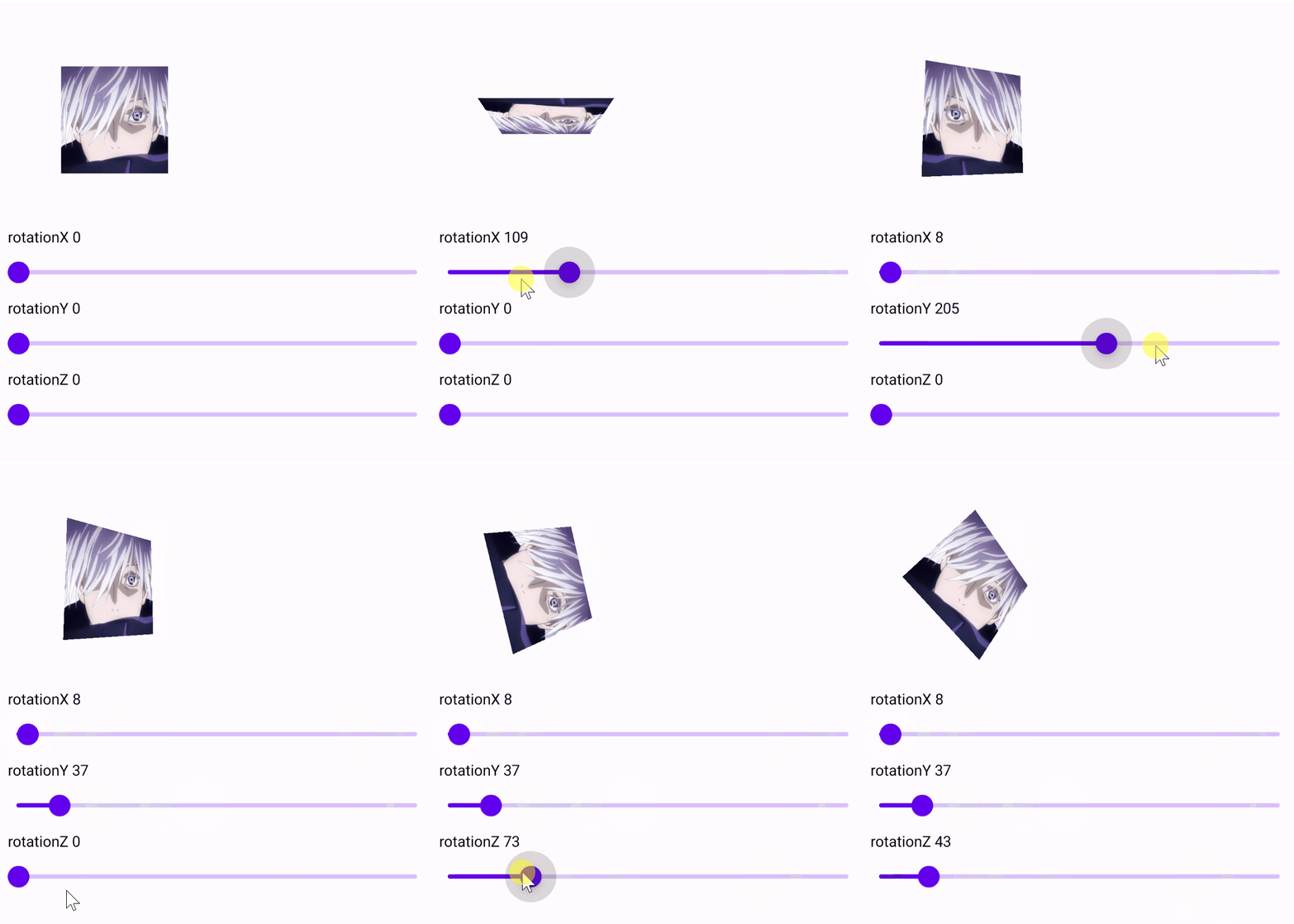
.size(120.dp)
.pointerInput(Unit) {
detectTapGestures(
onTap = { context.showToast("Clicked position: $it") }
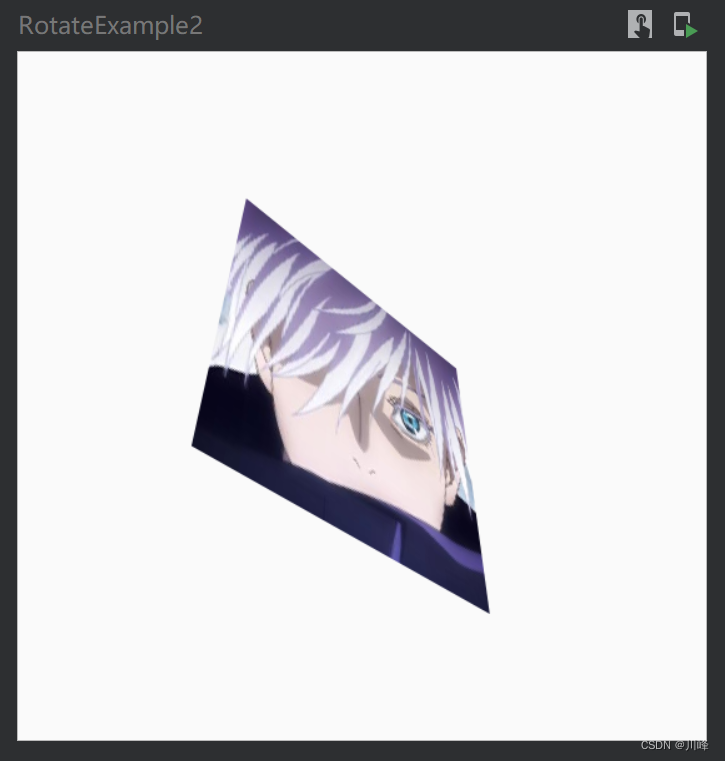
)
},
painter = painterResource(id = R.drawable.ic_sky),
contentDescription = null,
contentScale = ContentScale.FillBounds
)
}
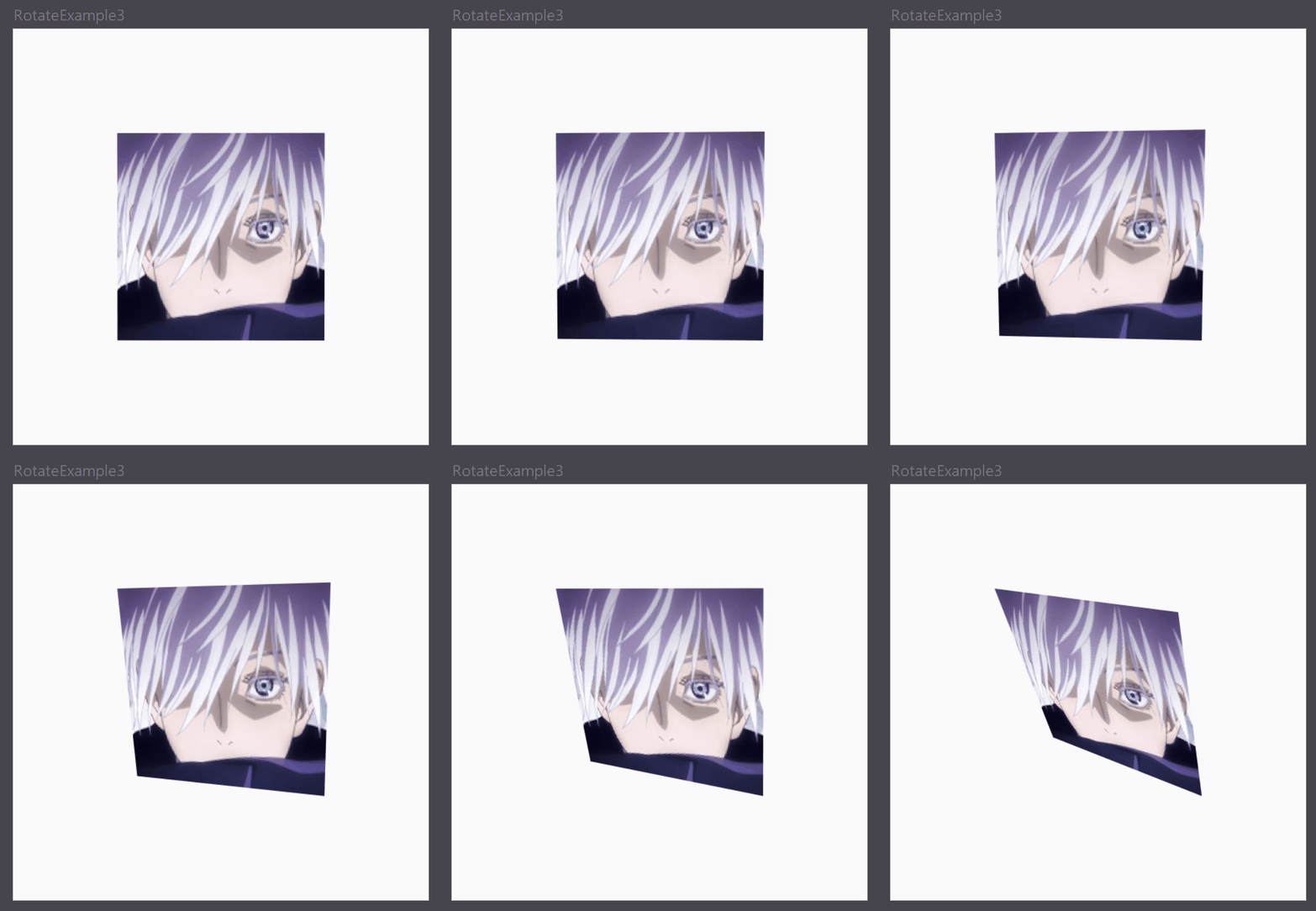
Spacer(modifier = Modifier.height(5.dp))
Text("angleX: ${angleX.round2Digits()}")
Slider(
value = angleX,
onValueChange = { angleX = it },
valueRange = 0f..360f
)
Text("angleY: ${angleY.round2Digits()}")
Slider(
value = angleY,
onValueChange = { angleY = it },
valueRange = 0f..360f
)
Text("angleZ: ${angleZ.round2Digits()}")
Slider(
value = angleZ,
onValueChange = { angleZ = it },
valueRange = 0f..360f
)

Text("pivotFractionX: ${(pivotFractionX.round2Digits())}")
Slider(
value = pivotFractionX,
onValueChange = { pivotFractionX = it }
)
Text("pivotFractionY: ${(pivotFractionY.round2Digits())}")
Slider(
value = pivotFractionY,
onValueChange = { pivotFractionY = it }
)
}
@Composable
fun GraphicsLayerModifierExample() {
Column(
Modifier
.padding(horizontal = 8.dp)
.fillMaxSize()
.verticalScroll(rememberScrollState()),
verticalArrangement = Arrangement.Center
) {
Column(
modifier = Modifier.fillMaxWidth(),
horizontalAlignment = Alignment.CenterHorizontally
) {
TransformOriginExample()
}
}
}

运行效果:

在这里插入图片描述